Set up your workspace, team and integrations
Alex is getting the Northwind Hotels workspace ready for the whole team. In this tutorial you brand the workspace, invite a colleague with the right role, and connect the hotel website: an API key, the embed, an audience targeting rule and a webhook. Do this once and everyone who joins later finds a workspace that looks like your brand and already talks to your tools.
Part 1: Name and brand the workspace
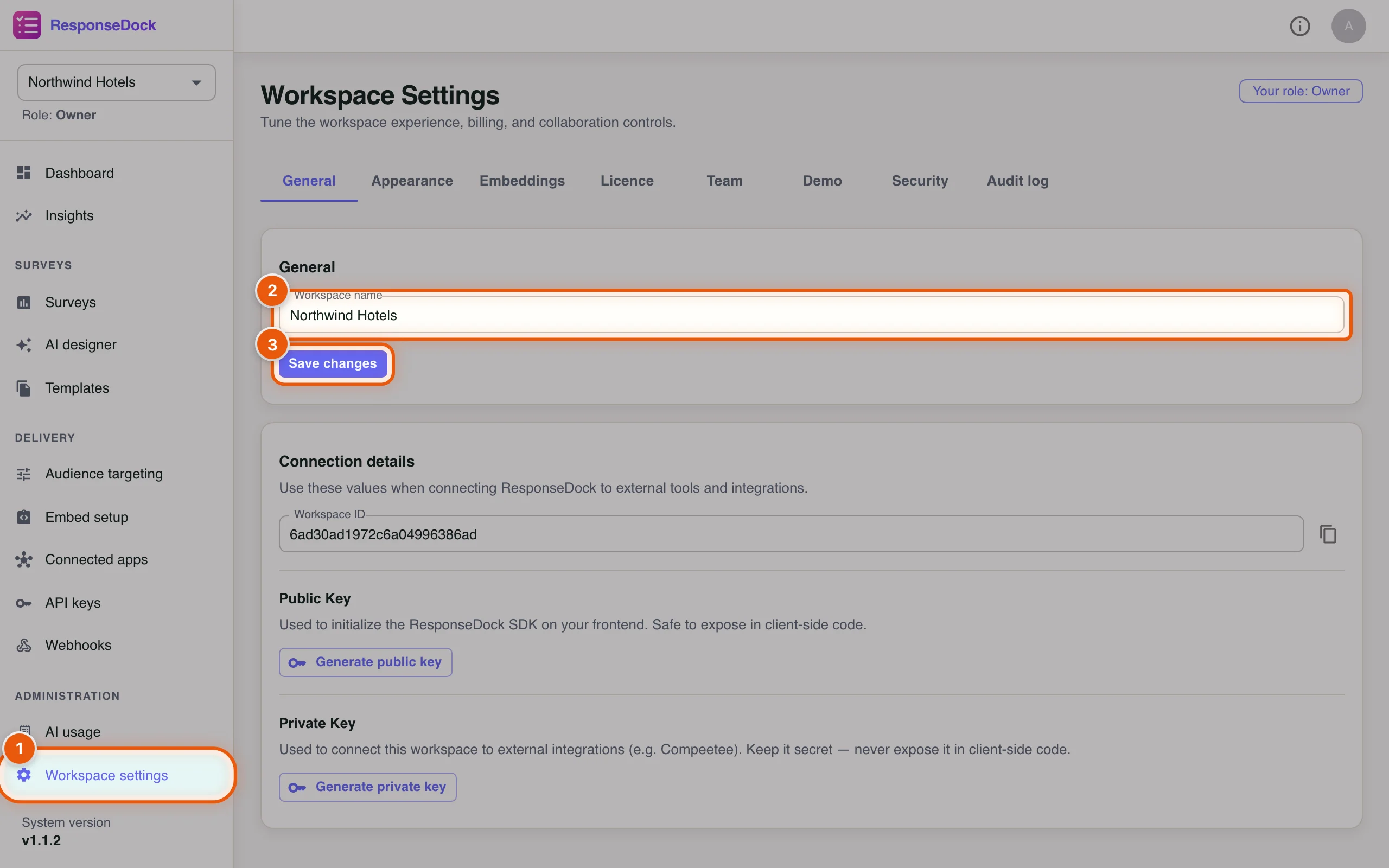
Step 1Open the workspace settings
Everything about the workspace itself lives in Workspace settings. The tabs across the top are General, Appearance, Embeddings, Licence, Team and Demo.
- Click Workspace settings in the sidebar.
- Check the Workspace name. This is the name your team sees in the workspace switcher.
- If you changed it, click Save changes.
Below the name, Connection details shows the Workspace ID that developers need for integrations.
Step 2Add your logo and brand colours
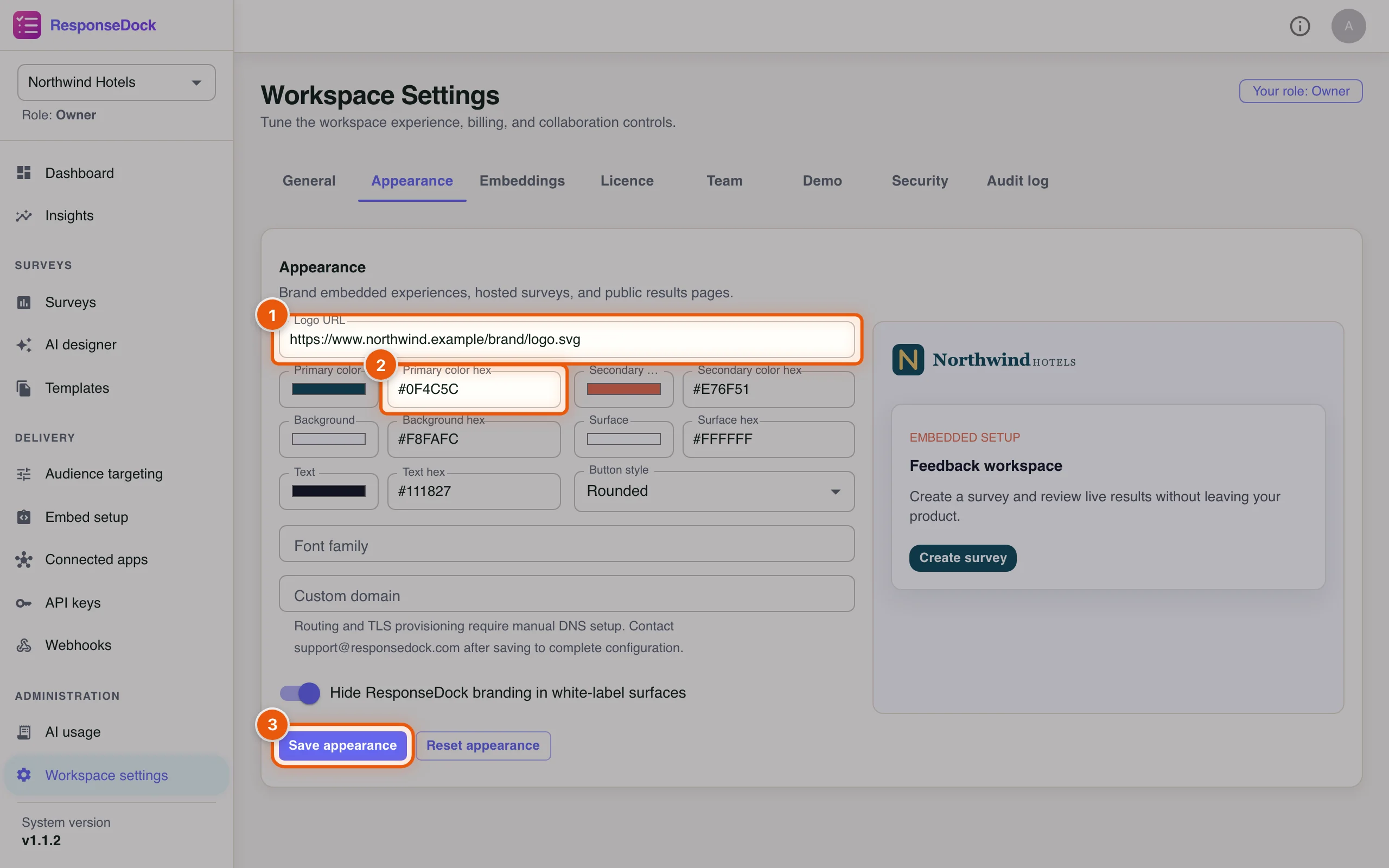
Open the Appearance tab. These settings brand hosted surveys, public results pages and embedded screens. The preview on the right updates as you type.
- Paste a public link to your logo into Logo URL.
- Enter your brand colour as a hex code in Primary color hex (or click the colour swatch next to it). Alex uses Northwind teal,
#0F4C5C. - Click Save appearance.
You can also set the Secondary color, Background, Surface and Text colours, the Button style (Rounded, Square or Pill), a Font family and a Custom domain. Leave Hide ResponseDock branding in white-label surfaces on to remove the “Powered by ResponseDock” line. Reset appearance brings back the defaults. More in White-label.
There is no workspace-wide default language. You choose the languages for each survey in the survey builder.
Part 2: Invite the team and give everyone the right role
Step 3Check what each role can do
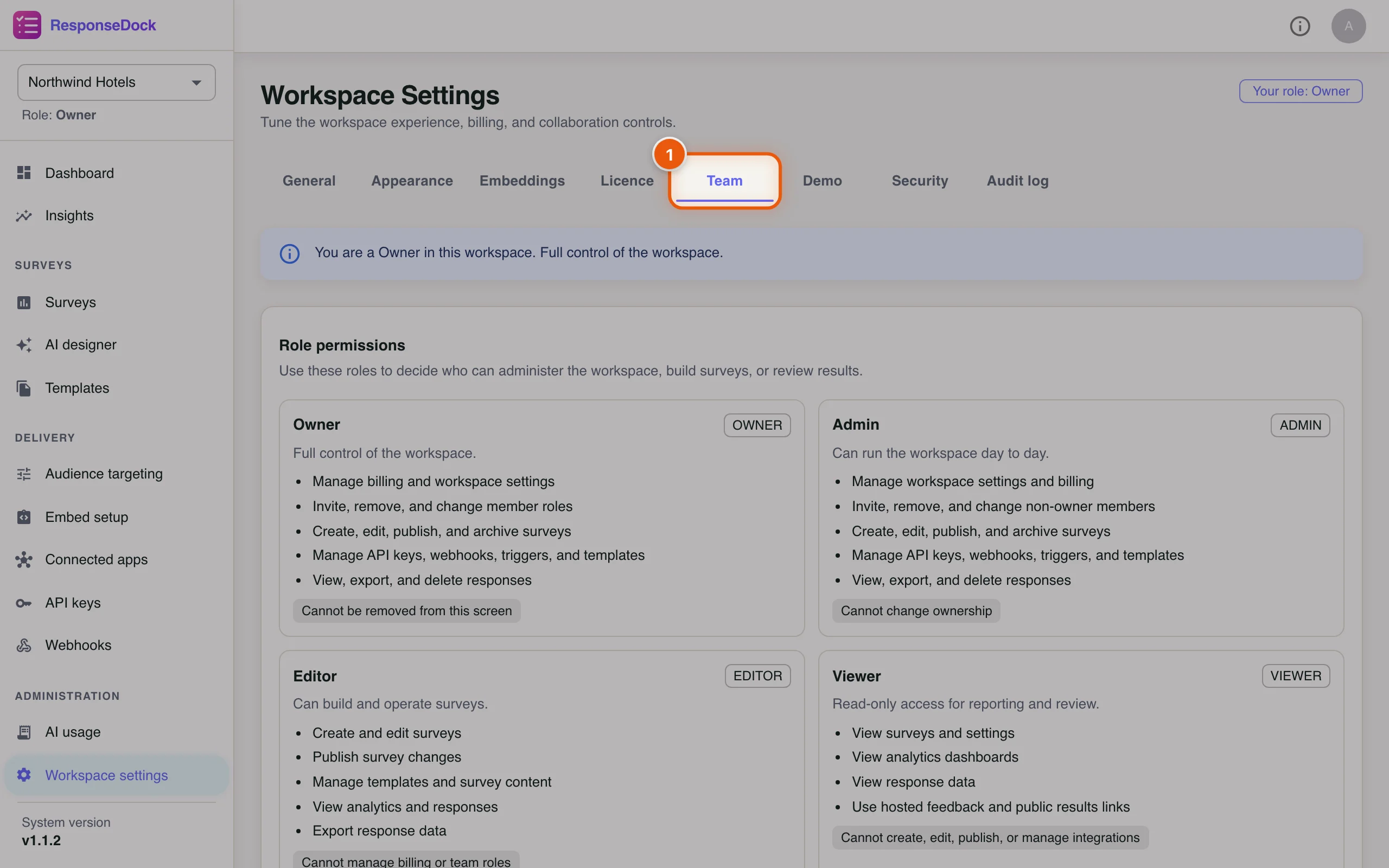
The Team tab starts with a summary of the four roles. Choose the smallest role that lets each person do their job:
- Click the Team tab.
- Owner: full control, including billing and every member’s role. The owner can’t be removed.
- Admin: runs the workspace day to day. Manages settings, billing, non-owner members, API keys, webhooks and targeting, and can delete responses. Can’t change ownership.
- Editor: builds, edits and publishes surveys, manages templates, and views and exports results. Can’t manage billing, team roles or integrations.
- Viewer: read-only access to surveys, analytics and responses.
See Members & Roles for the full list.
Step 4Invite a teammate
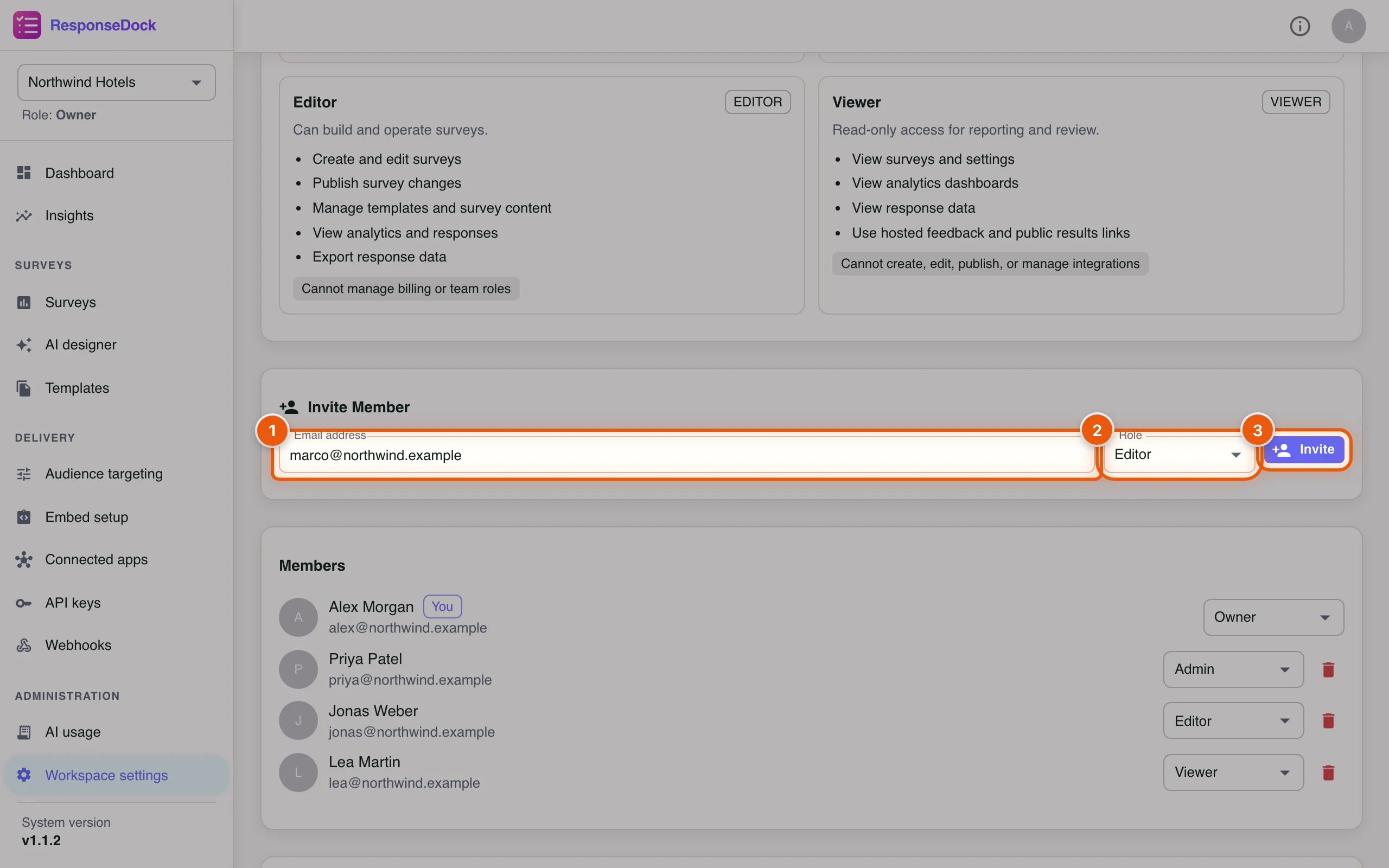
Marco is joining the guest relations team and will build surveys, so Alex invites him as an Editor.
- Type the person’s work email in Email address, for example
marco@northwind.example. - Choose a Role: Admin, Editor or Viewer.
- Click Invite.
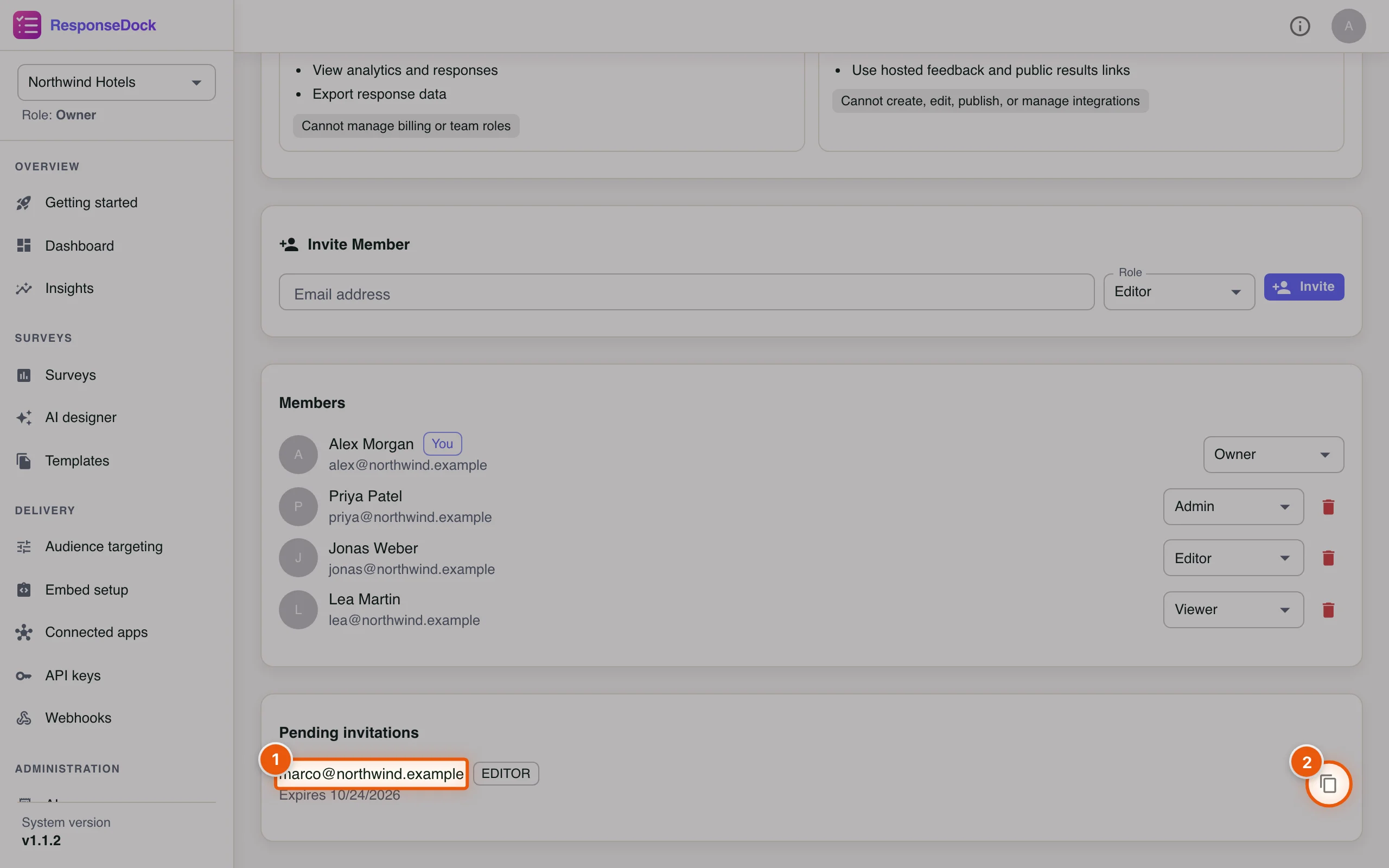
Step 5Follow up on pending invitations
The invitation appears under Pending invitations until Marco accepts it. If your server is set up to send email, ResponseDock emails him the invitation. Invitations expire after 7 days.
- Check the email address, role and expiry date.
- Click the copy icon to copy the invite link if you want to send it yourself, for example in a chat message.
You can’t withdraw a pending invitation from this screen. If you invited the wrong address, let the invitation expire. Inviting the same address again replaces the old invitation with the new role.
Step 6Change someone’s role
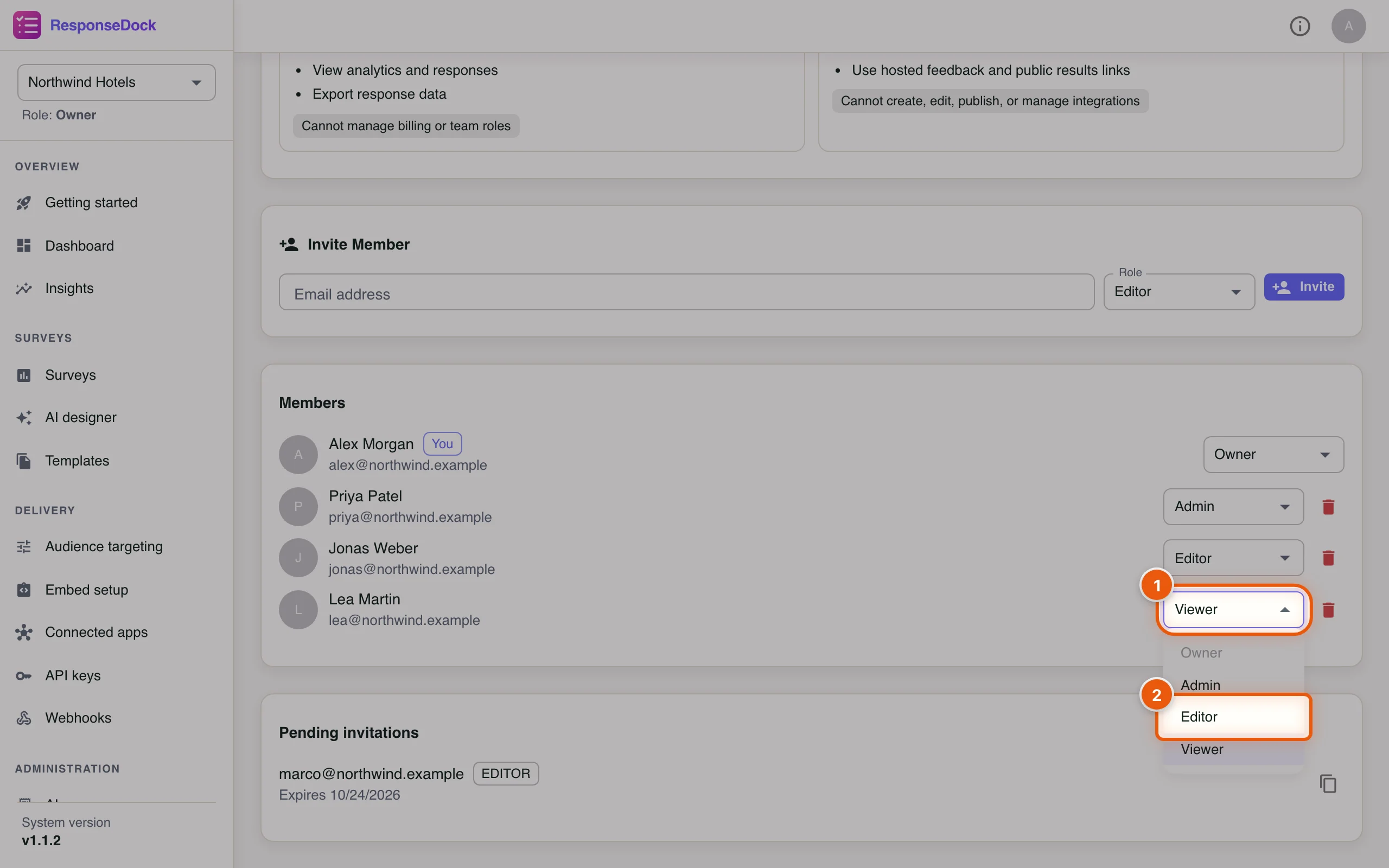
Lea from housekeeping will now run the room inspections herself, so she needs to edit surveys.
- In Members, open the role menu next to the person.
- Choose the new role, here Editor. The change is saved straight away.
The Owner role can’t be given from this menu.
Step 7Remove someone who has left
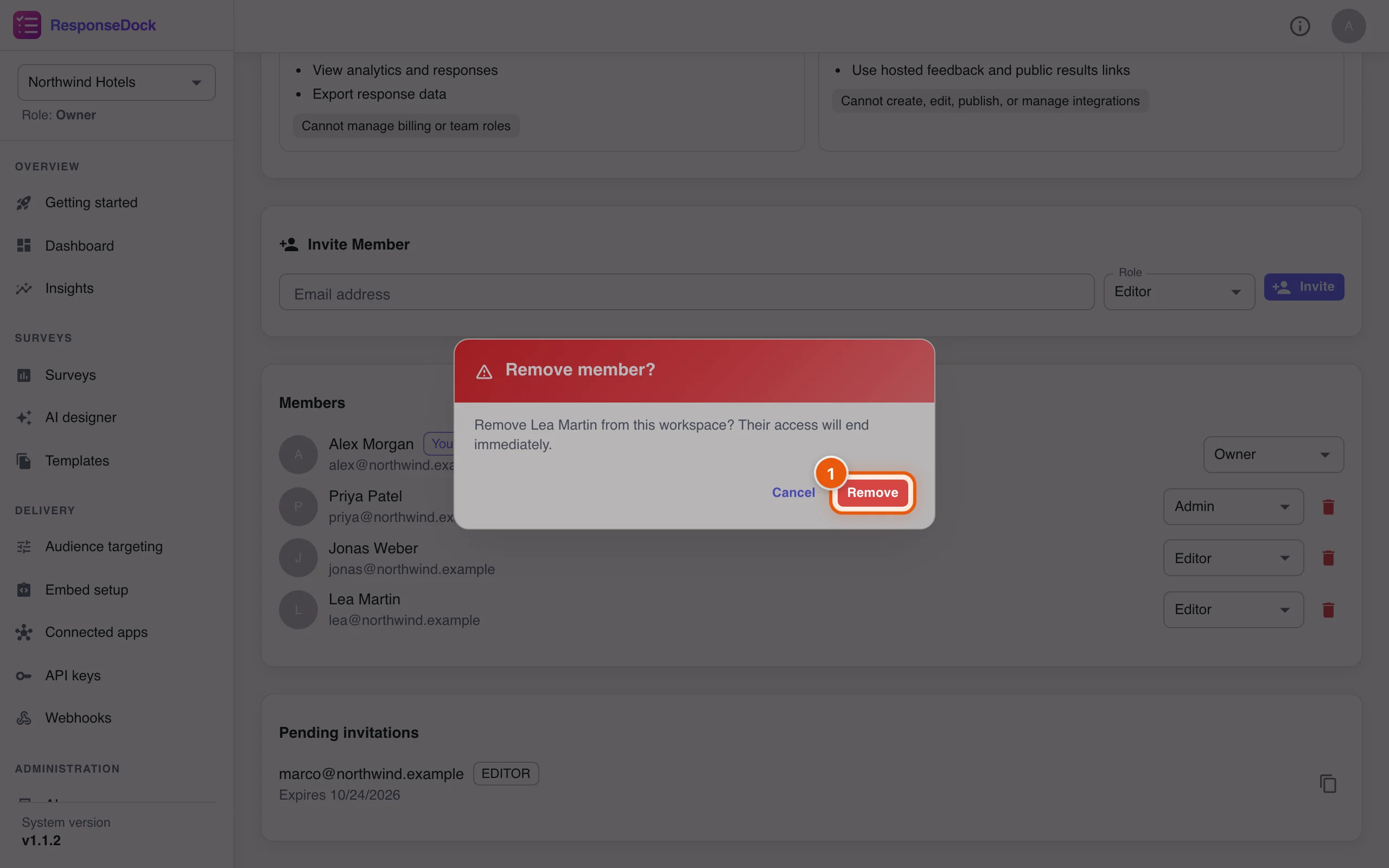
When someone leaves, click the red bin icon next to their name. ResponseDock asks you to confirm.
- Click Remove. Their access ends immediately. Click Cancel if you opened the wrong person.
Part 3: Switch between workspaces
Step 8Use the workspace switcher
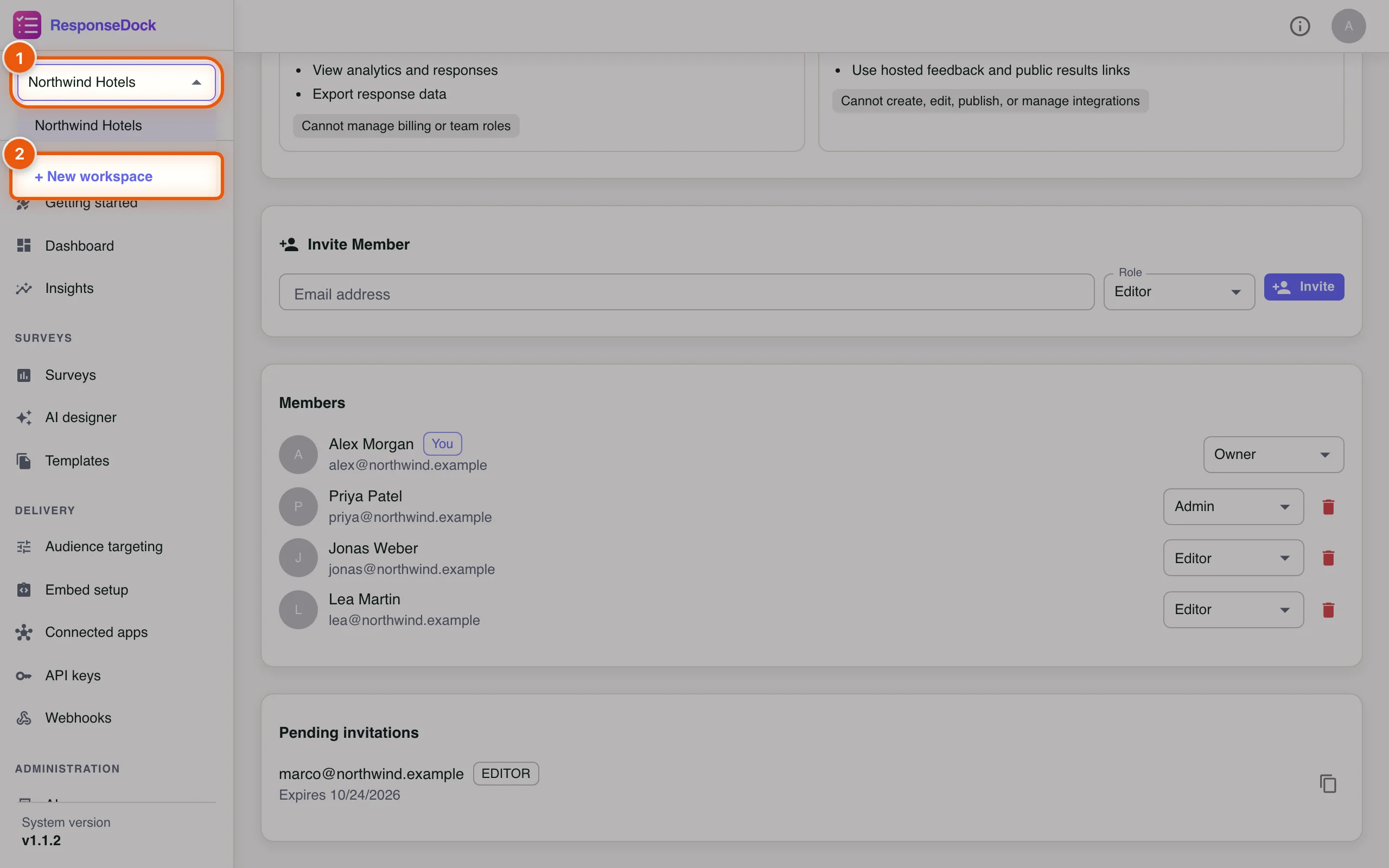
If you belong to several workspaces, for example one per hotel brand or client, the switcher at the top of the sidebar lists them all. Your role in the current workspace is shown under it.
- Click the workspace name at the top of the sidebar.
- Pick another workspace to switch to it, or click + New workspace.
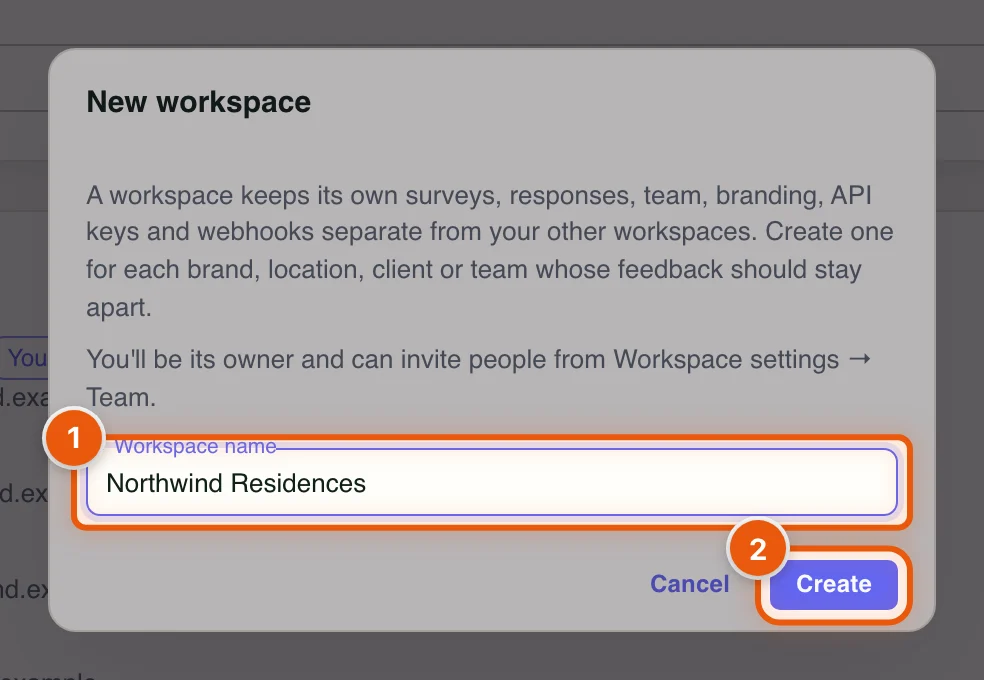
Step 9Create a new workspace
Each workspace has its own surveys, team, branding and integrations. You become the owner of every workspace you create. How many you can have depends on your licence.
- Type a Workspace name, for example Northwind Residences.
- Click Create.
More in Workspaces.
Part 4: Create an API key for the website
Step 10Create a key
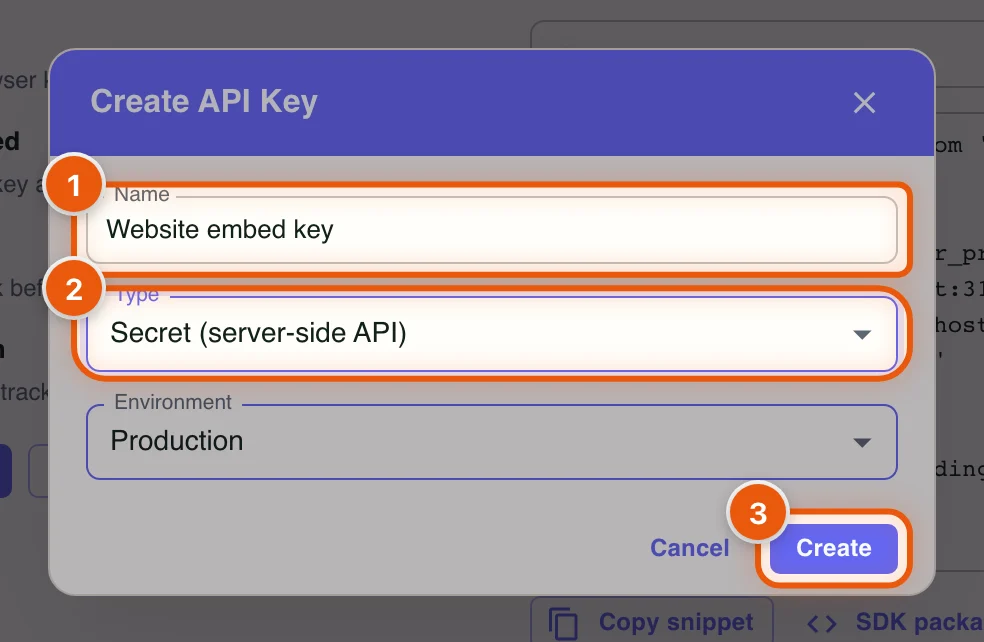
The website team needs a key to connect the hotel site to ResponseDock. Open API keys in the sidebar and click Create key.
- Give the key a Name that says where it is used, for example Website embed key.
- Choose the Type. Public (client-side SDK) keys go in browser code. Secret (server-side API) keys stay on your server and are needed for the embed.
- Leave Environment on Production (or choose Test) and click Create.
Step 11Copy the key now, and revoke it when it’s no longer needed
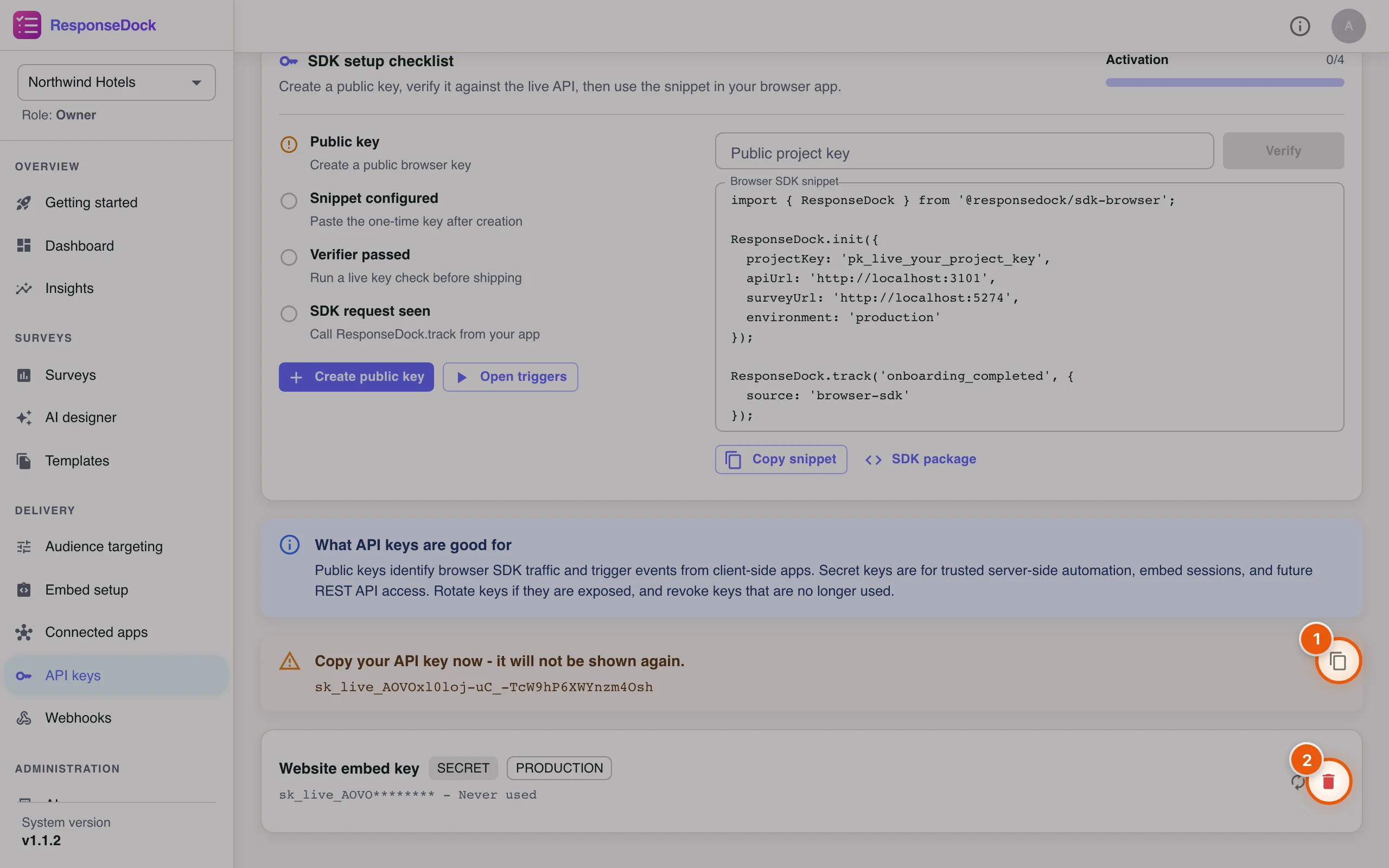
The full key is shown only once. Afterwards the list shows just the first few characters.
- Click the copy icon and pass the key to your developer through a password manager, never by email or chat.
- If a key leaks or stops being used, click the red bin icon (Revoke key) and confirm with Revoke. It stops working immediately.
The circular-arrows icon next to it (Rotate key) issues a new key in place of the old one. See API keys.
Part 5: Embed ResponseDock in your website
Step 12Approve your website’s address
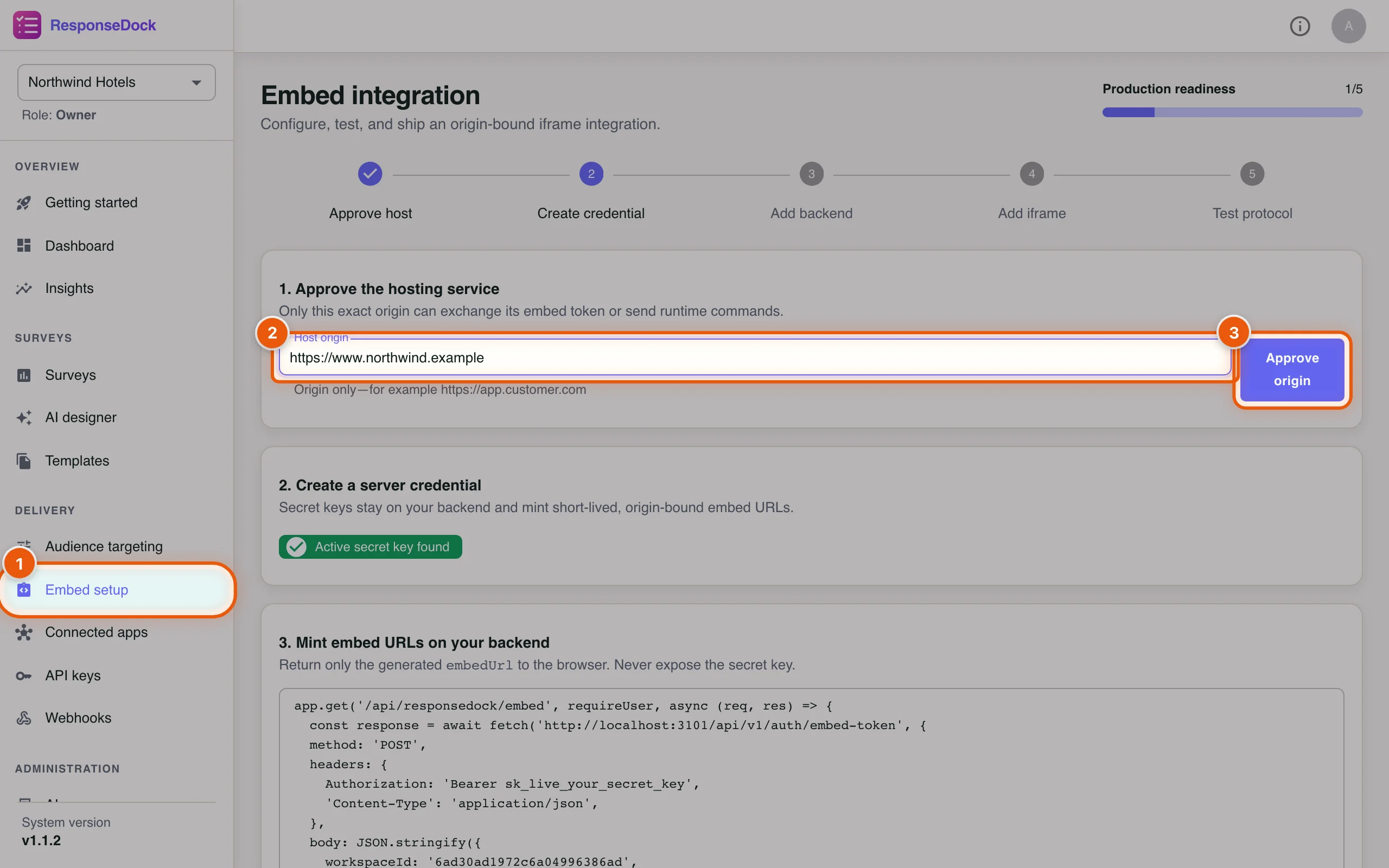
Embed setup (only visible to owners and admins) walks you through five steps. The progress bar in the top-right corner shows how far you’ve got.
- Click Embed setup in the sidebar.
- In Host origin, enter the address of the site that will show ResponseDock, without any path, for example
https://www.northwind.example. - Click Approve origin.
Step 2. Create a server credential shows Active secret key found because you created a secret key in Part 4. Without one, click Create embed key there.
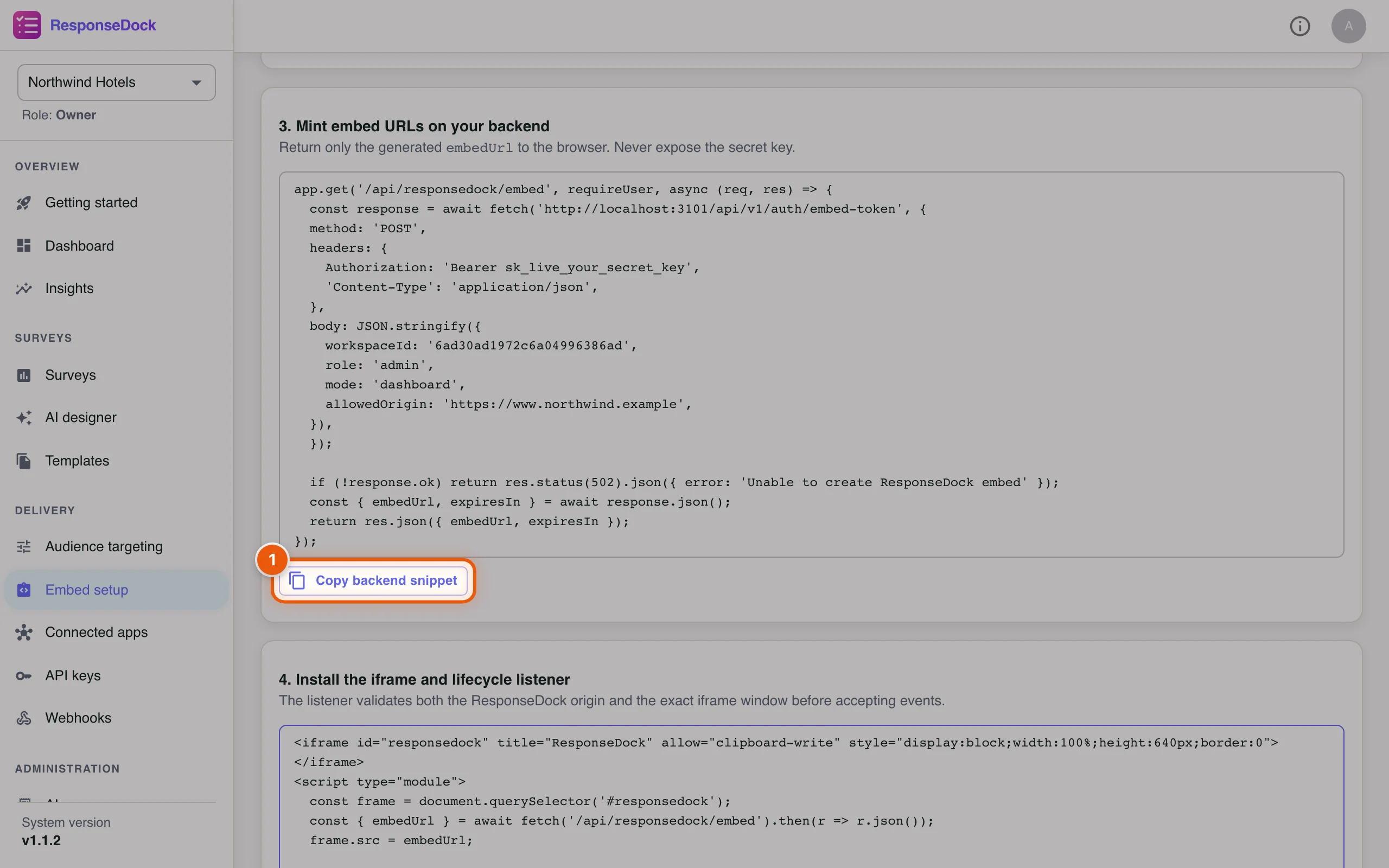
Step 13Give your developer the backend snippet
This code runs on your web server. It uses the secret key to ask ResponseDock for a short-lived embed link and passes only that link to the browser. Your workspace ID and approved origin are already filled in.
- Click Copy backend snippet and send it to your developer. They replace
sk_live_your_secret_keywith the key from Step 11.
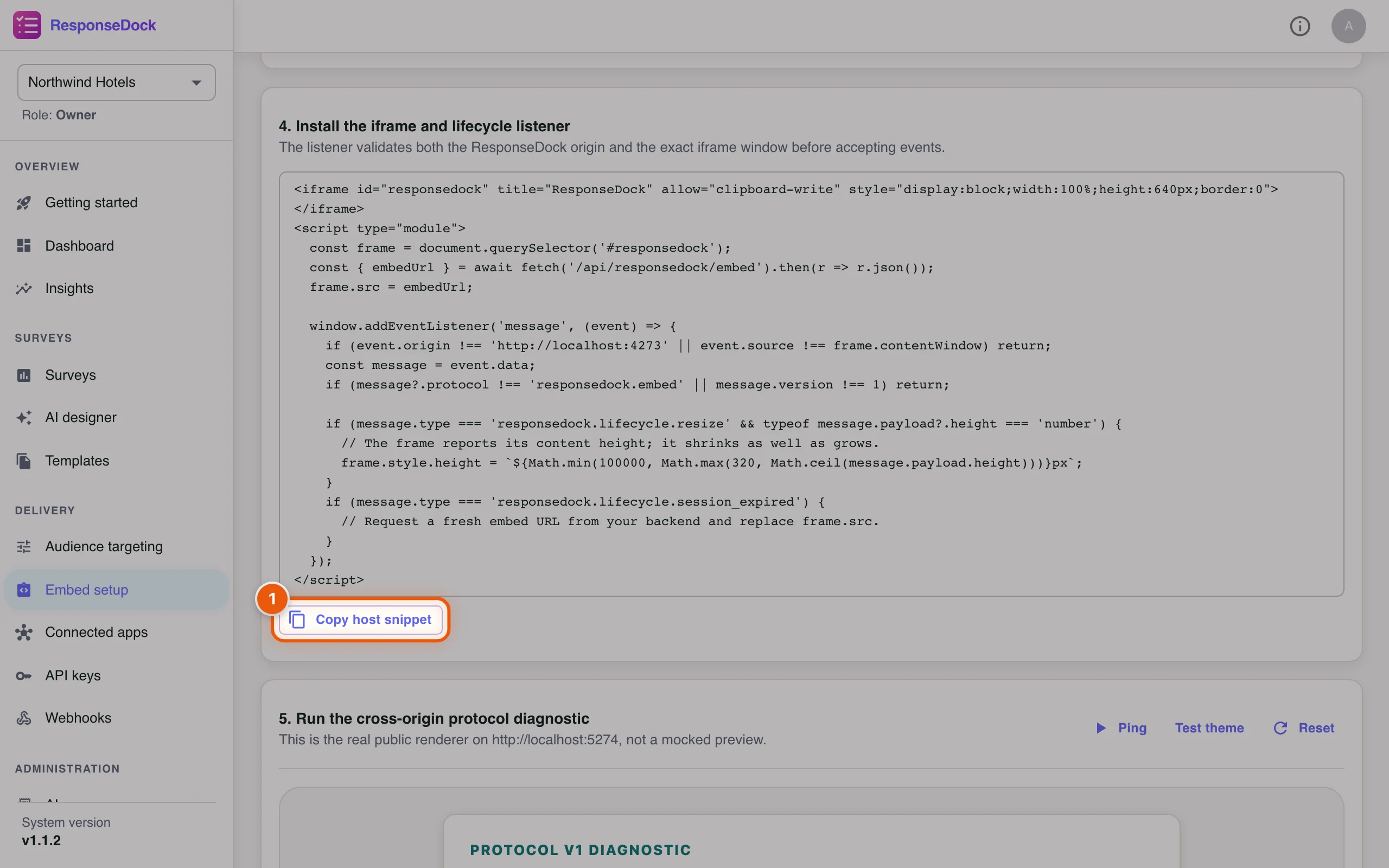
Step 14Give your developer the page snippet
This snippet goes into the web page where ResponseDock should appear. It loads the embed and lets it resize itself to fit its content.
- Click Copy host snippet and send it along with the backend snippet.
Step 5. Run the cross-origin protocol diagnostic lets your developer test the connection with Ping and Test theme. For the full walk-through see Embedding and Share & embed how-to.
Part 6: Ask guests at the right moment with audience targeting
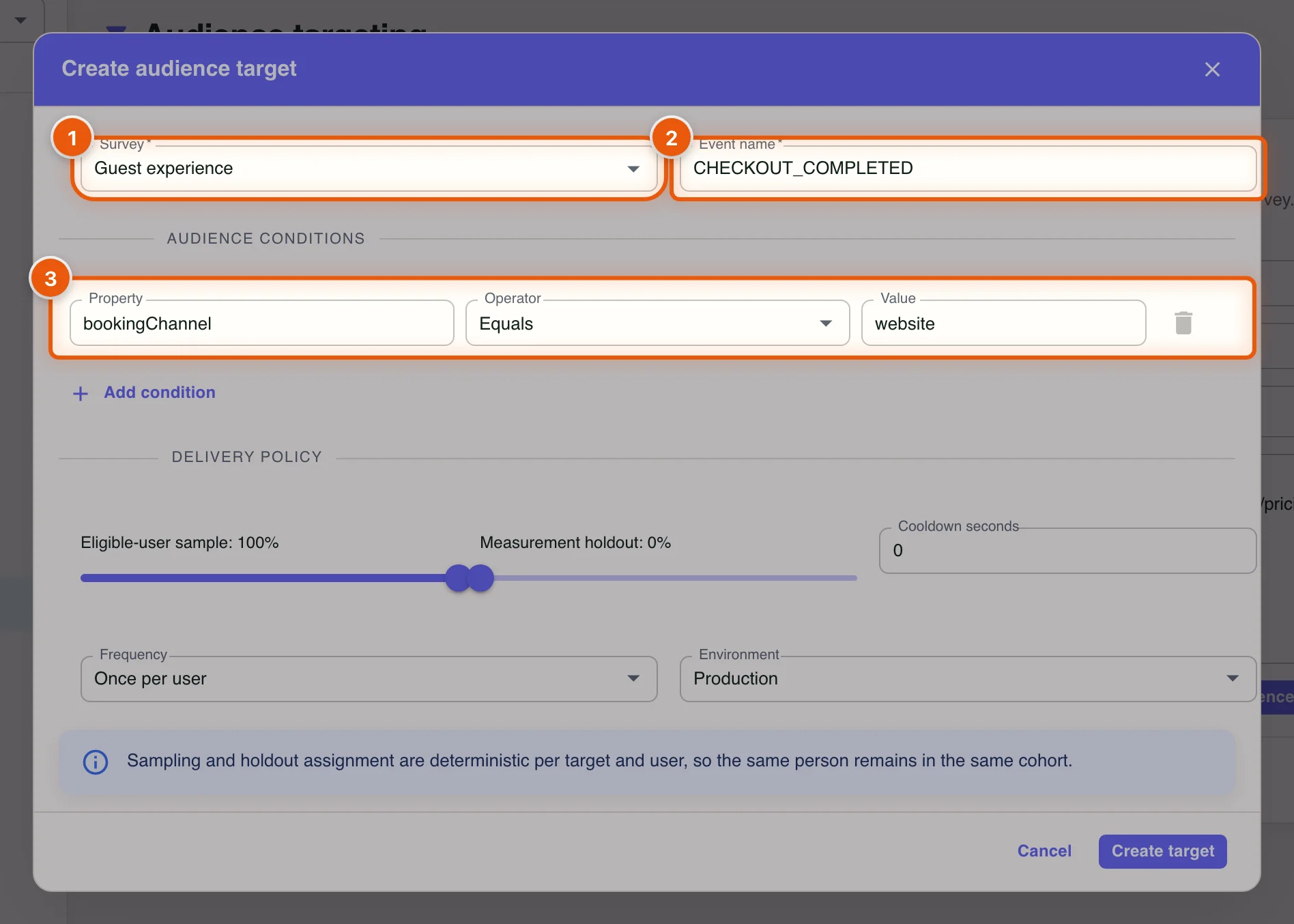
Step 15Create a targeting rule
Alex wants guests who book on the website to get the guest-experience survey after checkout. Open Audience targeting in the sidebar and click Create target.
- Choose the Survey: Guest experience.
- Enter the Event name your website sends, for example
CHECKOUT_COMPLETED. Ask your developer for the exact name. - Under Audience conditions, narrow down who qualifies: Property
bookingChannel, Operator Equals, Valuewebsite.
Under Delivery policy you can show the survey to only a sample of eligible users, keep a Measurement holdout, set a Cooldown and a Frequency (for example Once per user). Then click Create target.
Step 16Test the rule before you rely on it
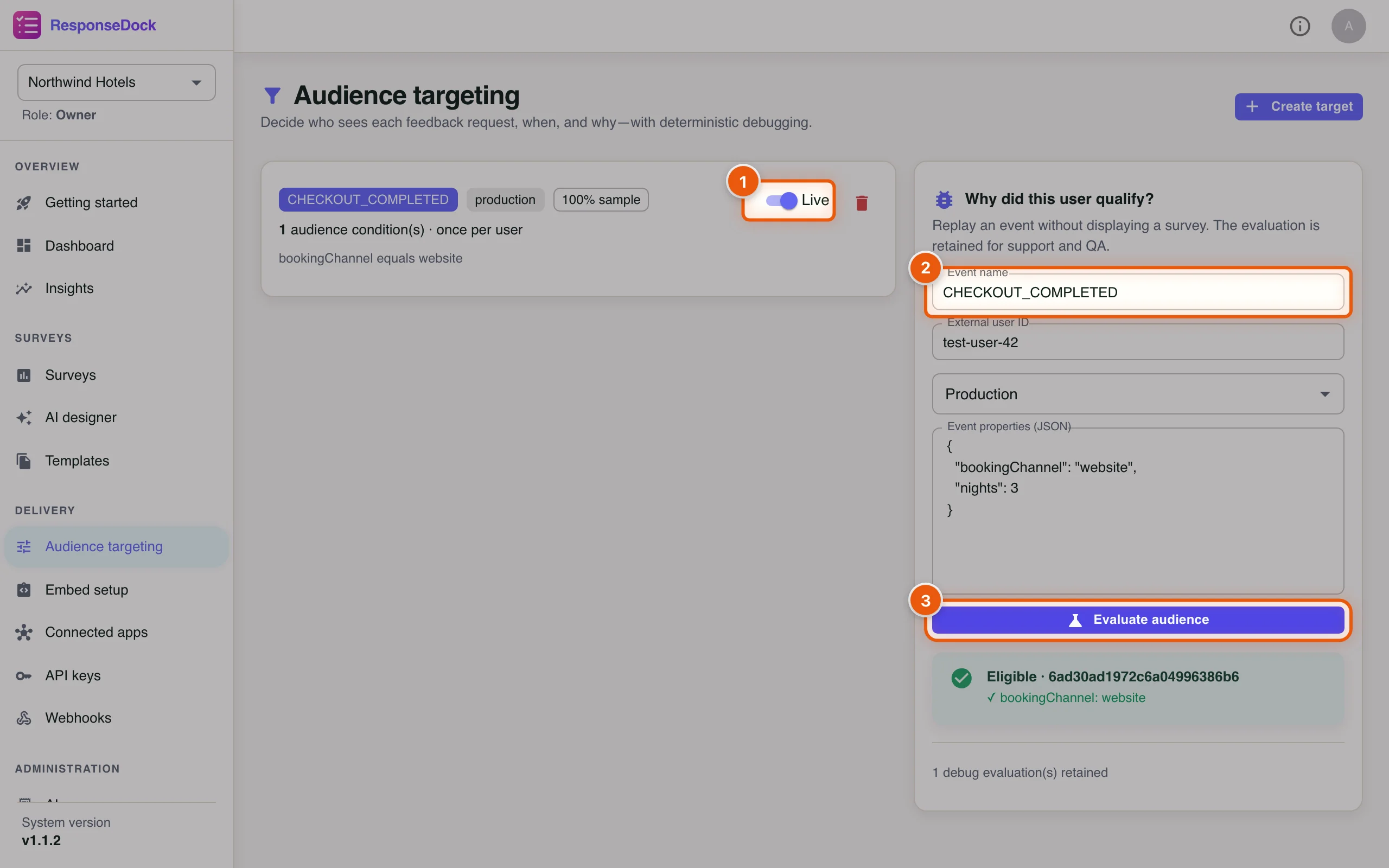
The new rule is listed with its event, environment and conditions. The panel Why did this user qualify? replays an event without showing anyone a survey.
- Use the Live switch to pause or resume the rule.
- In the debugger, enter the Event name and some example Event properties (JSON).
- Click Evaluate audience. Eligible means the survey would be shown; each condition is listed with a tick or a cross.
To delete a rule, click its red bin icon and confirm with Delete. More in Triggers.
Part 7: Send new responses to your other tools with webhooks
Step 17Add a webhook endpoint
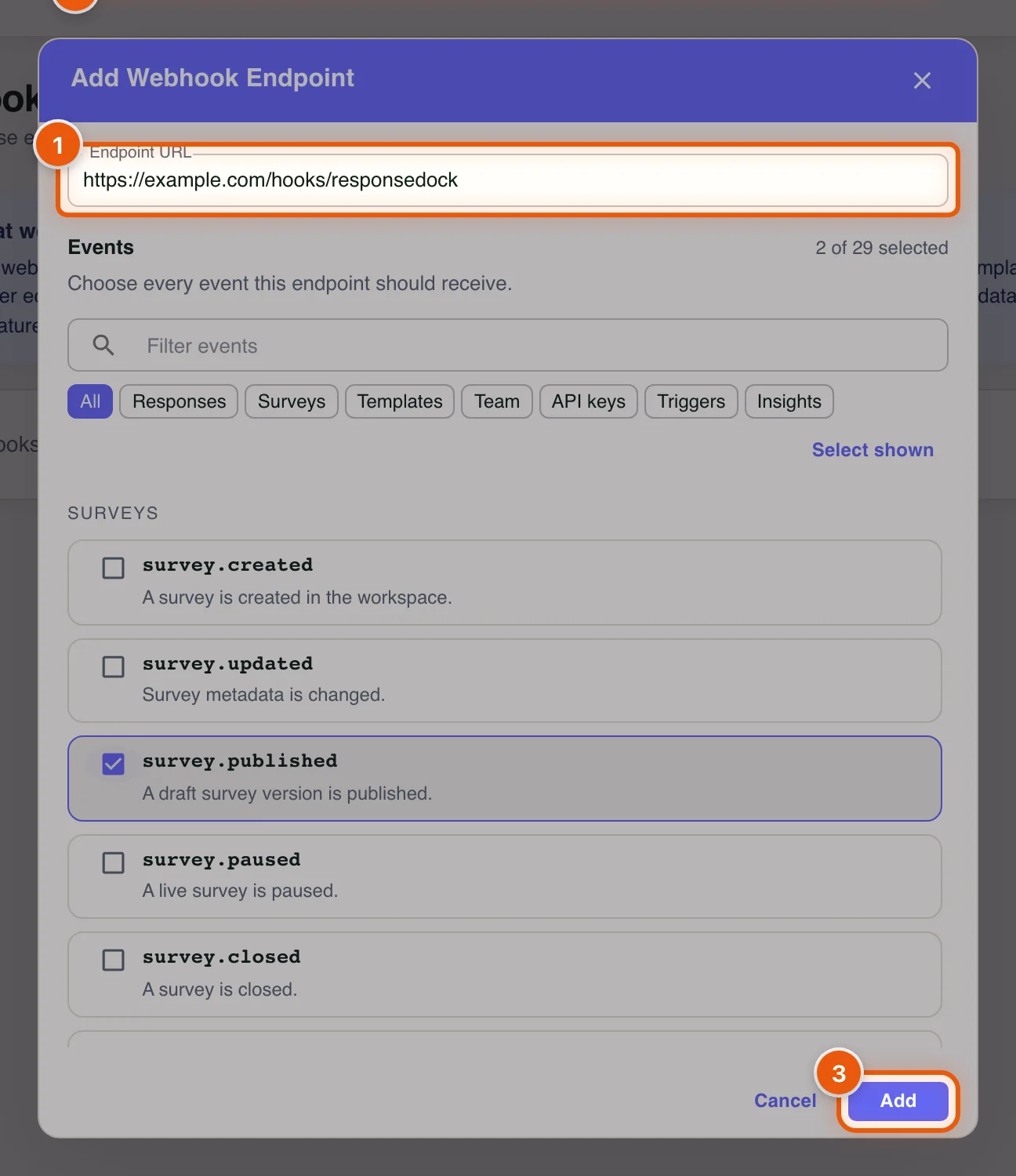
A webhook sends a message to another system, such as your CRM or a Slack automation, whenever something happens in ResponseDock. Open Webhooks in the sidebar and click Add endpoint.
- Paste the Endpoint URL your developer or automation tool gave you. It must be a public HTTPS address.
- Under Events, tick everything this endpoint should receive.
survey.response.completed(a guest submitted feedback) is ticked by default; Alex also tickssurvey.published. - Click Add.
Step 18Copy the signing secret
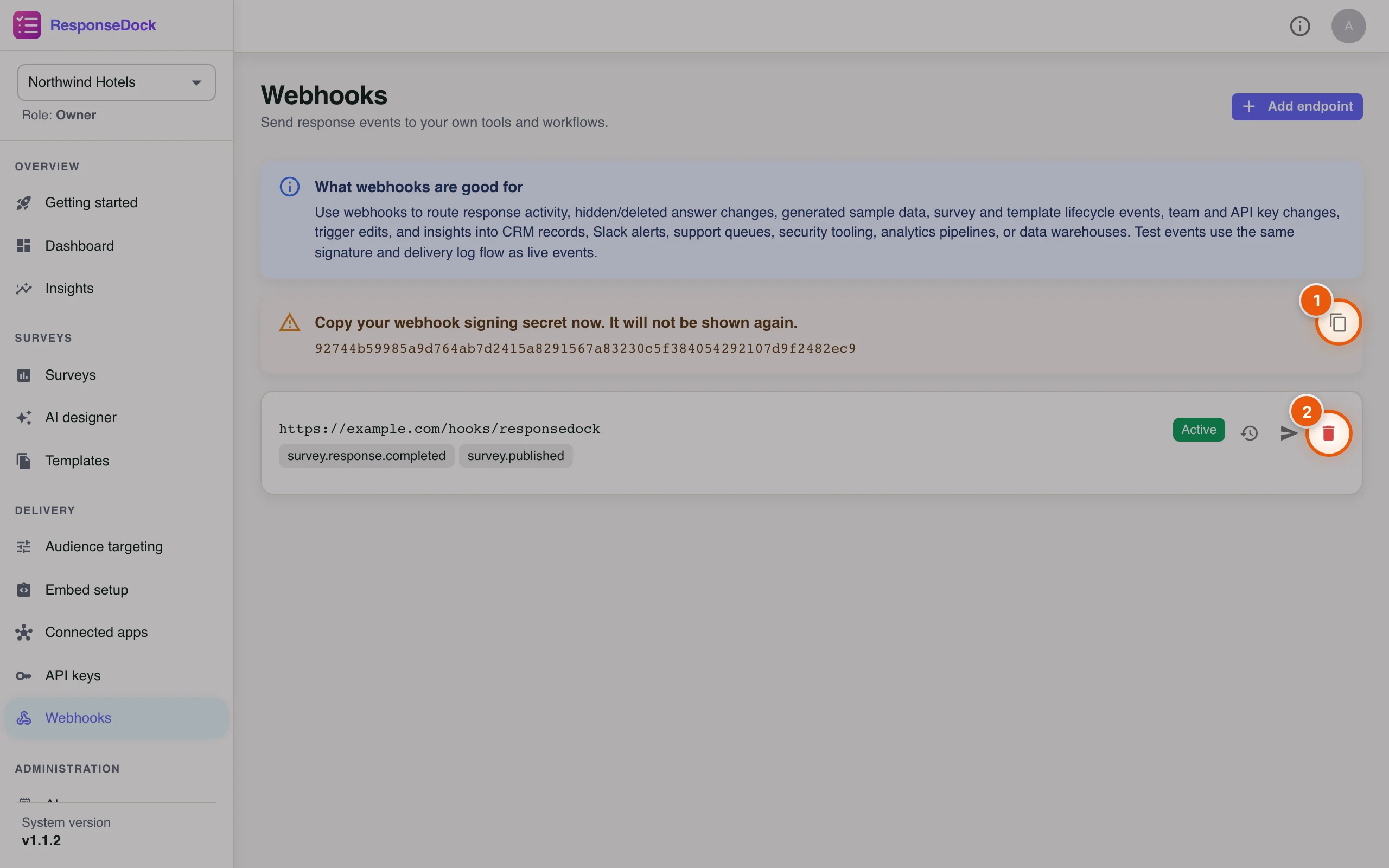
ResponseDock signs every message so the receiving system can check it really came from you. The signing secret is shown only once.
- Click the copy icon and store the secret with the receiving system.
- To stop sending events to this address, click the red bin icon (Delete) and confirm.
The clock icon opens the Delivery logs, and the paper-plane icon (Send test event) sends a test message. See Webhooks for the message format.
API keys, webhooks, audience targeting and embed setup are managed by owners and admins only. Editors and viewers can’t see or change these settings.
Next tutorial: Back to all tutorials →