Review results and export responses
Every Monday, the guest-experience manager at Northwind Hotels checks how last week's guests felt. In this tutorial you follow that review for the Guest experience survey: read the headline numbers, dig into each question, open individual responses and their photos, export the data, and share a read-only results page with the team.
Part 1: Start from the dashboard
Step 1Check the headline numbers
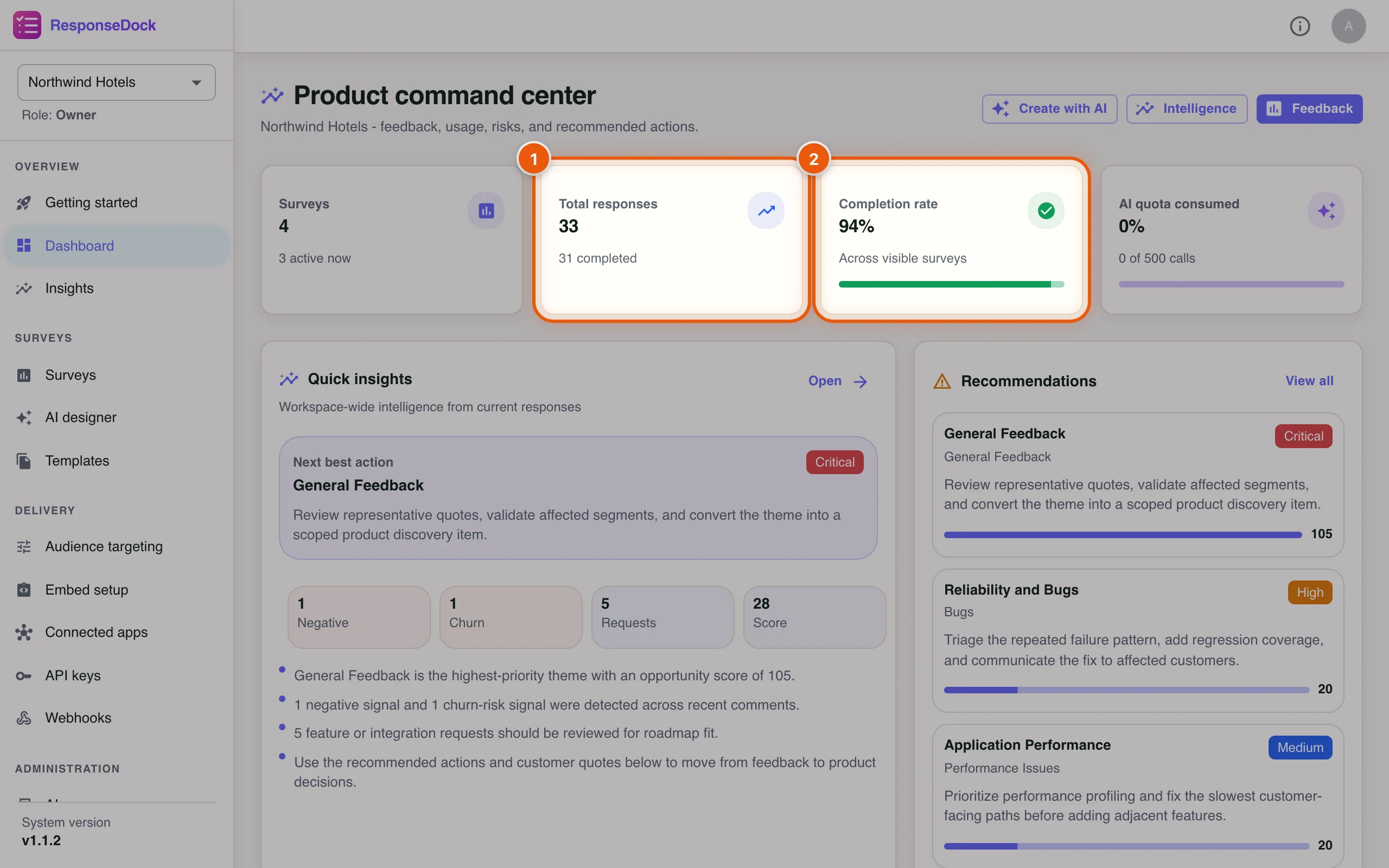
Click Dashboard in the sidebar. The cards at the top add up every survey in your workspace, so this is the fastest way to see whether feedback is still coming in.
- Total responses shows everything that was started, with the number of completed responses underneath.
- Completion rate shows the share of started responses that were finished.
Step 2Open one survey's analytics
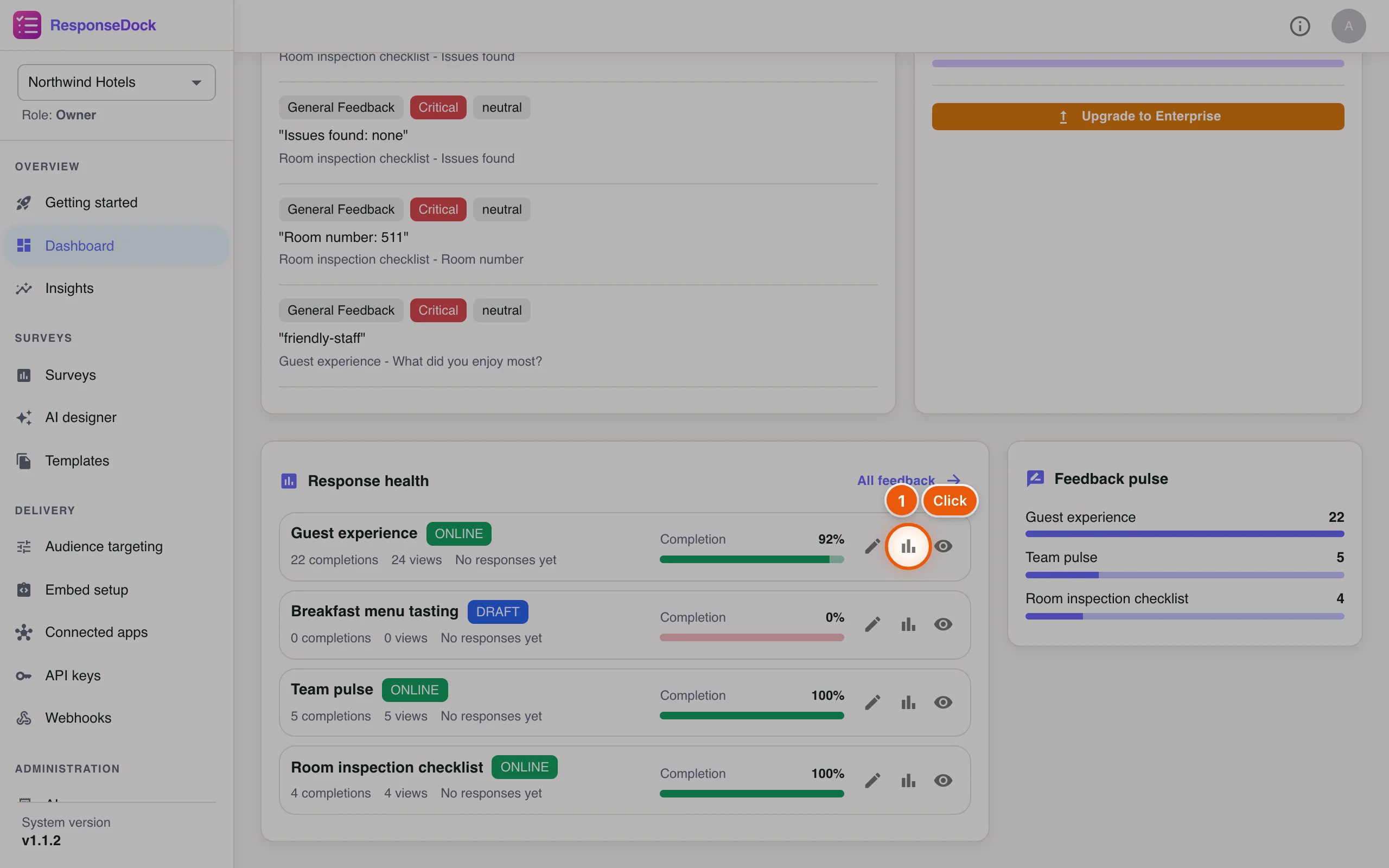
Scroll down to Response health. Each survey has a row with its completions, views and completion rate, plus three shortcuts: edit, analytics and responses.
- On the Guest experience row, click the bar-chart icon (Open analytics). The eye icon next to it (View responses) goes straight to the response list.
Step 3Or start from the survey list
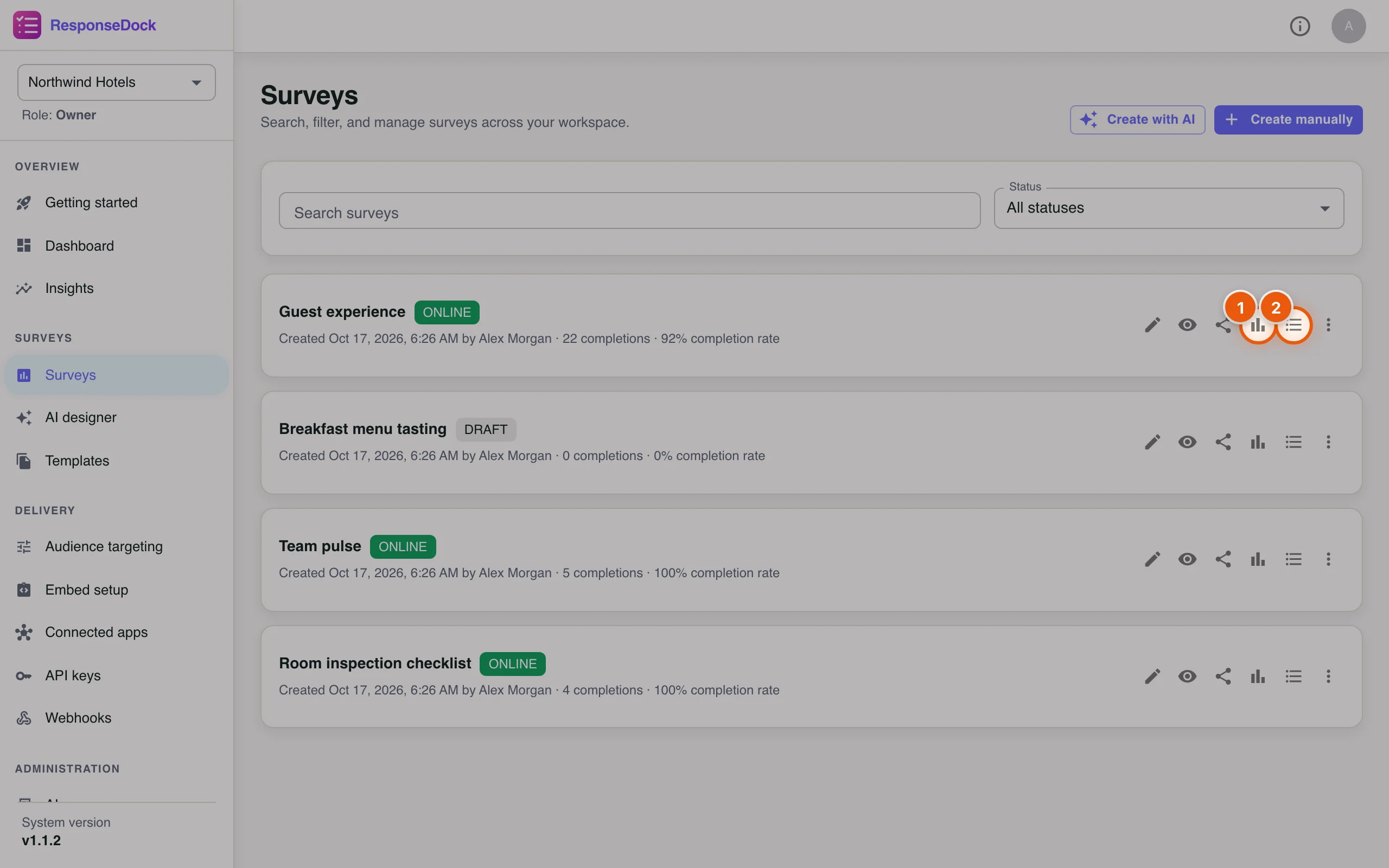
You can open the same pages from Surveys in the sidebar. Hover over an icon to see what it does.
- Click Analytics (the bar-chart icon) to see charts and summaries.
- Click Responses (the list icon) to see the individual responses.
Part 2: Read the analytics
Step 4See how many guests finished
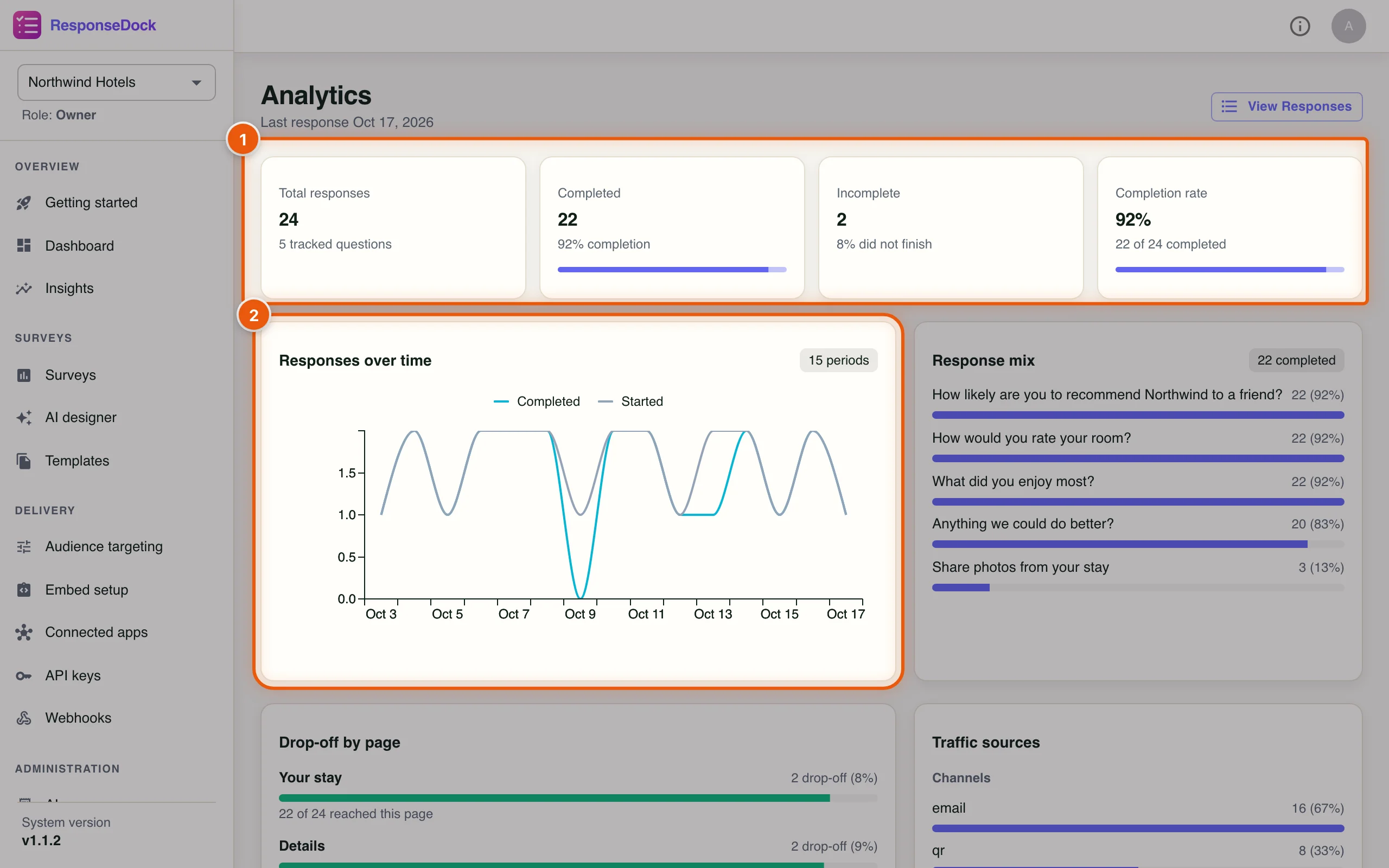
The Analytics page opens with a summary of the survey.
- The four cards show Total responses, Completed, Incomplete (started but not finished) and the Completion rate.
- Responses over time plots completed and started responses per day. Hover over the chart to see the numbers for a day.
Response mix, on the right, shows how many people answered each question. A question with far fewer answers than the others may be confusing or placed too late in the survey.
Step 5Find where guests drop out and where they come from
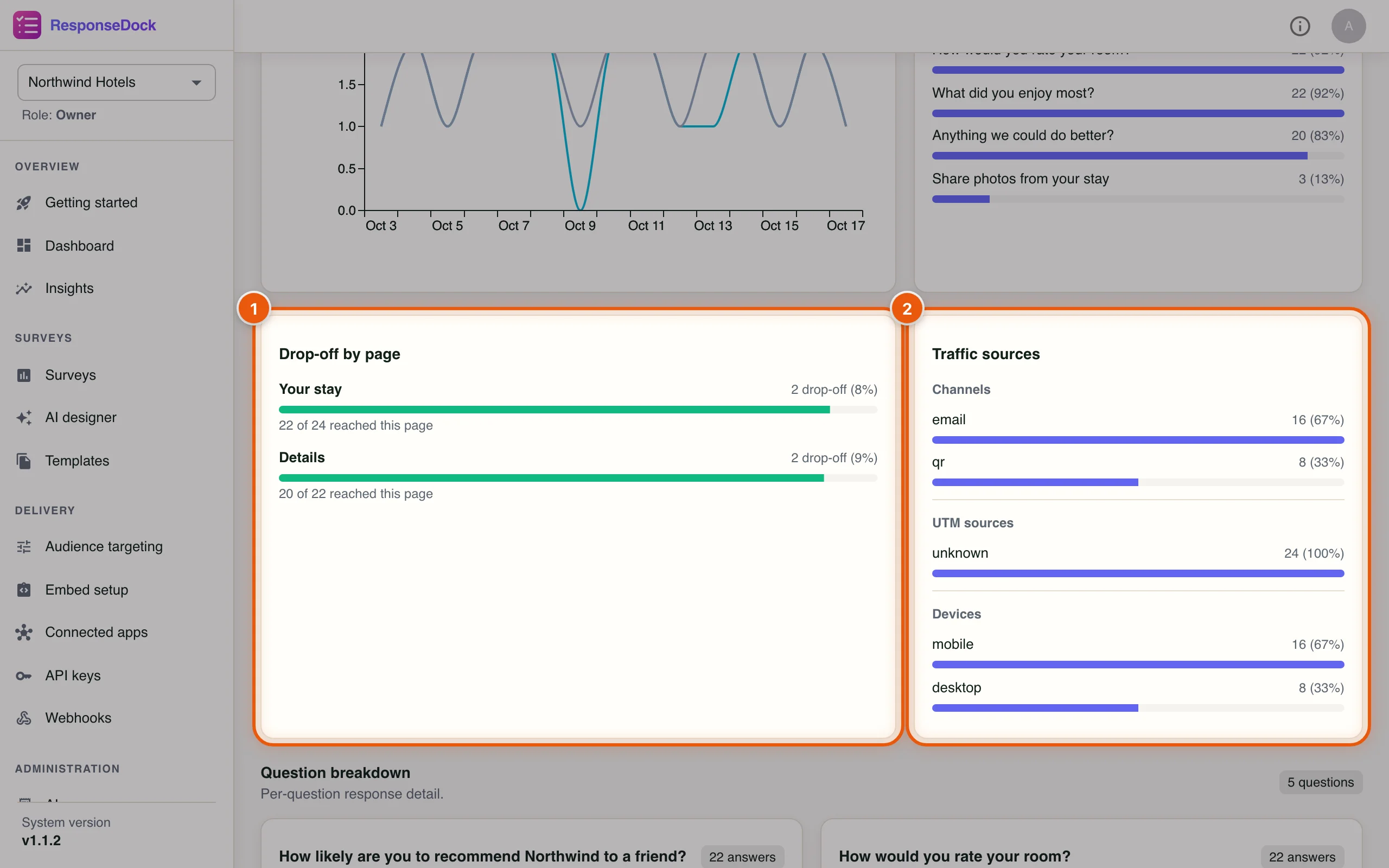
- Drop-off by page shows how many people reached each page and how many left on it. Here 2 guests left on the first page, Your stay.
- Traffic sources breaks responses down by Channels (for example email or QR code), UTM sources and Devices (mobile or desktop).
Step 6Read the scores
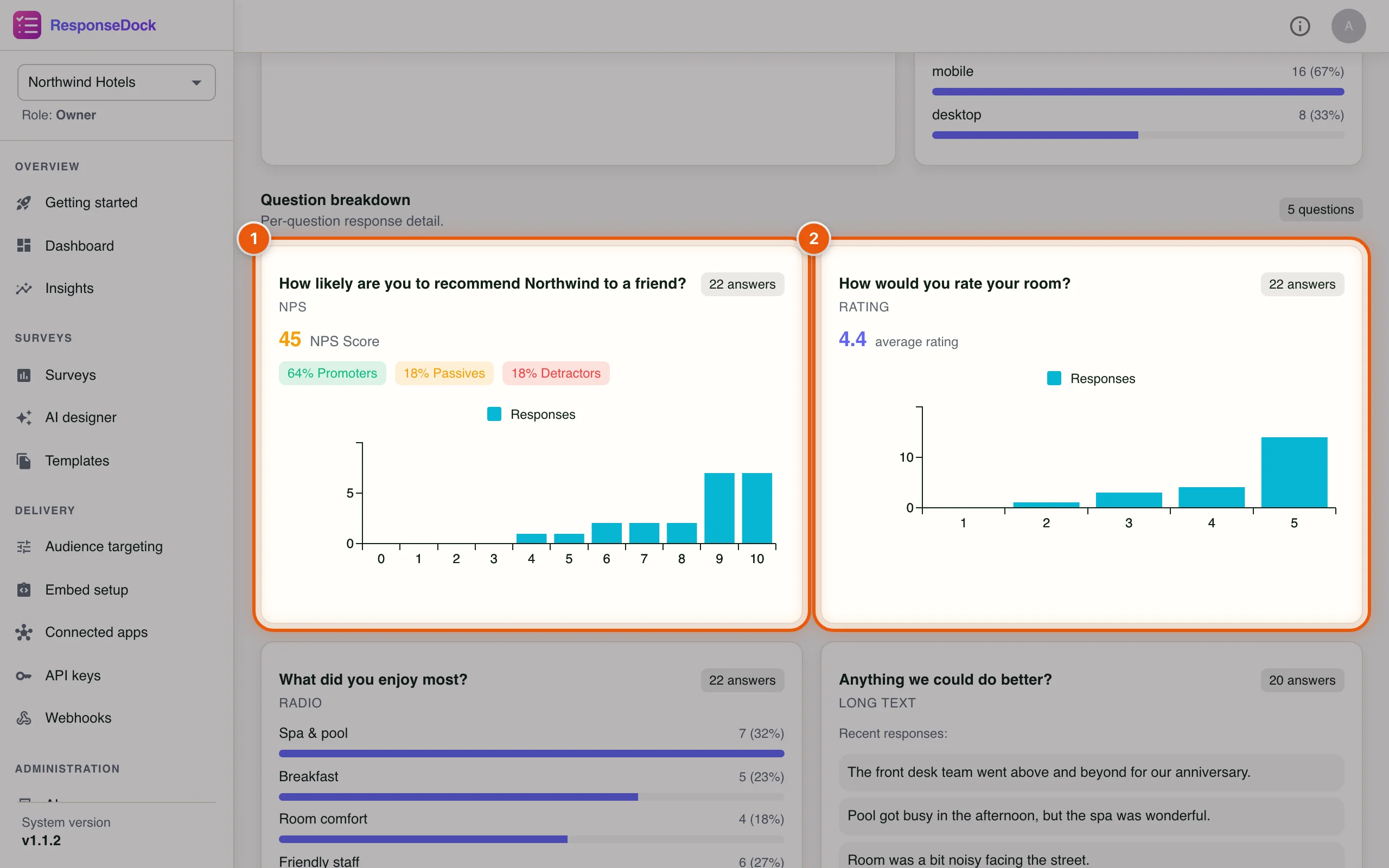
Under Question breakdown, each question gets its own card. The chip in the top-right corner shows how many answers it has.
- The NPS question shows the NPS Score (45 here), the percentage of Promoters, Passives and Detractors, and a bar chart of every score from 0 to 10.
- Rating questions show the average rating and how many people chose each star.
Step 7Read the choices and comments
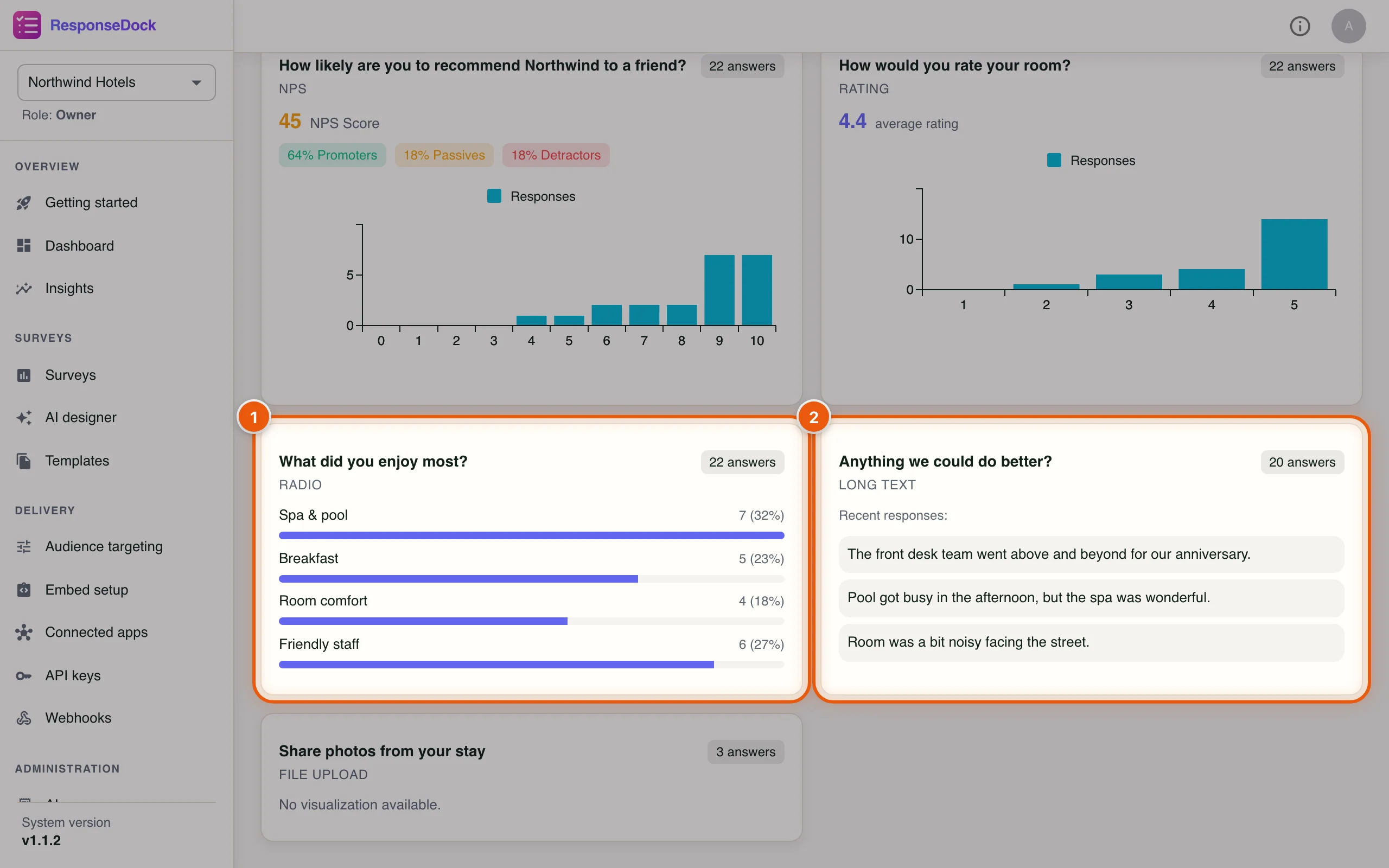
- Choice questions list each option with its count and percentage. Spa & pool is the favourite this week.
- Text questions show the most recent answers. Open the responses list to read all of them.
Analytics always covers every response the survey has collected. There is no date-range filter, so for a week-by-week view use Responses over time or export the data (Part 4). Hidden responses are left out (Step 11).
Part 3: Look at individual responses
Step 8Open the responses list
Click View Responses at the top of the analytics page. The newest responses are listed first, 50 to a page.
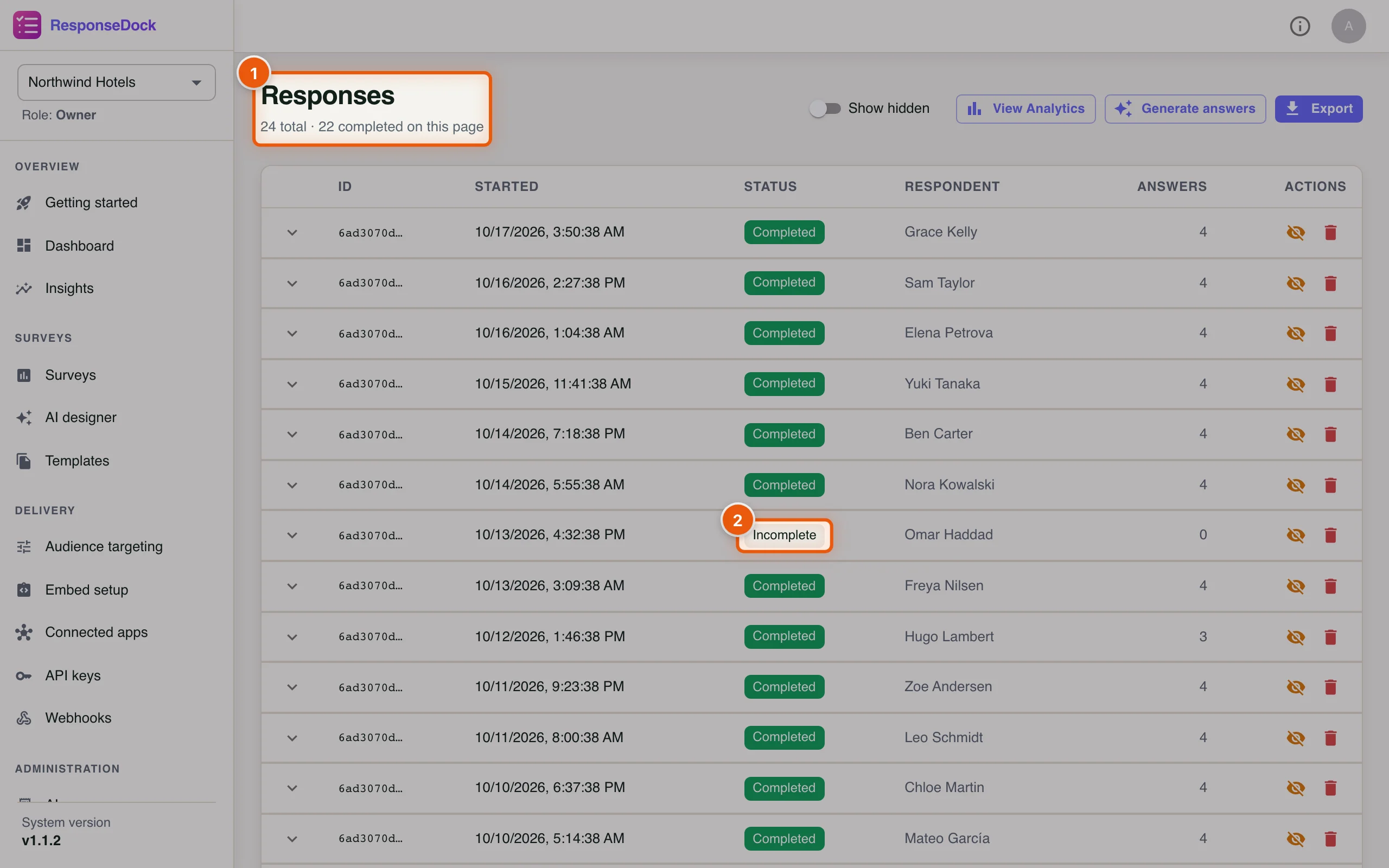
- The line under Responses shows the total number of responses and how many on this page are completed.
- The Status column shows Completed or Incomplete. Incomplete means the guest opened the survey but never submitted it.
The Respondent column shows the guest's name or ID when the survey collects one.
Step 9Expand a response
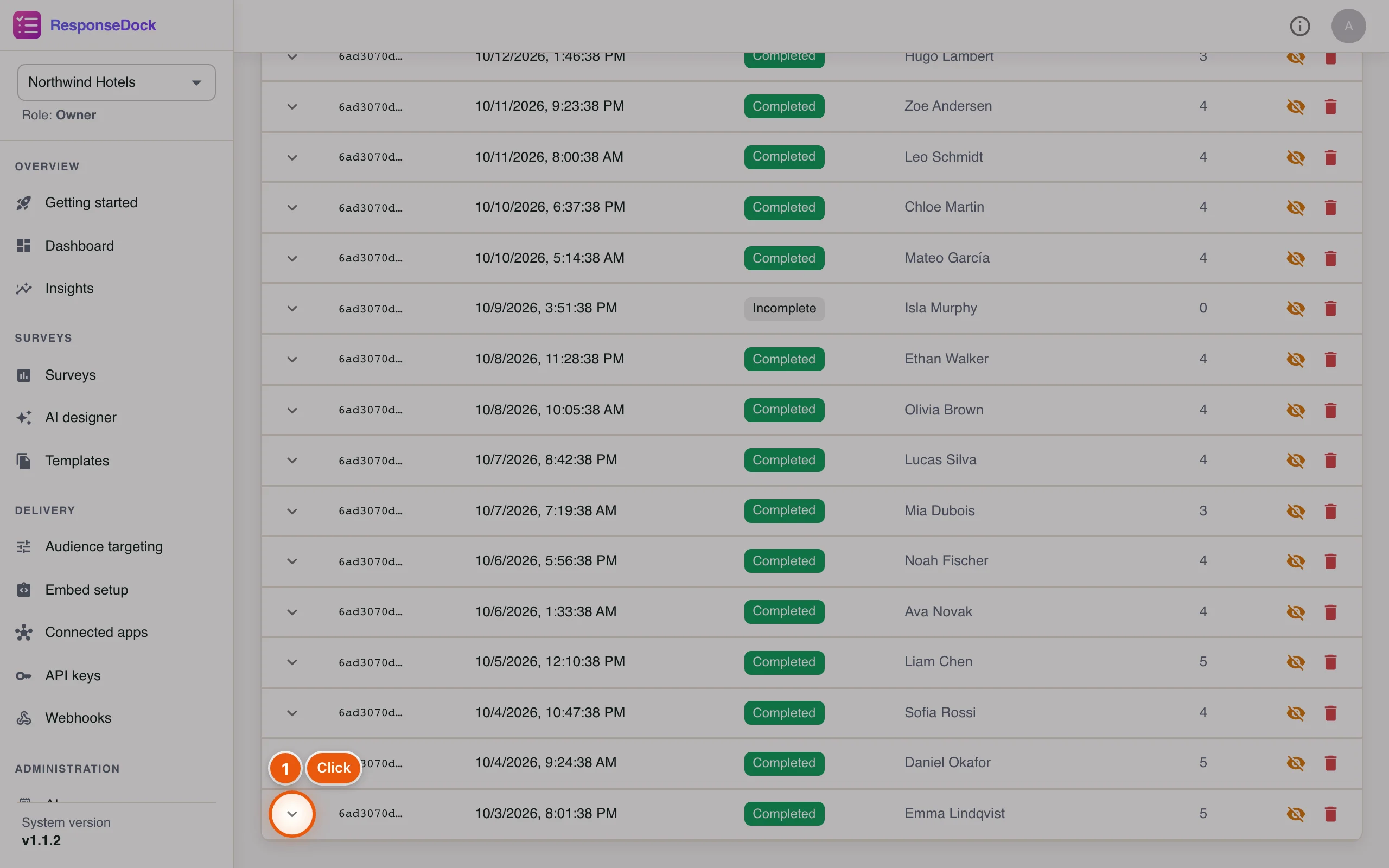
Emma Lindqvist left a long comment and some photos. Let's read her response.
- Click the arrow at the start of her row.
Step 10Read the answers and download photos
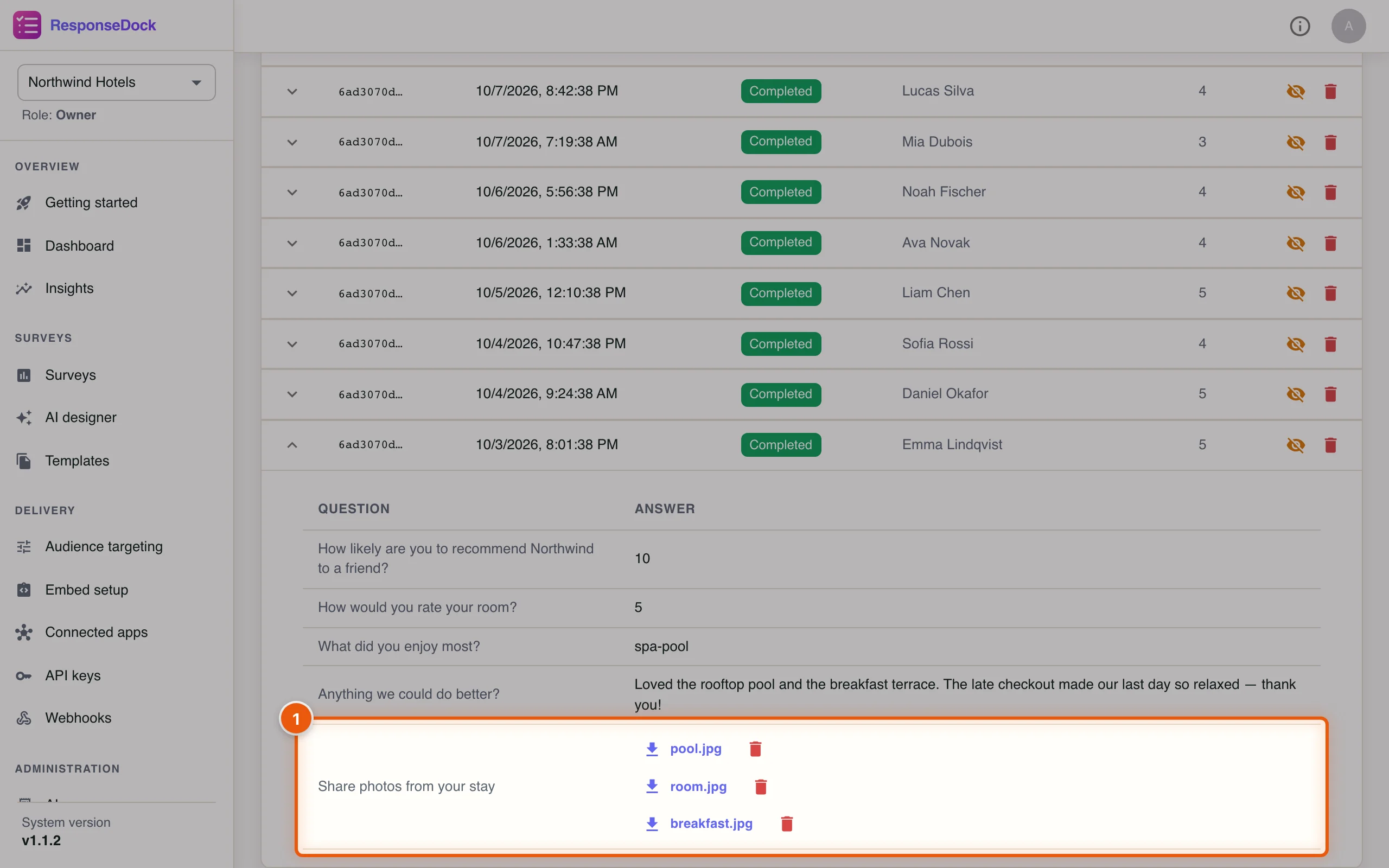
The row opens to show every question with the guest's answer. Uploaded files are listed under the question that asked for them.
- Click a file name, such as pool.jpg, to download it. Owners and admins also see a red bin icon next to each file. It deletes the file permanently, and the response then records who deleted it and when.
The web dashboard lists photos by file name. To preview them, and to see each response's device and source, open the response in the ResponseDock mobile app.
Step 11Hide a response from reports
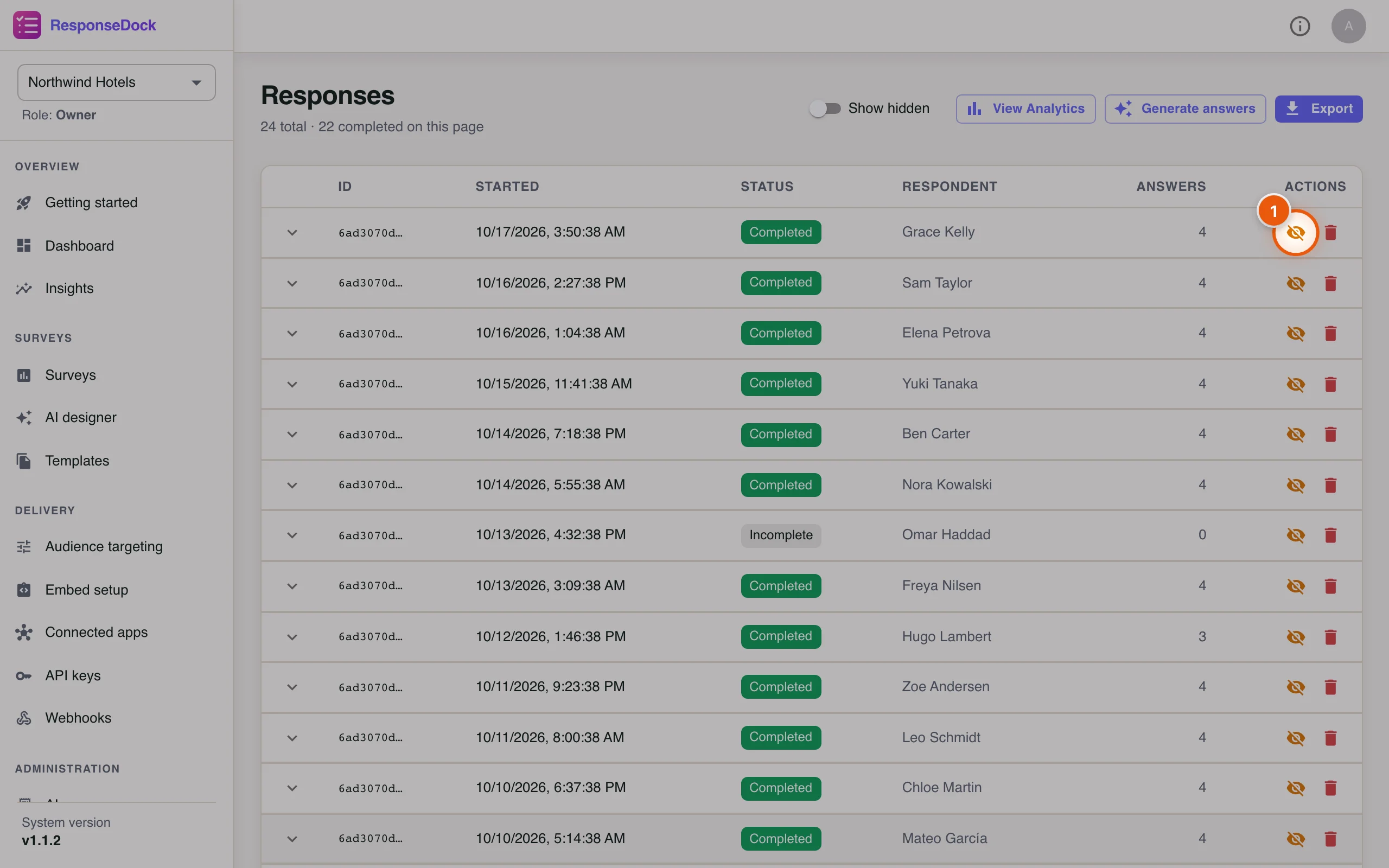
Sometimes a response should not count, such as a test a colleague submitted. You can hide it without deleting it.
- Click the crossed-out eye icon (Hide from analytics and exports) on that row.
The red bin icon next to it, Delete permanently, removes the response and all its answers. This can't be undone, so hide the response if you might want it back later.
Step 12Confirm
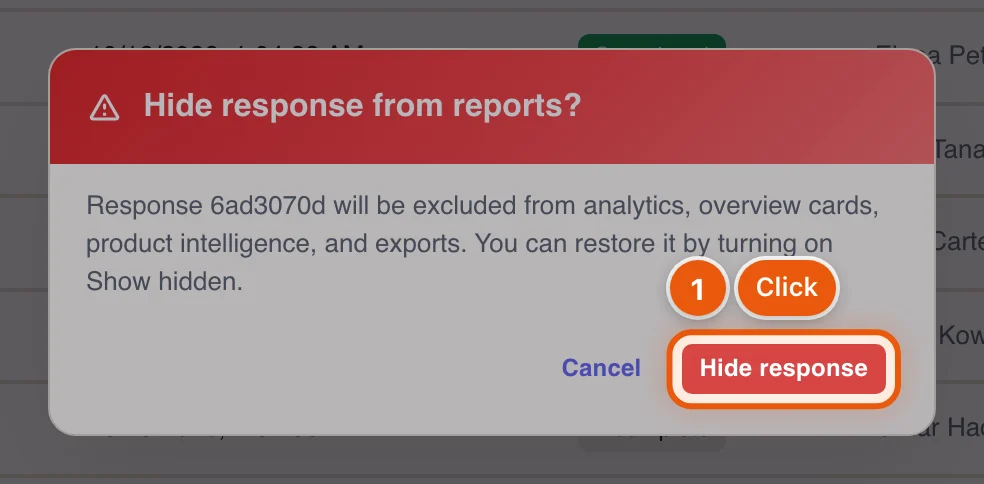
- Click Hide response.
The response disappears from the list, analytics, the dashboard cards, product intelligence and exports.
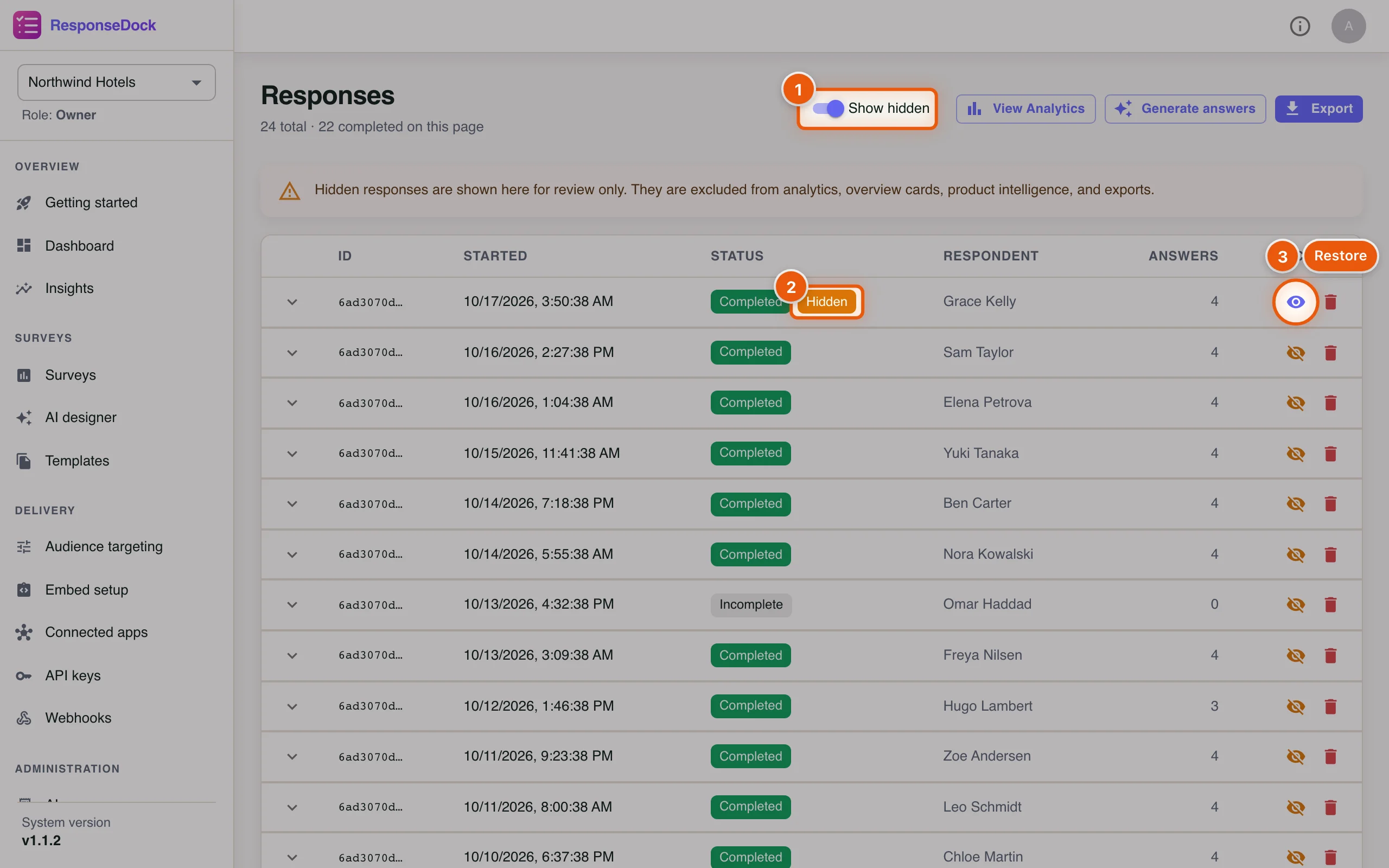
Step 13Review or restore hidden responses
- Turn on Show hidden to include hidden responses in the list.
- Hidden responses carry a Hidden label.
- Click the eye icon (Restore to reports) to count the response again.
Part 4: Export responses
Step 14Download the data
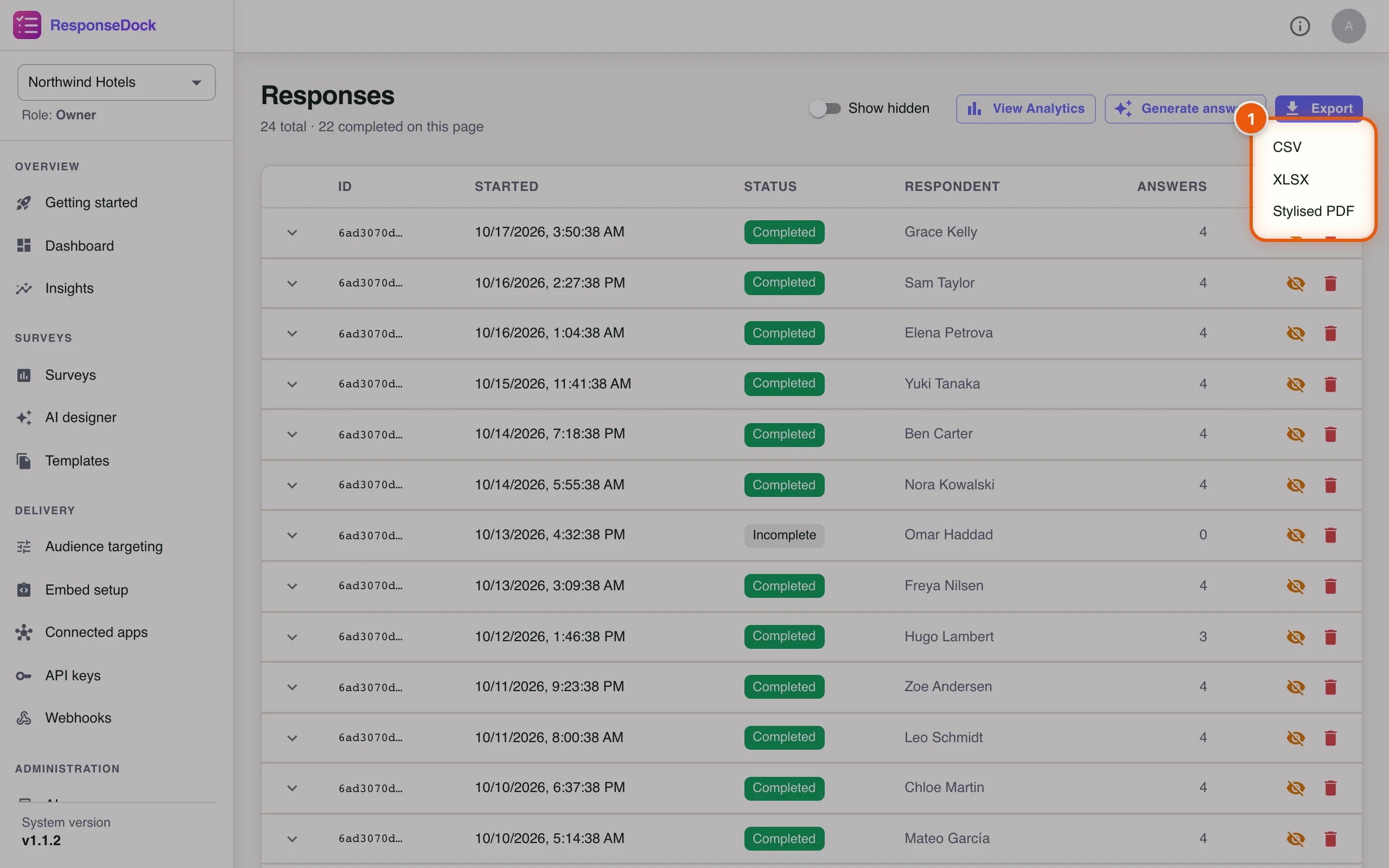
On the Responses page, click Export in the top-right corner.
- Choose a format. CSV and XLSX give one row per response, with its start and completion times and one column per question. Stylised PDF gives a branded report that's easy to share.
A Preparing… message appears while ResponseDock builds the file, then the download starts automatically. Exports skip hidden responses.
Part 5: Share a public results page
The front-desk team doesn't need a ResponseDock account to see how the hotel is doing. You can publish a read-only results page and send them the link.
Step 15Open the share options
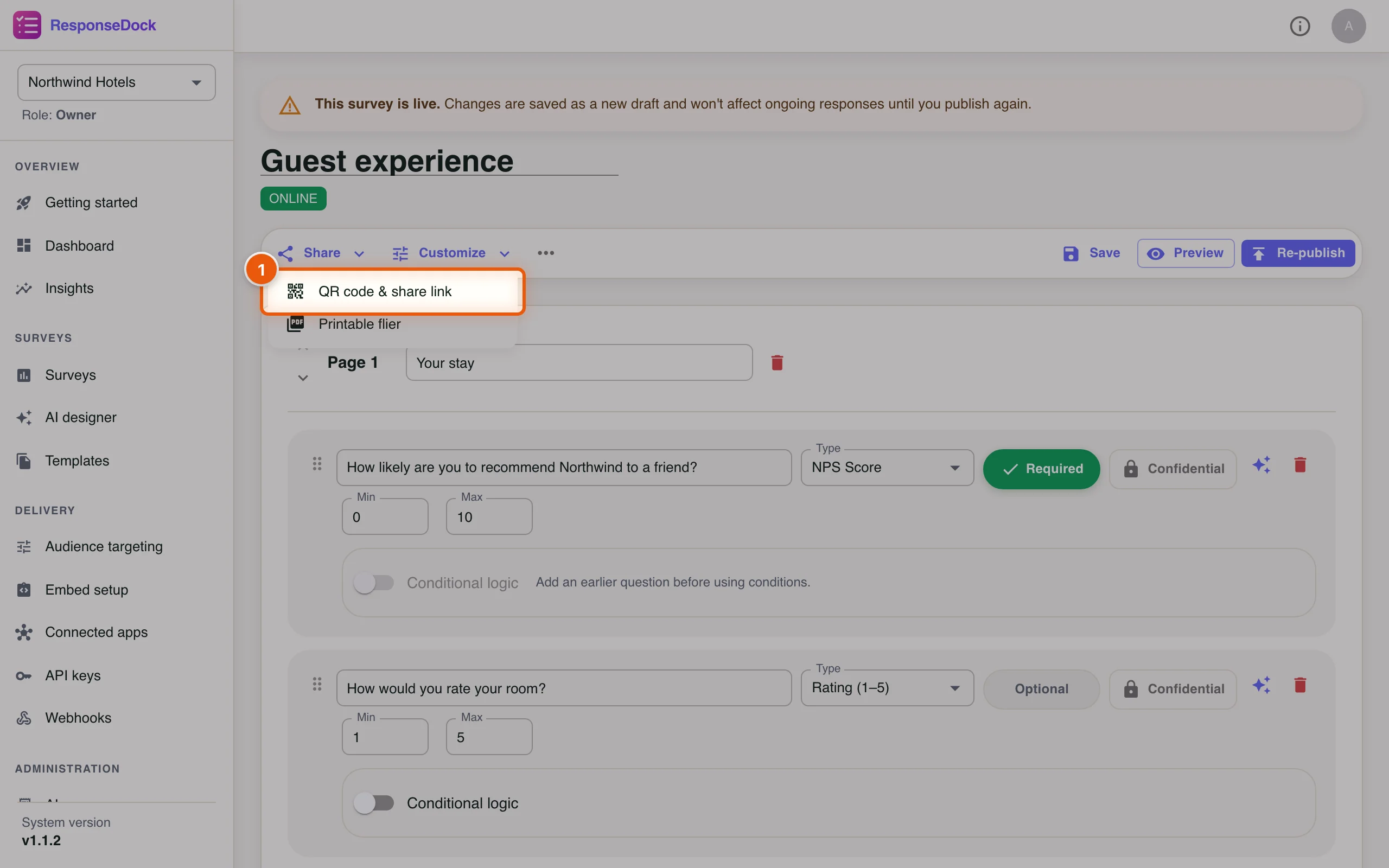
Open the survey for editing: on Surveys, click the pencil icon (Edit). Then click Share in the toolbar.
- Click QR code & share link.
Step 16Make the results public
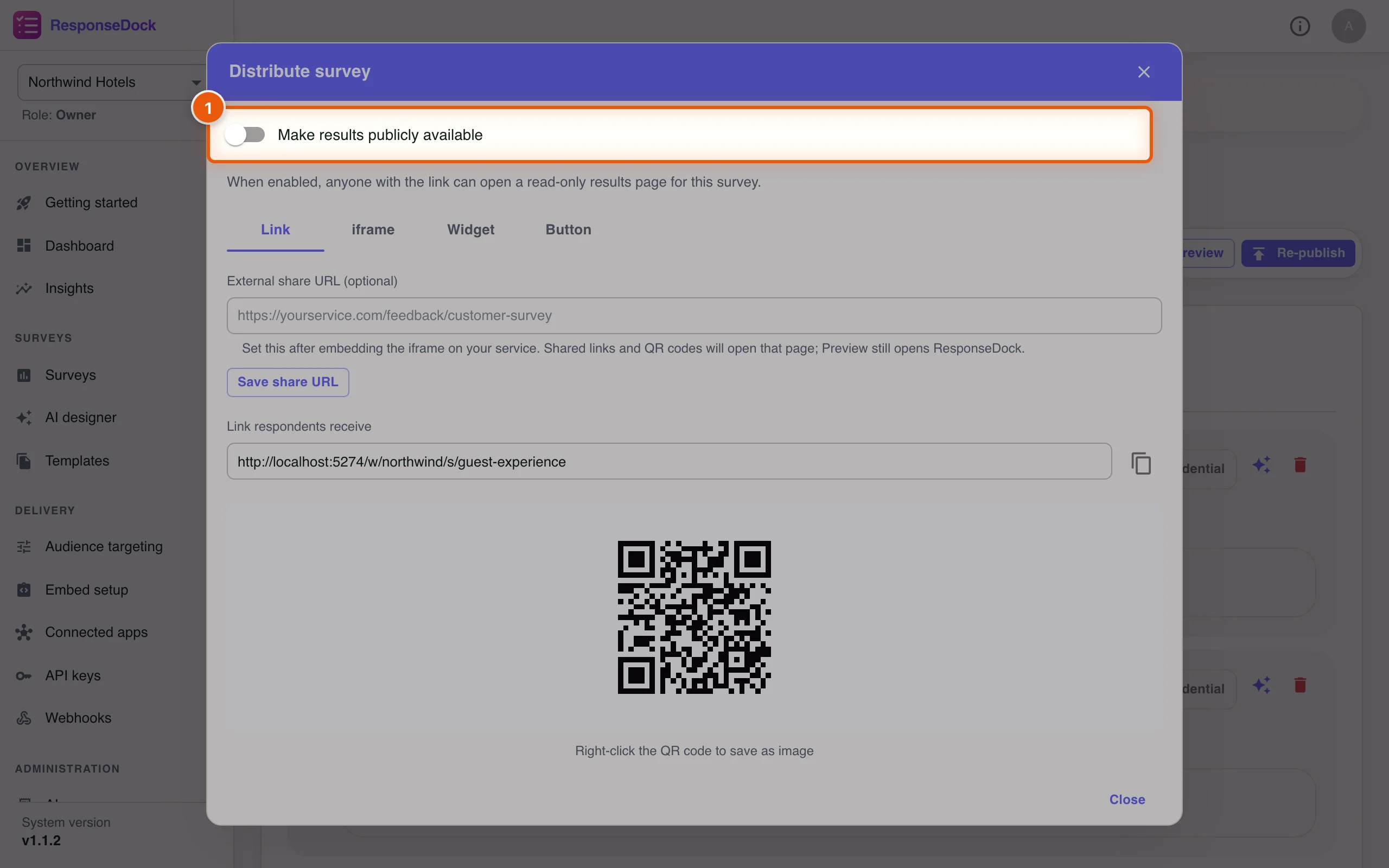
- Turn on Make results publicly available. ResponseDock saves the change straight away and confirms it with Public results enabled.
You can also change this under Customize → Survey settings → Public results page.
Step 17Copy the results link
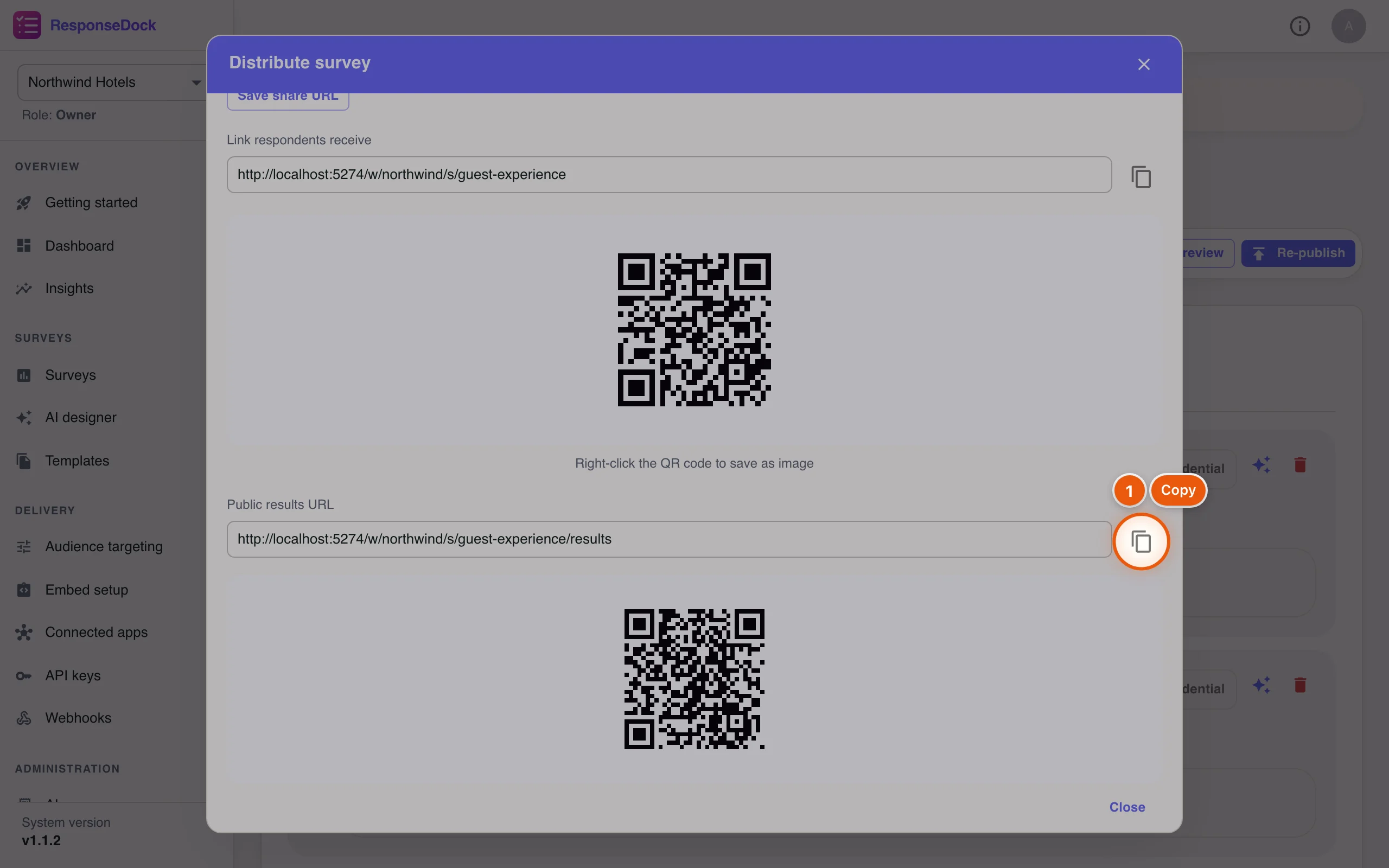
A Public results URL and its QR code now appear at the bottom of the dialog. Print the QR code for the staff room, or send the link.
- Click the copy icon (Copy results link).
The same link also appears when you click Share on the Surveys page.
Step 18What viewers see
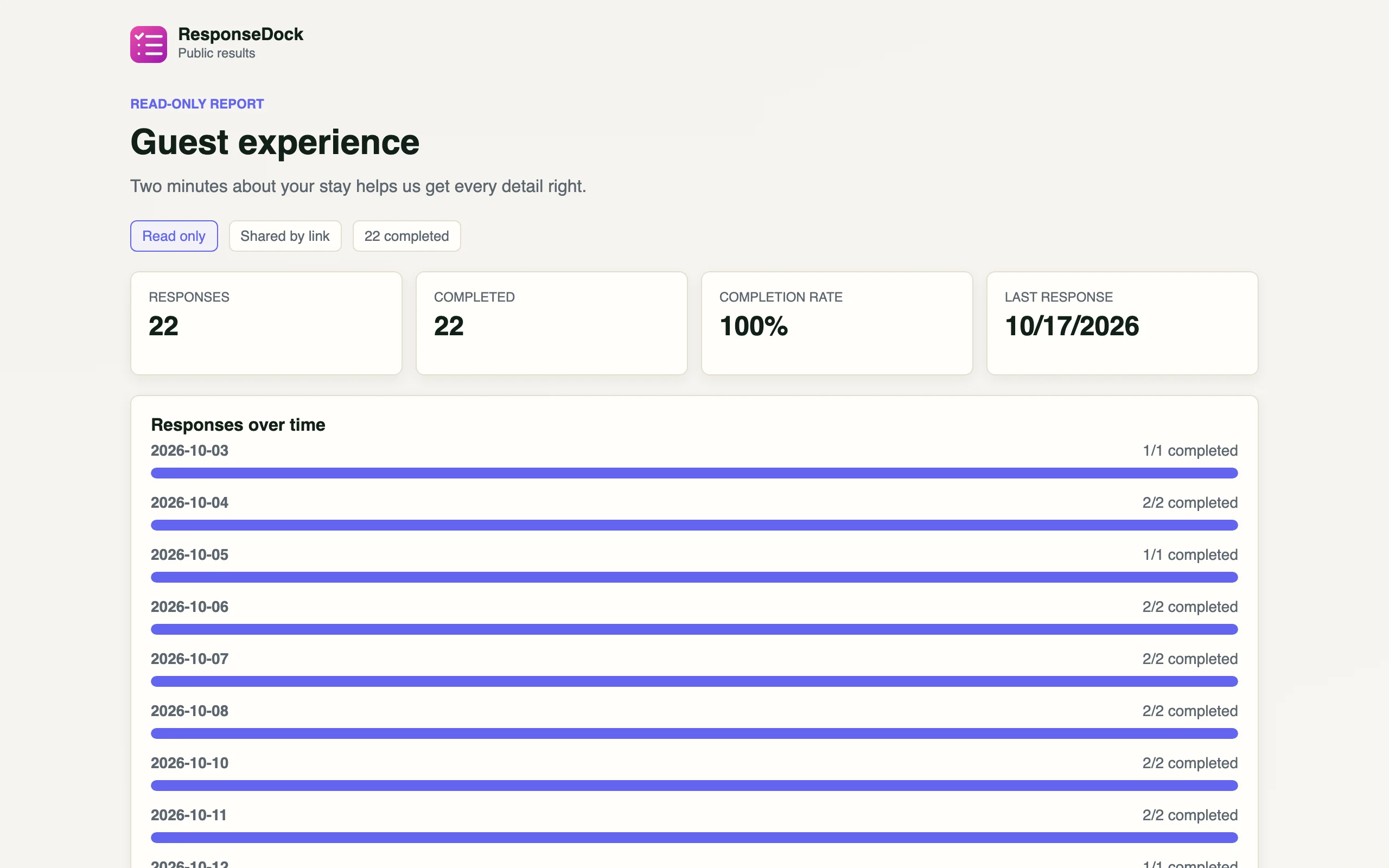
Anyone with the link can open the Read-only report without signing in. For a private survey, only the respondents you allowed can open it. The report shows the number of responses, completion rate, date of the last response and completions per day.
Step 19Per-question summaries
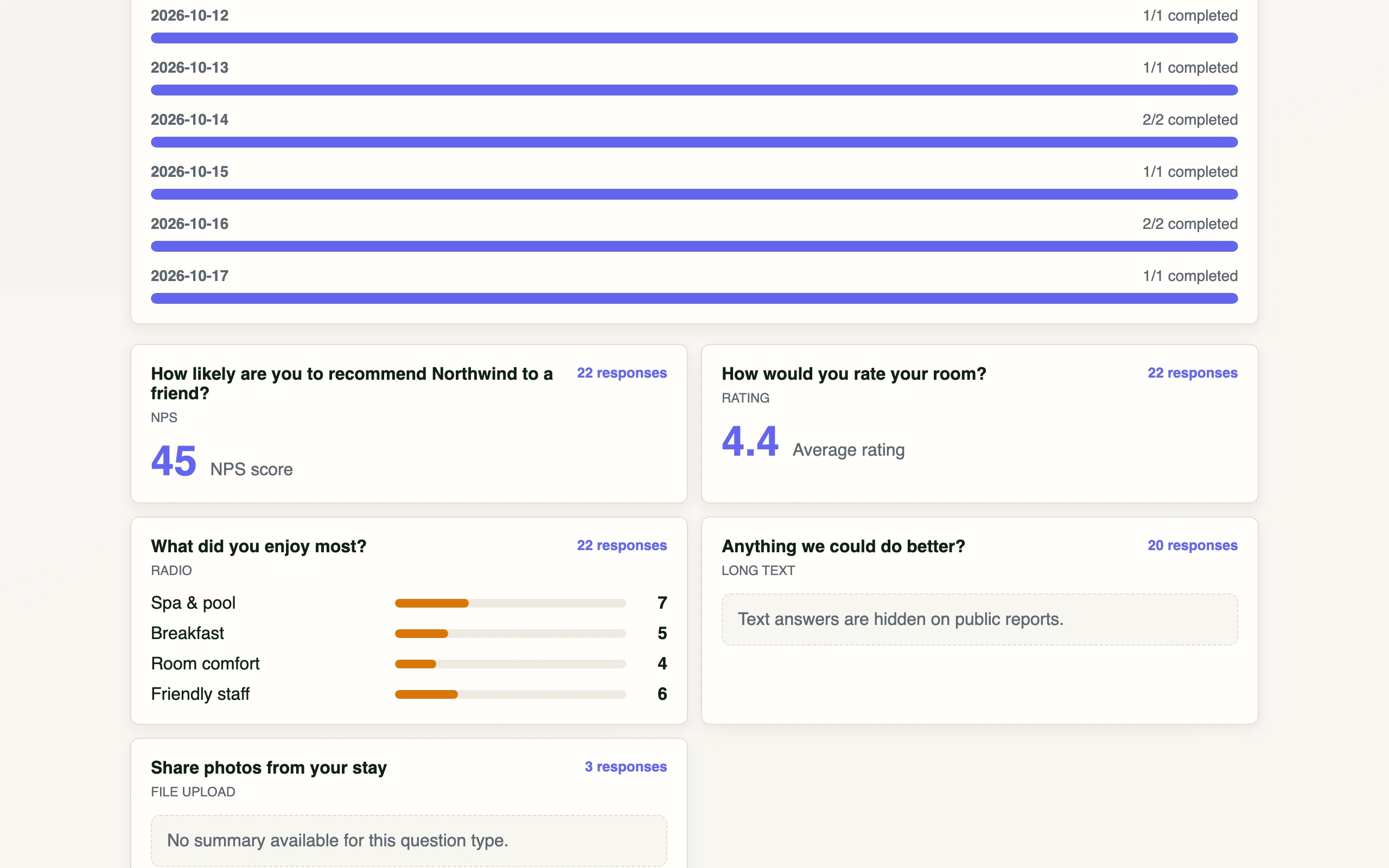
Further down, every question has a summary: the NPS score, average ratings and counts for each choice. The public page counts completed responses only, leaves out hidden ones, and never shows names, files or written comments. Text questions say Text answers are hidden on public reports.
To take the page offline, turn off Make results publicly available again. The link then shows Results unavailable.
Intelligence in the sidebar groups comments from several surveys into themes and suggested actions. It's most useful once a workspace has a lot of written feedback, so this tutorial doesn't cover it.
Next tutorial: Use the mobile app on the go →