Create and publish your first survey
Northwind Hotels wants to hear from guests right after a spa treatment. In this tutorial you build that Spa visit feedback survey from scratch: add questions, give it the Northwind look and a welcome screen, choose who can answer, publish it, and then answer it on a phone the way a guest would.
Part 1: Start a new survey
Step 1Choose how to start
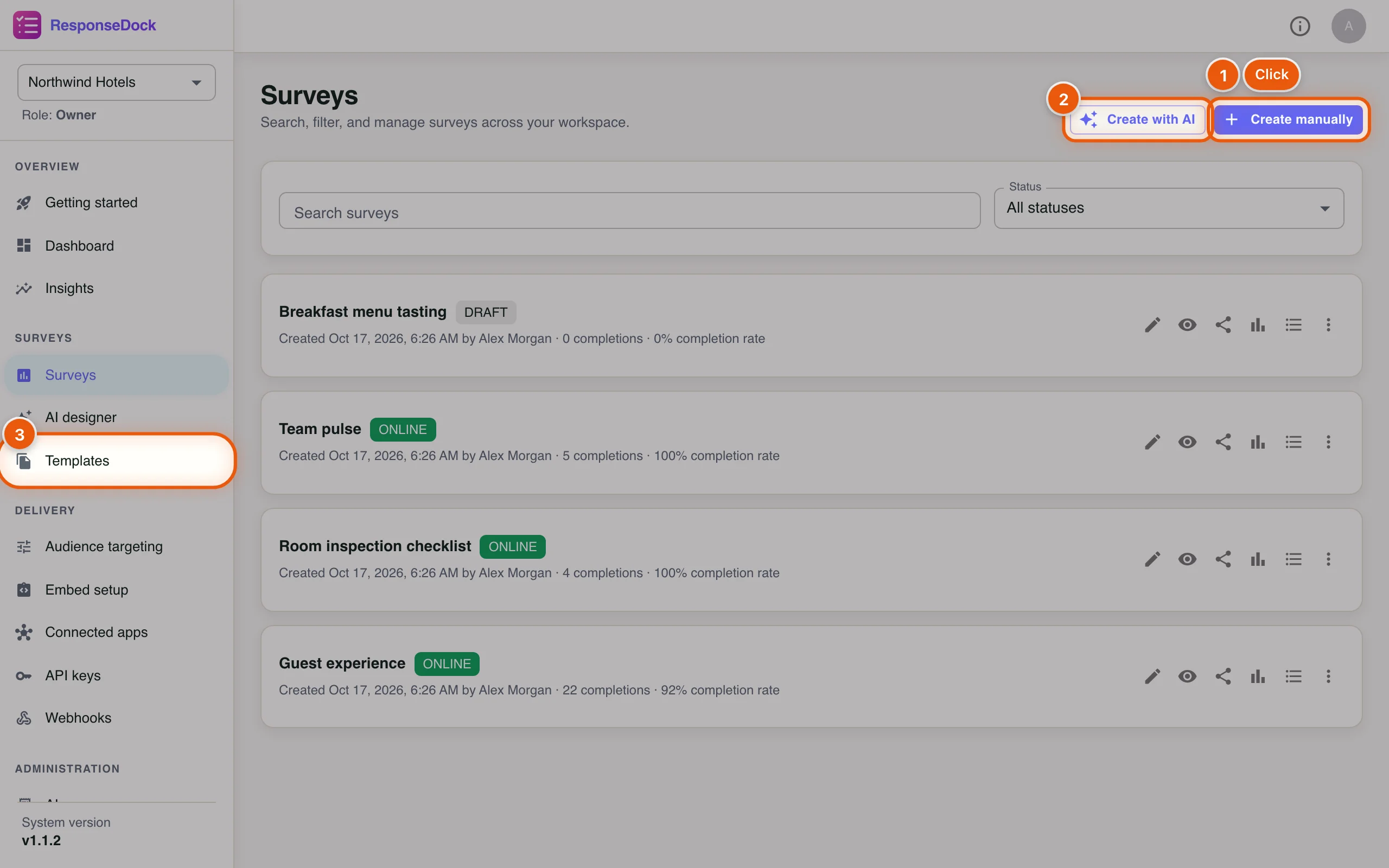
Click Surveys in the sidebar. There are three ways to start a survey. This tutorial uses the first one.
- Create manually starts an empty survey that you build question by question.
- Create with AI opens the AI Survey Designer. Describe the survey you need, pick the detail level, tone, audience, goal and language, then click Generate Survey. The draft opens in the builder for you to edit.
- Templates lists ready-made surveys such as Customer Satisfaction (CSAT) and Net Promoter Score (NPS), plus any your team saved under My templates. Click Preview to look inside a template or Use to make a copy you can edit.
Step 2Name the survey
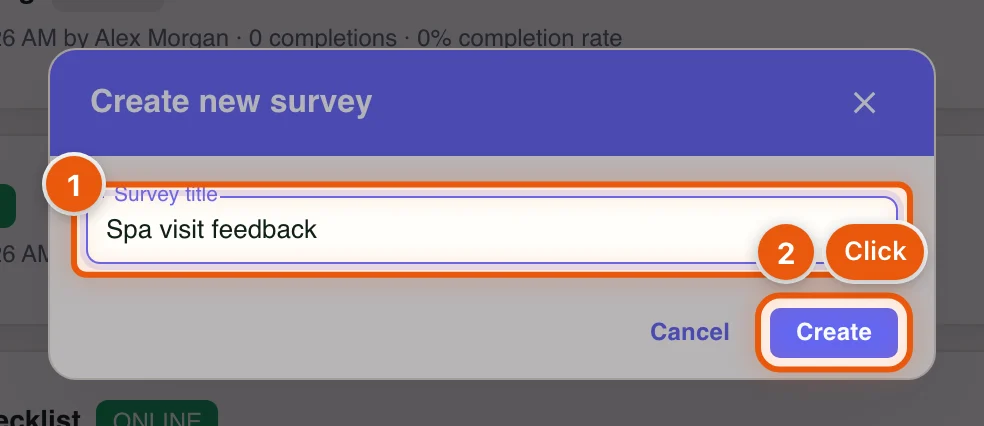
A short dialog asks for the title. Respondents see it, so write it for them.
- Type the Survey title, for example Spa visit feedback.
- Click Create. The survey builder opens with your new draft.
Part 2: Add pages and questions
Step 3Add a page
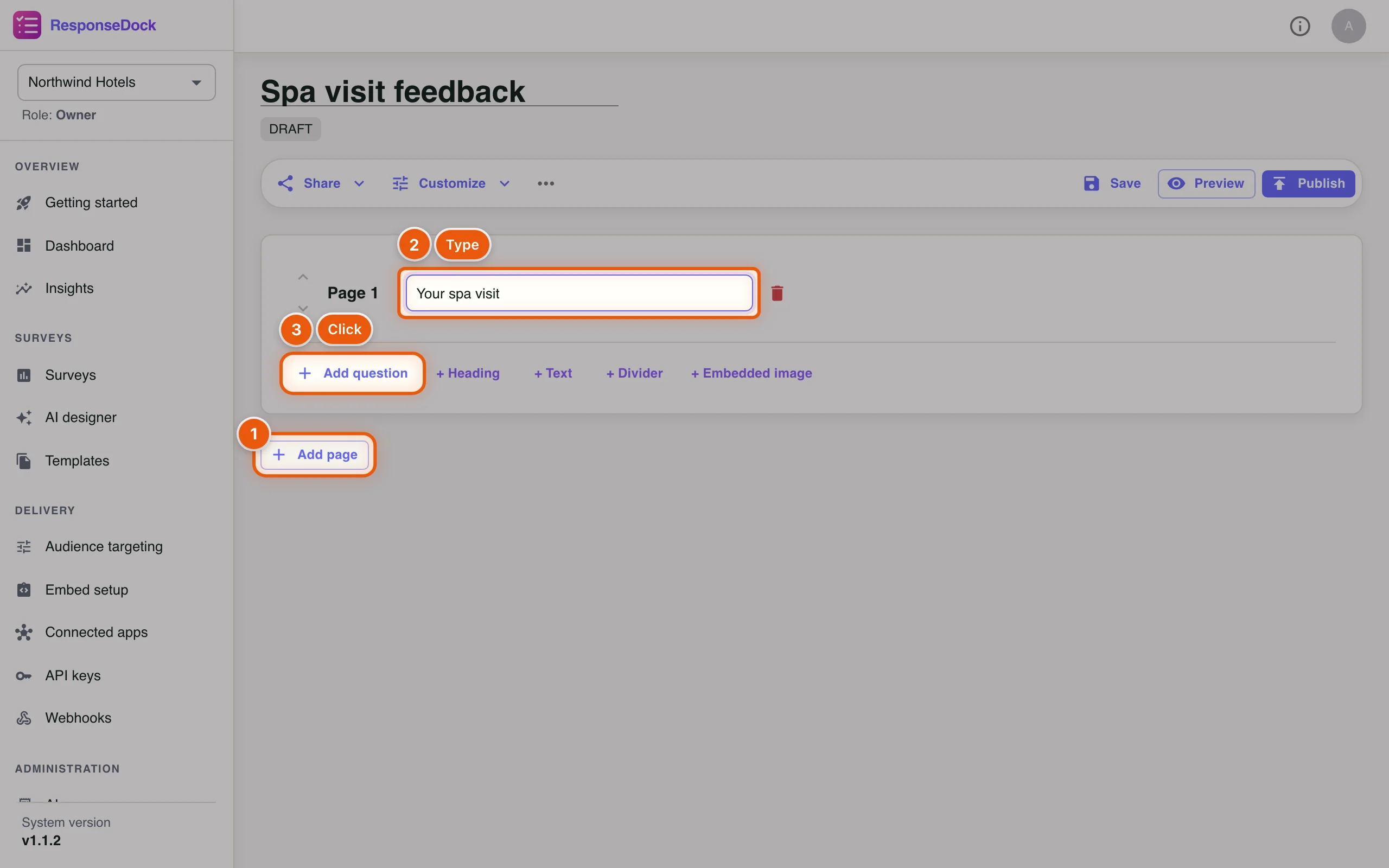
A new survey is empty. Questions live on pages, and respondents see one page at a time. Short surveys usually need only one page.
- Click Add page.
- Give the page a title, for example Your spa visit. The title is optional, but it helps respondents know where they are.
- Click Add question.
The builder saves your draft automatically a couple of seconds after each change. You'll see Saving… and then Saved next to the status chip.
Step 4Write the question and pick its type
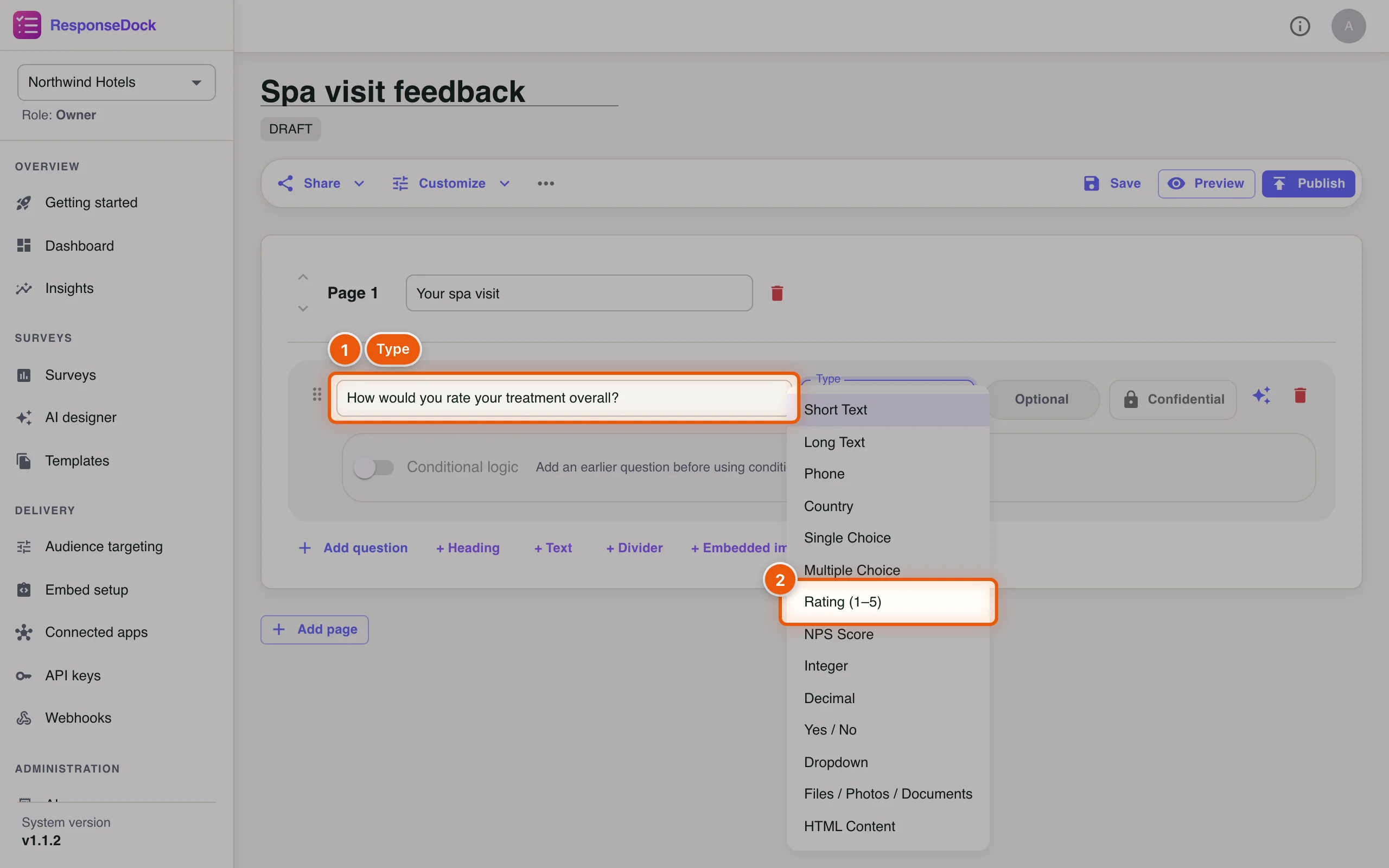
Every new question starts as a short text question. Change the type to fit the answer you want.
- Type the question in the Question label field: How would you rate your treatment overall?
- Open the Type list and select Rating (1–5).
The list also includes Long Text, Single Choice, Multiple Choice, NPS Score, Yes / No, Dropdown, number fields and Files / Photos / Documents for uploads. A rating question gets Min and Max fields so you can change the scale.
Step 5Add a choice question and make answers required
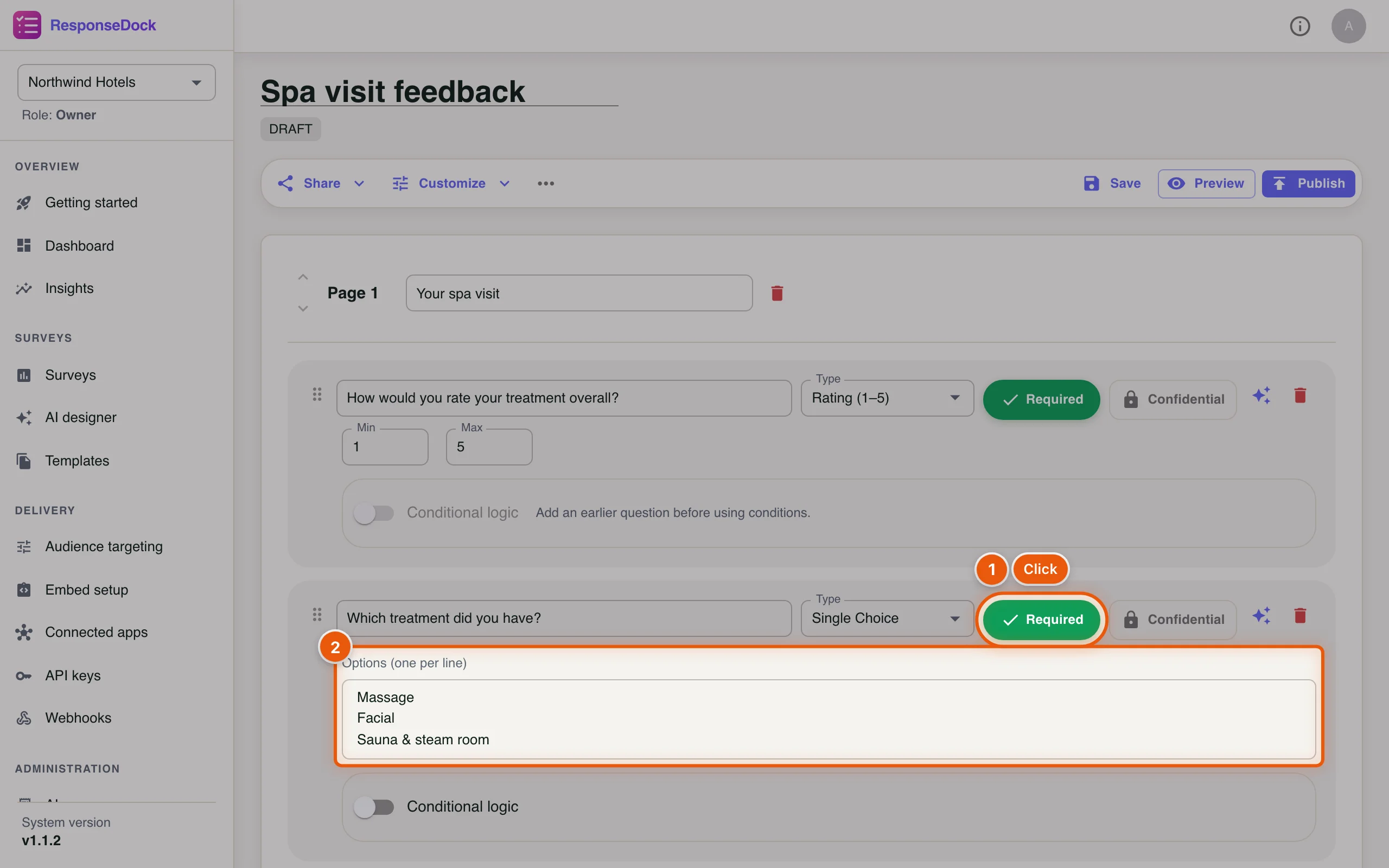
Click Add question again, type Which treatment did you have? and pick Single Choice.
- Click Optional so it turns green and reads Required. Respondents can't continue until they answer. Do the same for the rating question.
- Type the answer options in Options (one per line): Massage, Facial, Sauna & steam room.
Then add a third question, What could we do to make your next visit even better?, with the type Long Text, and leave it optional.
Confidential hides the answers to that question from everyone except the survey's original author. The sparkle icon opens AI actions such as Improve wording, and Conditional logic shows, hides or requires a question based on earlier answers. Drag the handle on the left to reorder questions.
Step 6Add a text block with formatting
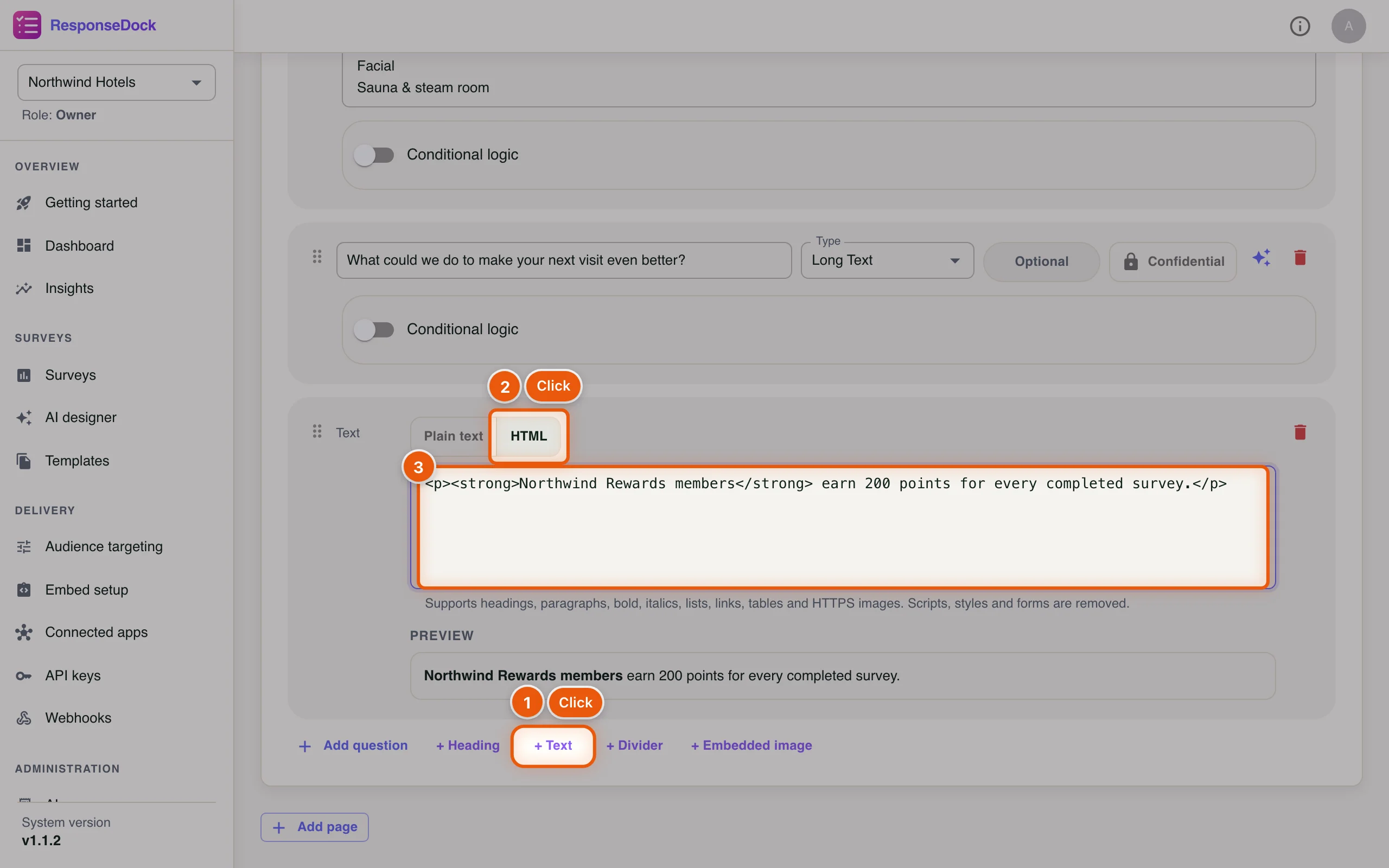
Besides questions, a page can hold content that respondents read but don't answer: + Heading, + Text, + Divider and + Embedded image. Northwind adds a note about its rewards programme.
- Click + Text.
- Switch the block from Plain text to HTML when you want bold text, links, lists, tables or images.
- Type the text. In HTML mode a Preview underneath shows exactly what respondents will see.
ResponseDock removes scripts, styles and forms from HTML, so the text can't change how the survey works. Images must use HTTPS addresses.
Part 3: Brand the survey and add a welcome screen
Step 7Open the branding settings
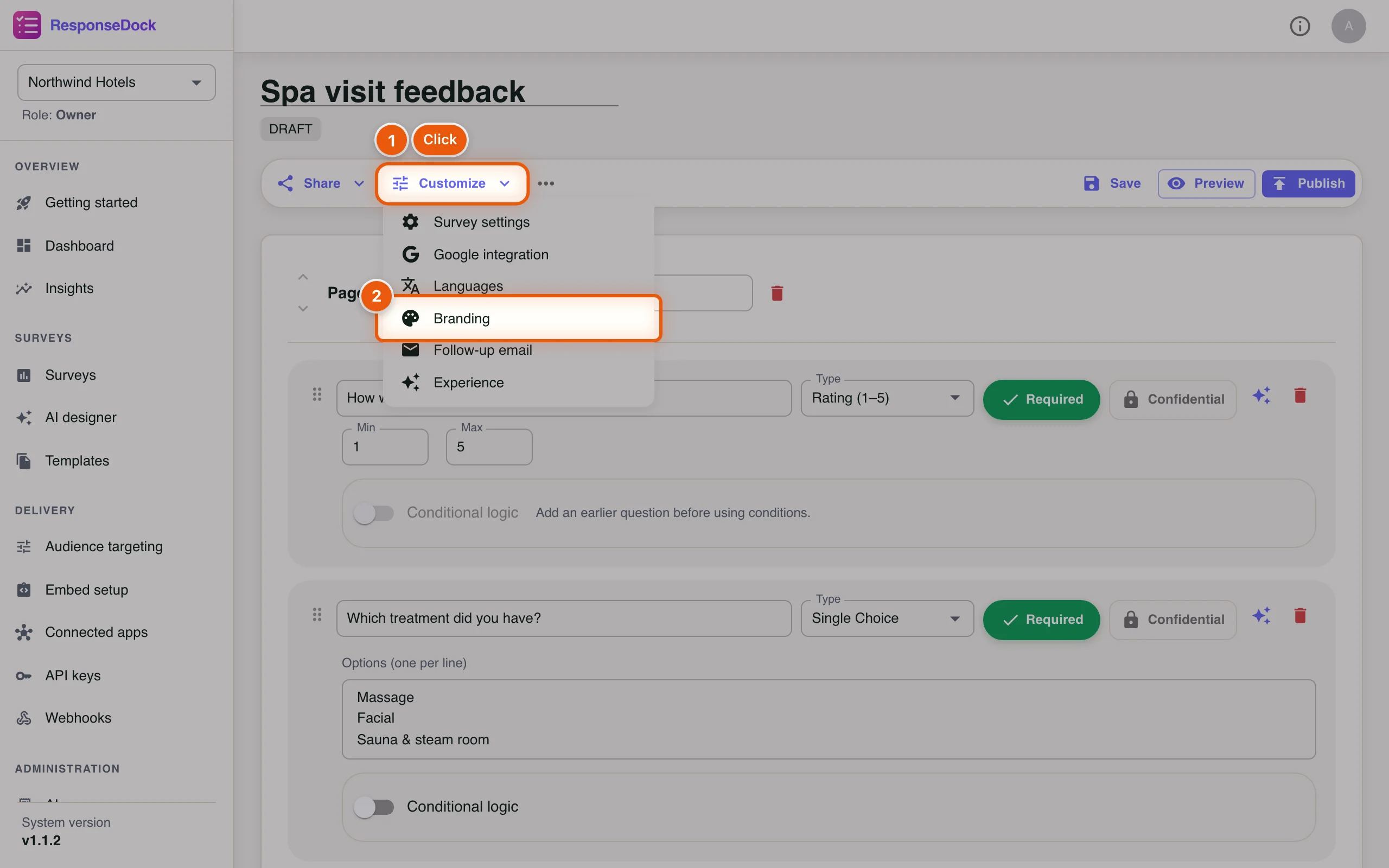
The Customize menu holds everything about how the survey looks and behaves: Survey settings, Google integration, Languages, Branding, Follow-up email and Experience.
- Click Customize.
- Click Branding.
Step 8Set your brand colour
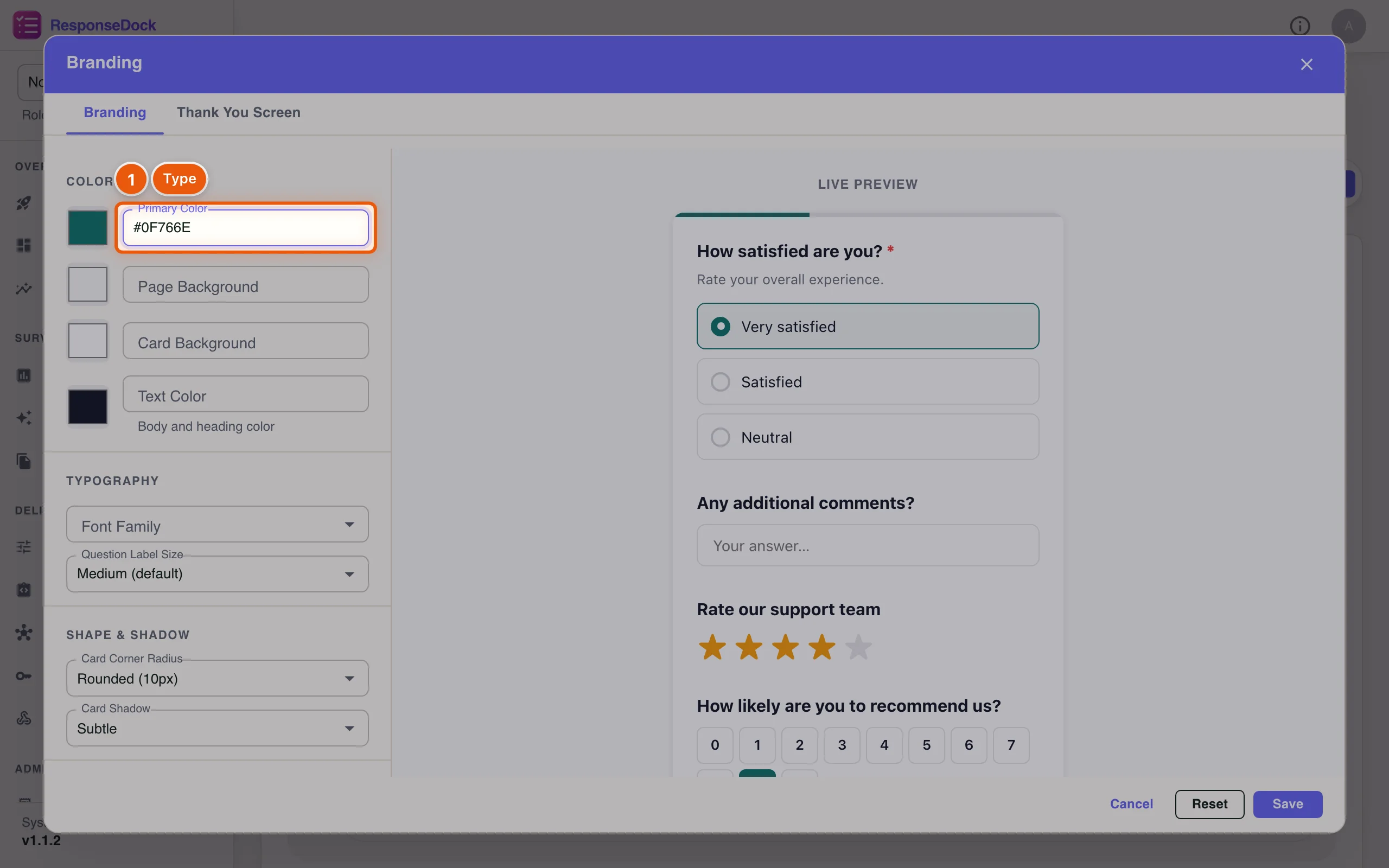
The left side has the settings. The Live Preview on the right updates as you type.
- Type your colour in Primary Color, for example #0F766E, or click the swatch next to it to pick one. Buttons, selected answers and the progress bar use this colour.
You can also change the page and card backgrounds, the text colour, the font, corner radius, shadows and the style of buttons and answer options.
Step 9Add your logo and a banner
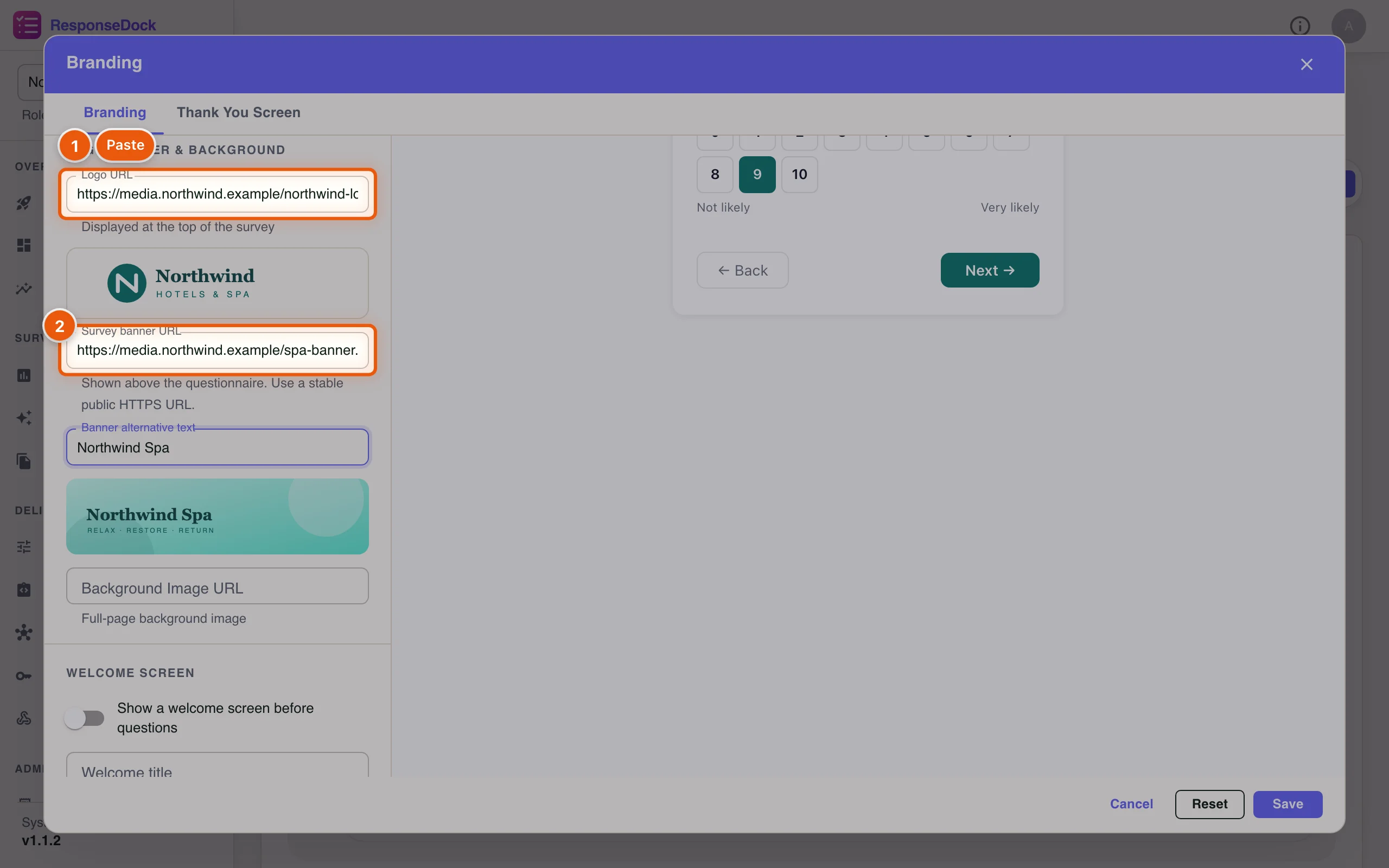
Scroll down to Logo, banner & background. Images are added by web address, so upload them to your website or media library first and copy the link.
- Paste the address of your logo into Logo URL. It appears at the top of the survey.
- Paste a banner image into Survey banner URL. It appears above the questions. Add a short Banner alternative text for screen readers.
Step 10Greet respondents with a welcome screen
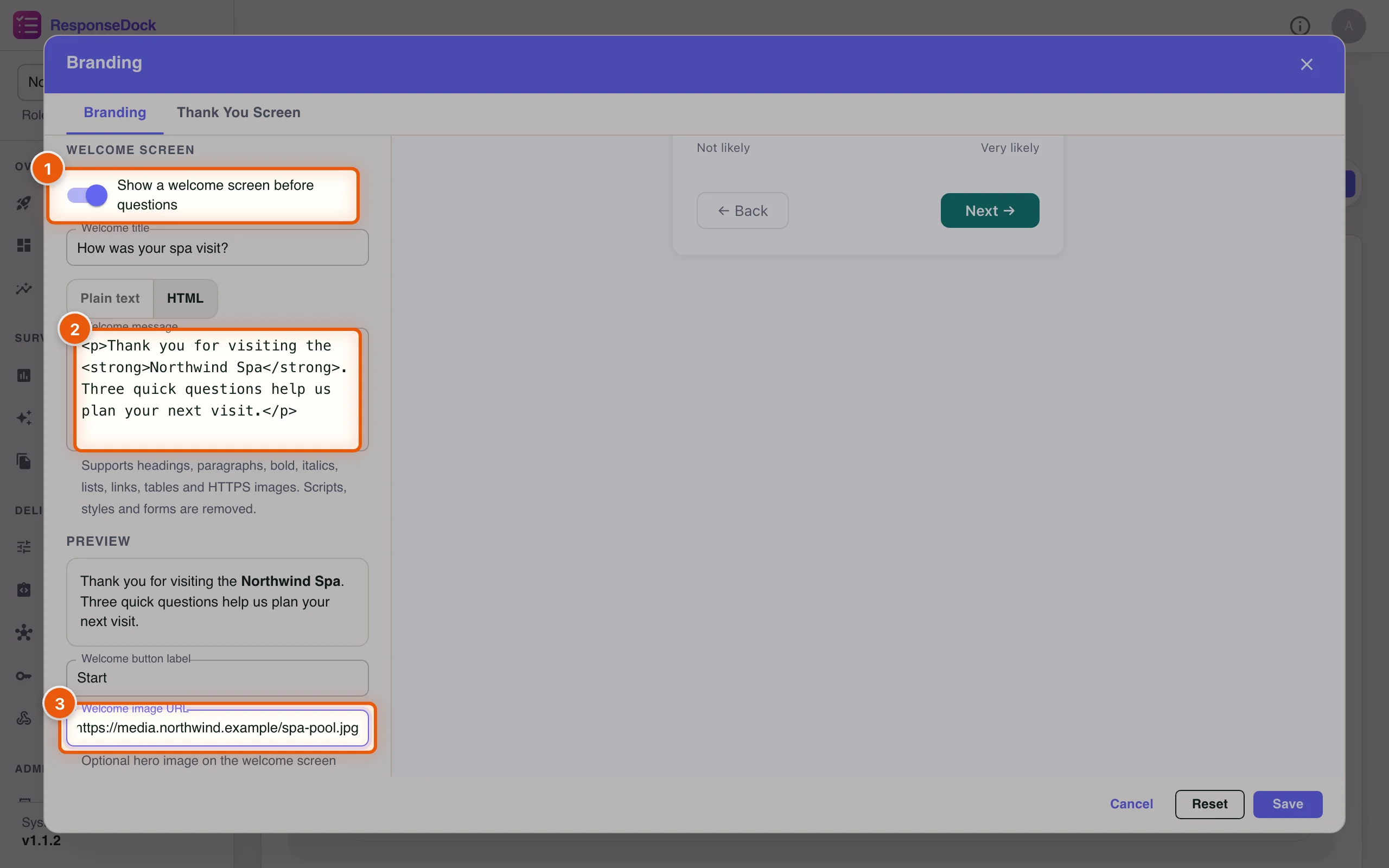
A welcome screen tells people what to expect before the first question. Scroll down to Welcome Screen.
- Turn on Show a welcome screen before questions, then type a Welcome title, such as How was your spa visit?
- Write the Welcome message. Like text blocks, it can be Plain text or HTML, with a preview underneath.
- Optionally paste a photo into Welcome image URL. You can also change the Welcome button label. It says Start survey unless you change it; Northwind uses Start.
Click Save at the bottom of the dialog. The Thank You Screen tab, next to Branding, lets you change the message people see after they submit.
Part 4: Choose who can answer, and how
Step 11Review the survey settings
Open Customize › Survey settings. The defaults suit most surveys, but check these sections:
- Response rules: how many times one person can respond. One per browser is the default.
- Schedule: optional dates for when the survey opens and closes.
- Privacy & tracking: whether responses are linked to a person.
- Access control: Public (anyone with the link) or Private (only selected ResponseDock accounts).
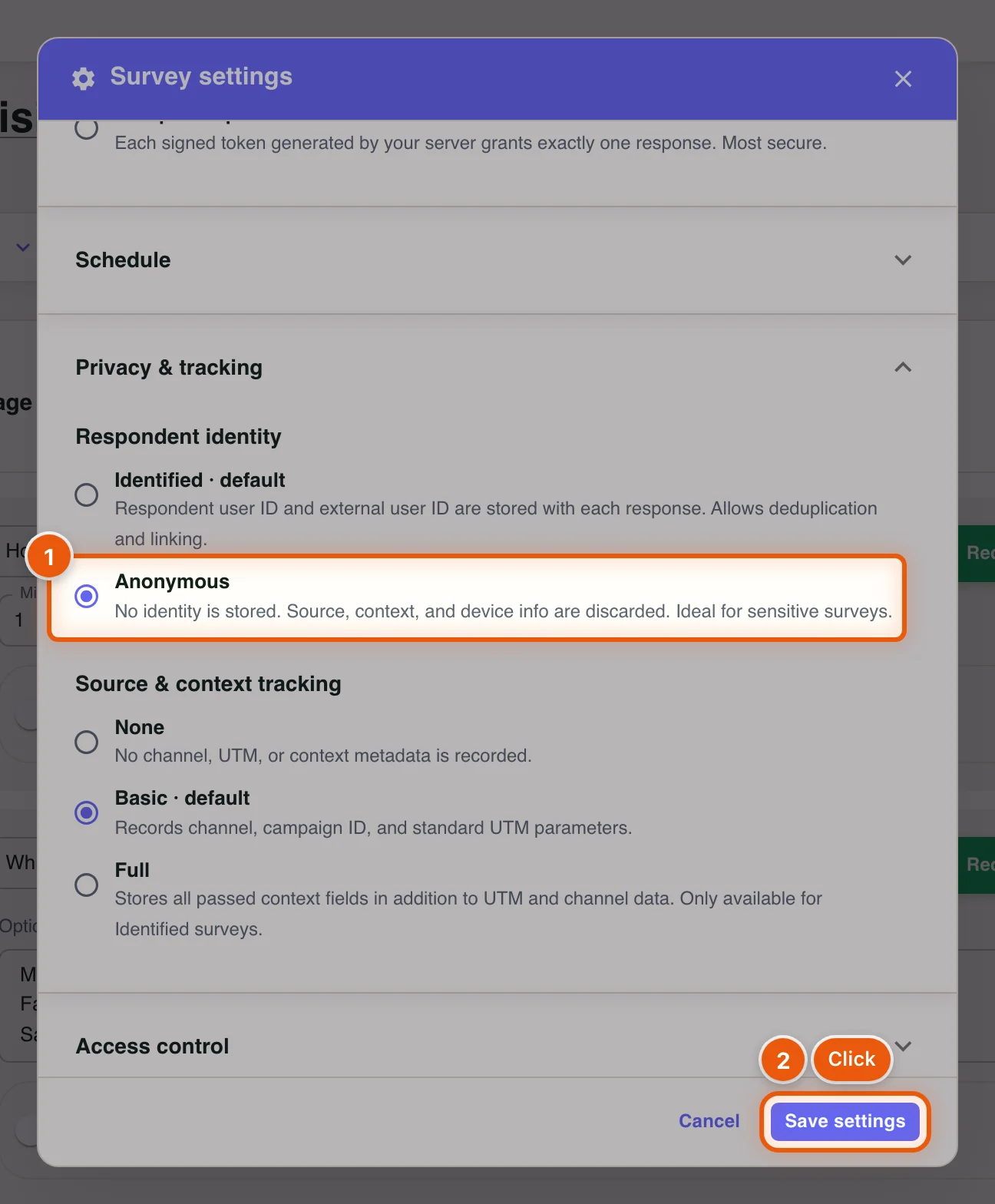
Spa guests answer more openly when they know they aren't identified, so Northwind makes the survey anonymous.
- Under Privacy & tracking, select Anonymous. No identity, source or device details are stored with responses.
- Click Save settings.
If you serve guests in more than one language, open Customize › Languages to add a language and translate each question and option.
Part 5: Preview and publish
Step 12Preview the survey
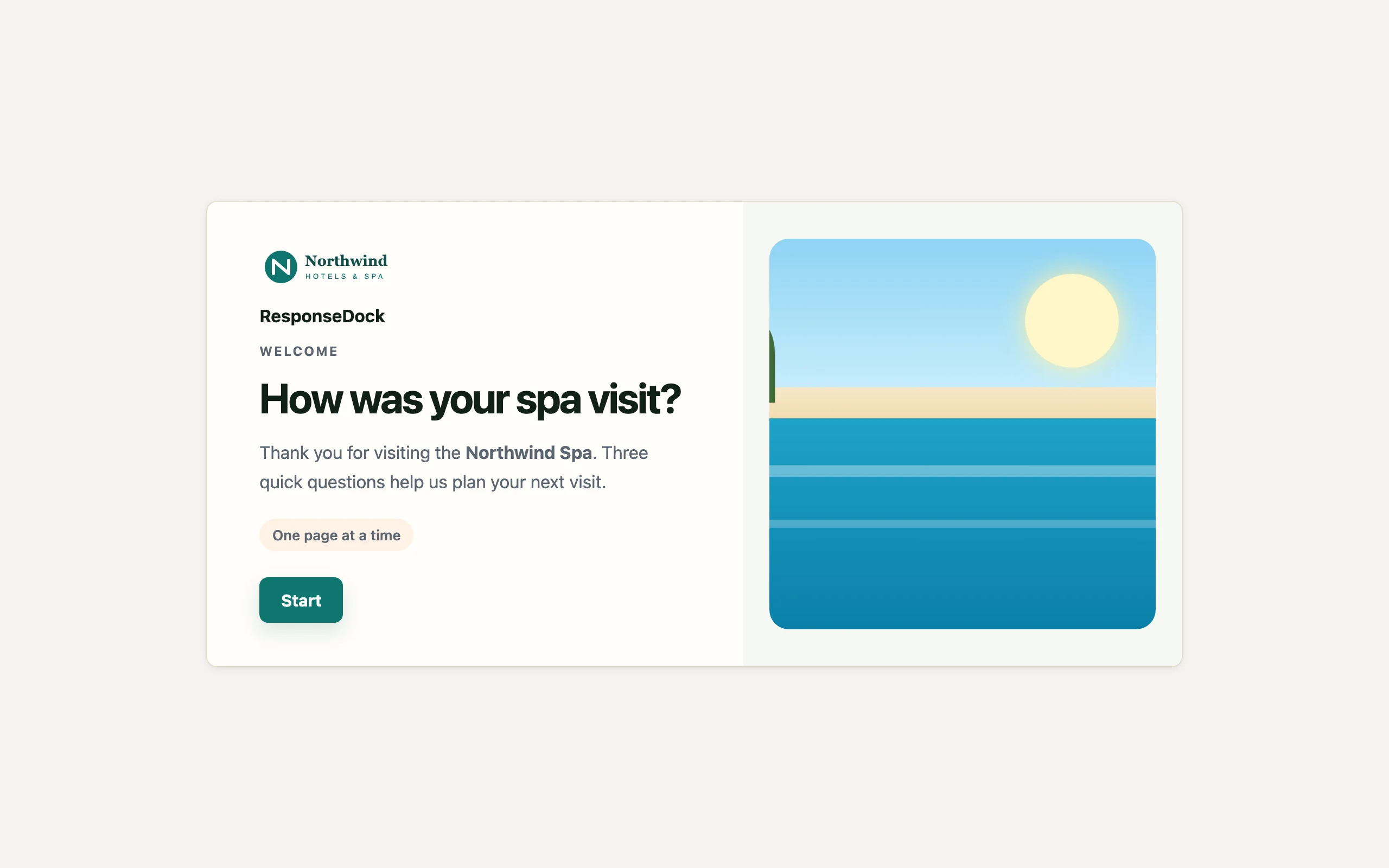
Click Preview in the builder toolbar. The survey opens in a new tab exactly as respondents will see it, starting with your welcome screen. Click through it to check the wording and the order of the questions. Answers you give in a preview are not saved.
Step 13Publish
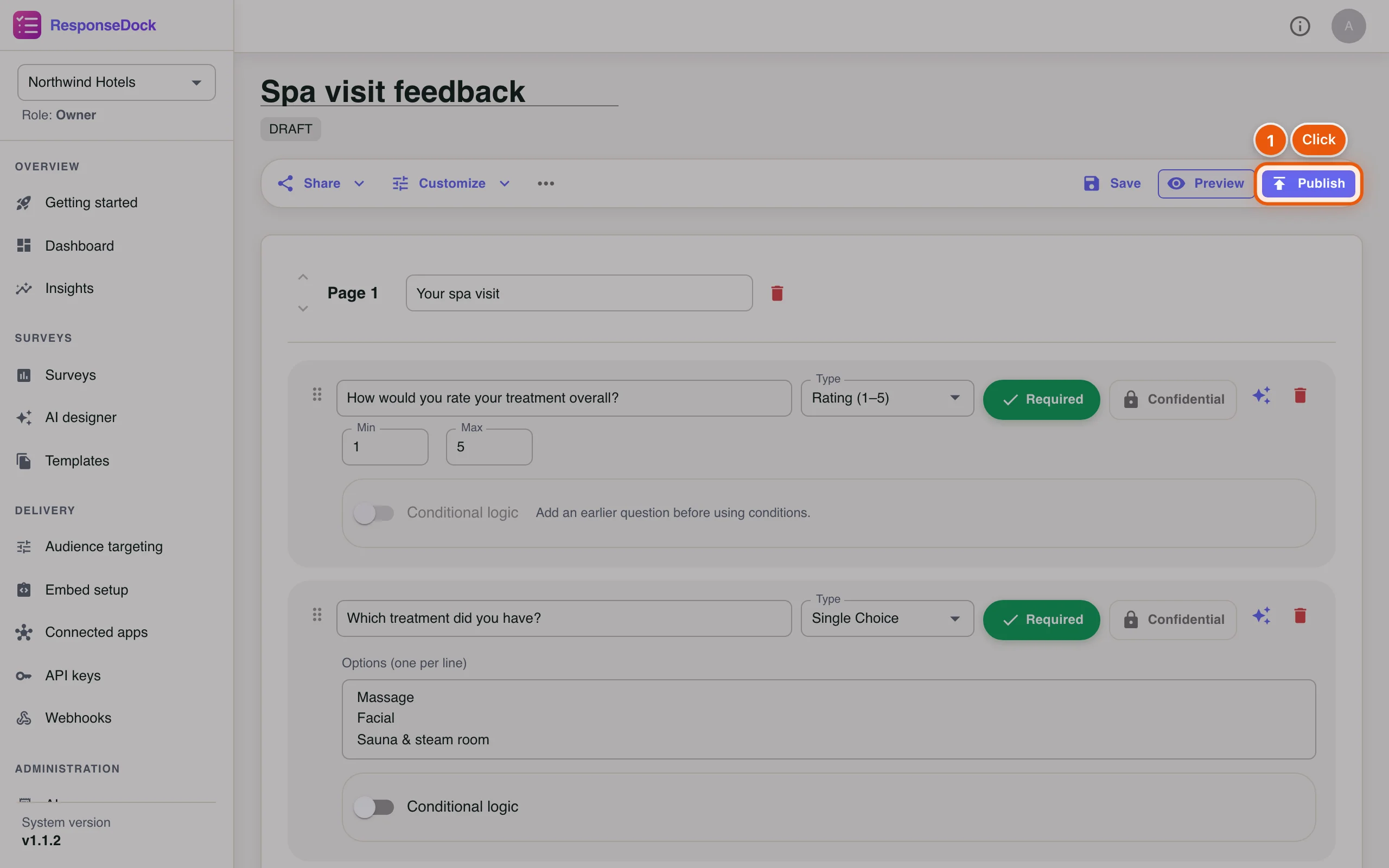
Until you publish, the survey is a DRAFT and its link doesn't accept answers.
- Click Publish. You'll see Survey published! and the status changes to ONLINE.
You can keep editing a live survey. Changes are saved as a new draft and respondents keep seeing the published version until you click Re-publish.
Part 6: Share the survey and see it as a guest
Step 14Open the share options
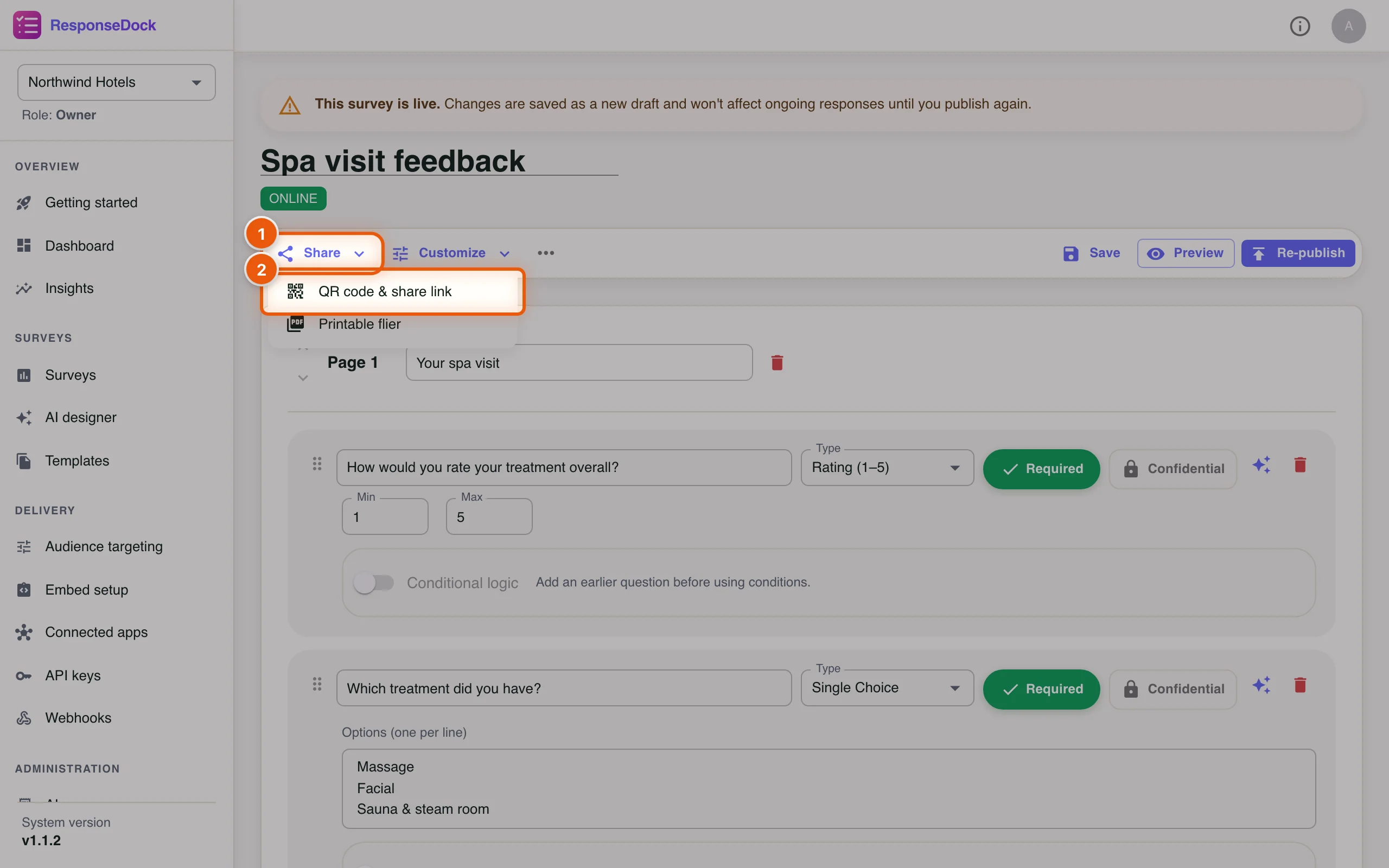
The status chip under the title now says ONLINE.
- Click Share.
- Click QR code & share link. (Printable flier makes a print-ready poster with the QR code that you can also save as a PDF.)
Step 15Copy the link or use the QR code
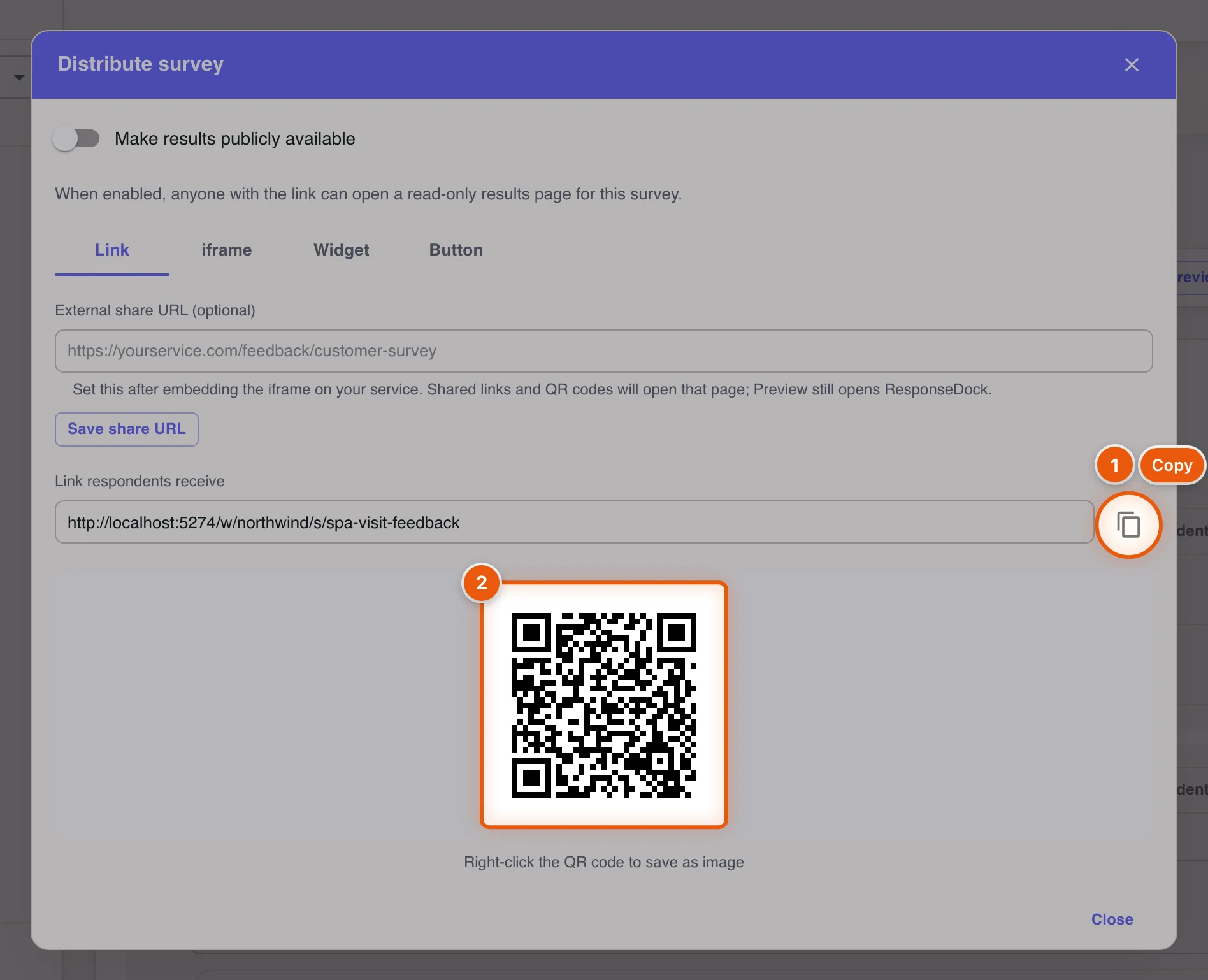
The Distribute survey dialog shows the Link respondents receive.
- Click the copy icon (Copy link) and paste the link into an email, a text message or your booking confirmation.
- Right-click the QR code to save it as an image. Northwind prints it on a card in the spa's relaxation room.
The iframe, Widget and Button tabs give you code to embed the survey on your website. Make results publicly available creates a read-only results page.
Step 16Answer as a guest
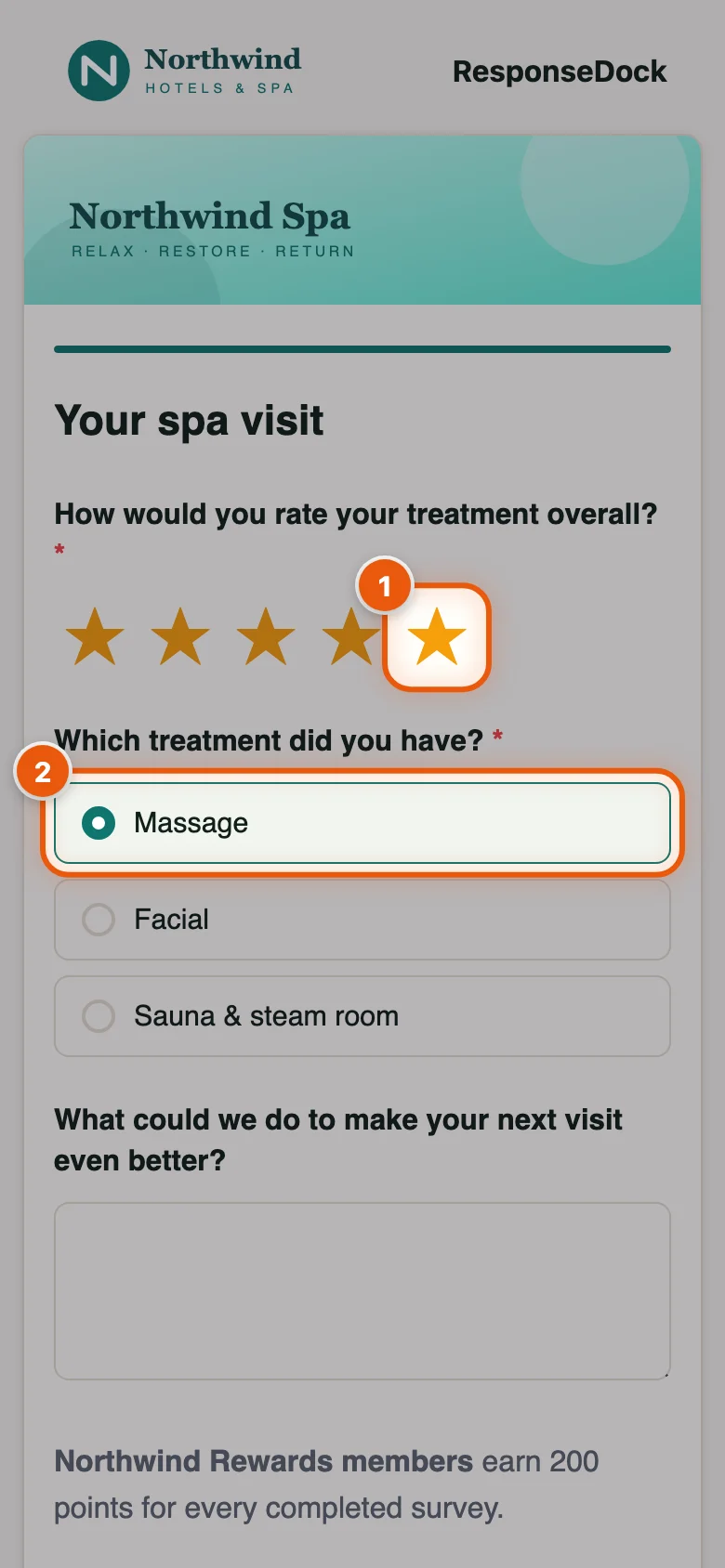
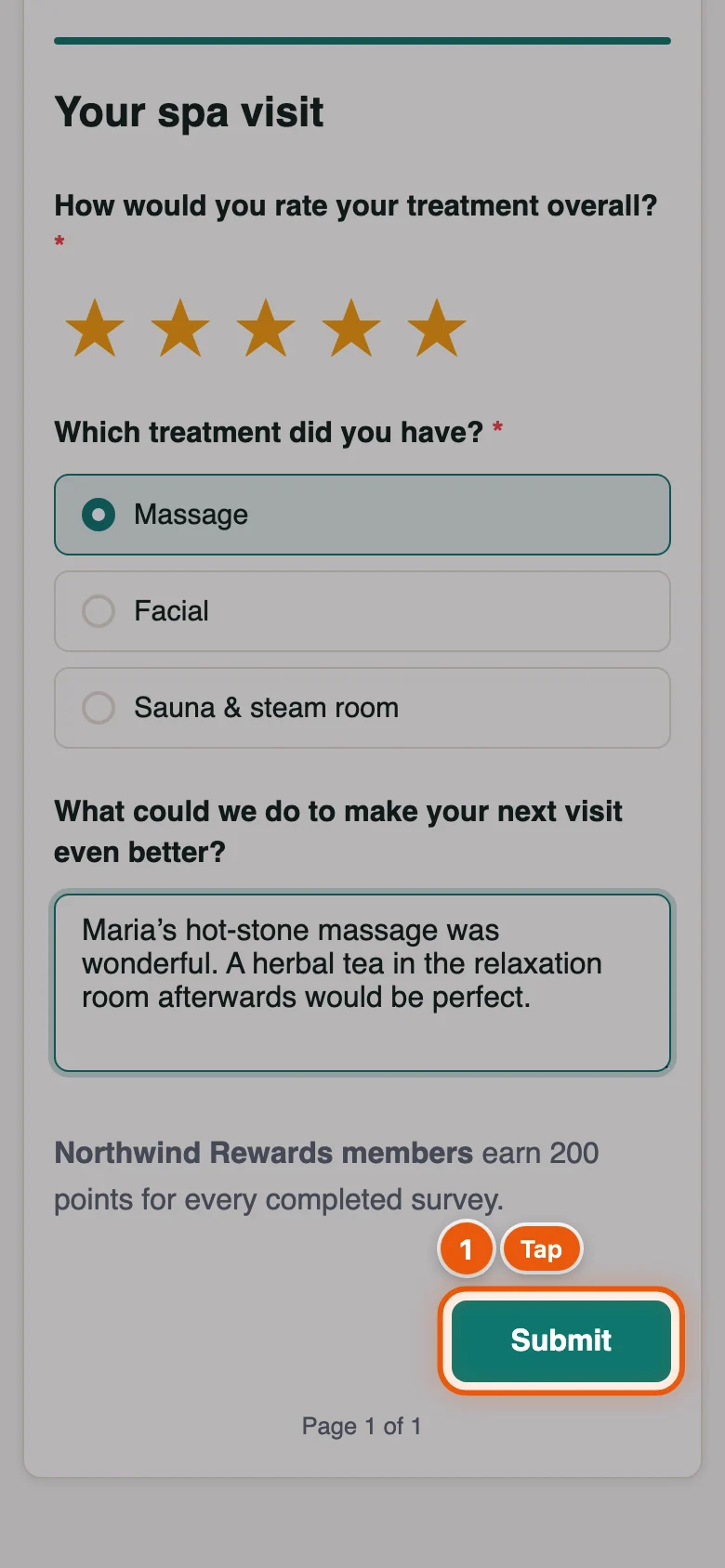
Open the link on your phone, or scan the QR code, to see what a guest sees. After the welcome screen they tap Start and get your page of questions, in your colours, with the logo and banner on top.
- Tap a star to rate the treatment.
- Tap the treatment you had.
Step 17Submit the response
Type an answer to the open question if you like. It's optional. The rewards note you added as an HTML text block appears at the end of the page.
- Tap Submit. If a required question is still empty, it is marked This field is required. and nothing is sent until it's answered.
Step 18See the thank-you screen
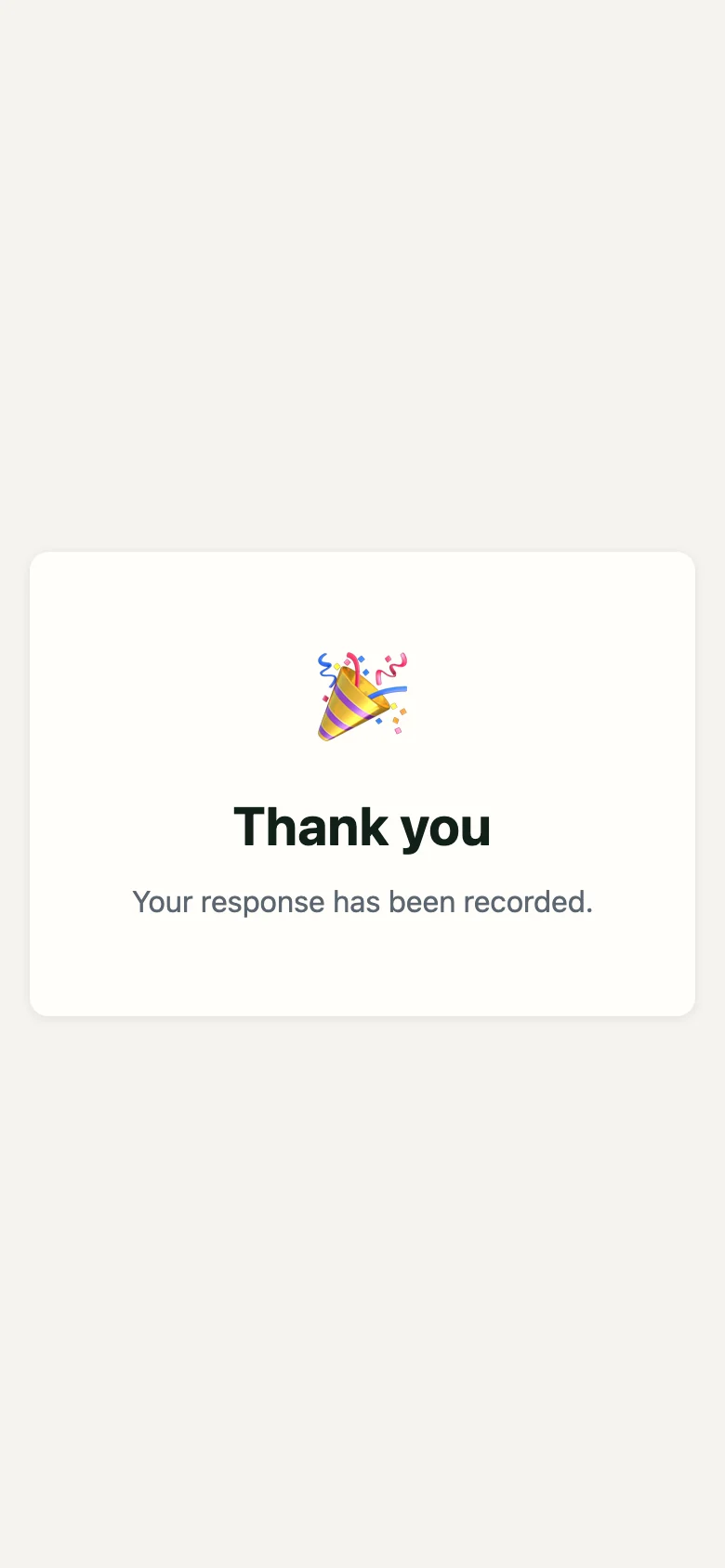
The guest sees a thank-you message, and the response appears in your dashboard straight away. To change this message or add a button, a promo code or a redirect, use the Thank You Screen tab in Branding.
Next tutorial: Review results and export responses →