Use the mobile app on the go
Not every survey is filled in at a desk. In this tutorial Jonas, a housekeeping supervisor at Northwind Hotels, records a room inspection on his phone, and Alex, the manager, checks the results and shares a survey link from the corridor. You'll learn the everyday tasks of the ResponseDock app for iPhone and Android.
The ResponseDock mobile app is coming to the App Store and Google Play. It is not available for download yet; this tutorial shows how it works so you can plan for it. Until it is released, use the web dashboard and share links on any phone browser.
Part 1: Install the app and sign in
Step 1Install ResponseDock on your phone
Once the app is released, search for ResponseDock in the App Store (iPhone and iPad) or on Google Play (Android) and install it. The app uses the same account as the web dashboard, so you don't need to sign up again.
Step 2Sign in
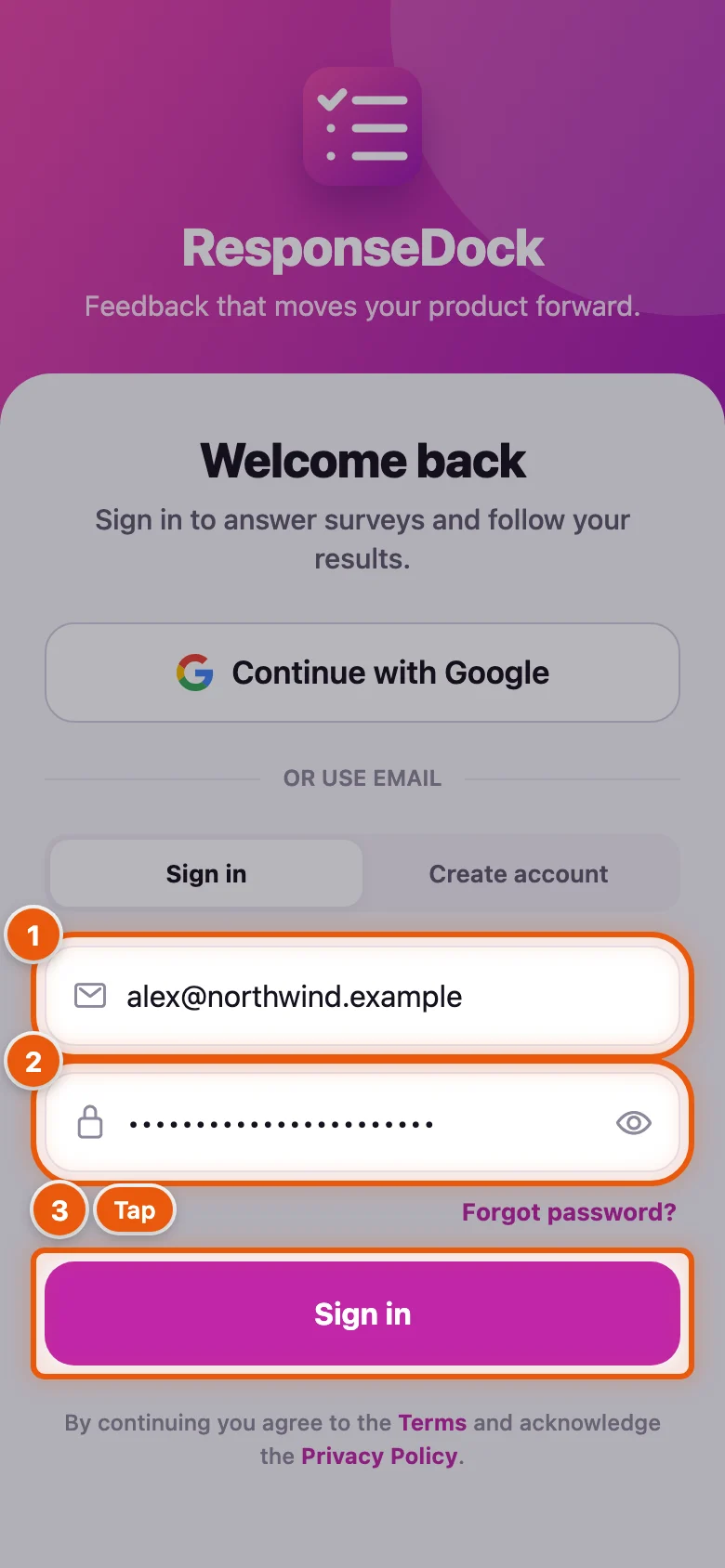
Alex opens the app and sees the Welcome back screen. You can use Continue with Google, or sign in with your email address. On iPhone you may also see Sign in with Apple.
- Type your email address.
- Type your password. Tap the eye icon to check what you typed.
- Tap Sign in.
New to ResponseDock? Switch to Create account above the fields. Forgot your password? Tap Forgot password? to reset it on the web.
Part 2: Find your way around Home
Step 3Get to know the Home screen
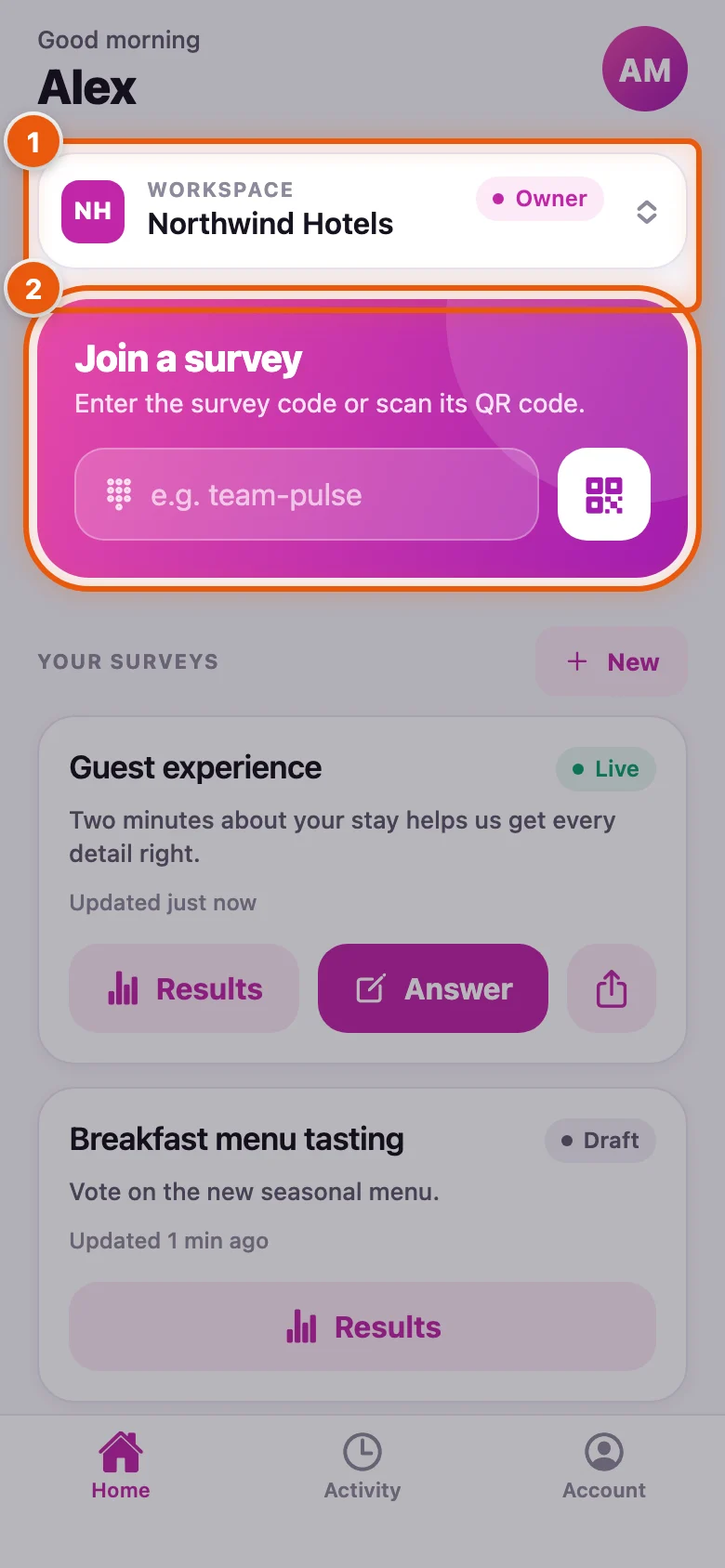
Home greets you by name and lists the surveys in your current workspace under Your surveys. Pull down to refresh. The tab bar at the bottom switches between Home, Activity and Account.
- The Workspace card shows which workspace you're in and your role (Owner, Admin, Editor or Viewer). Tap it to switch.
- Join a survey opens any survey by its code or QR code — you'll use it in Part 3.
Step 4Switch workspace
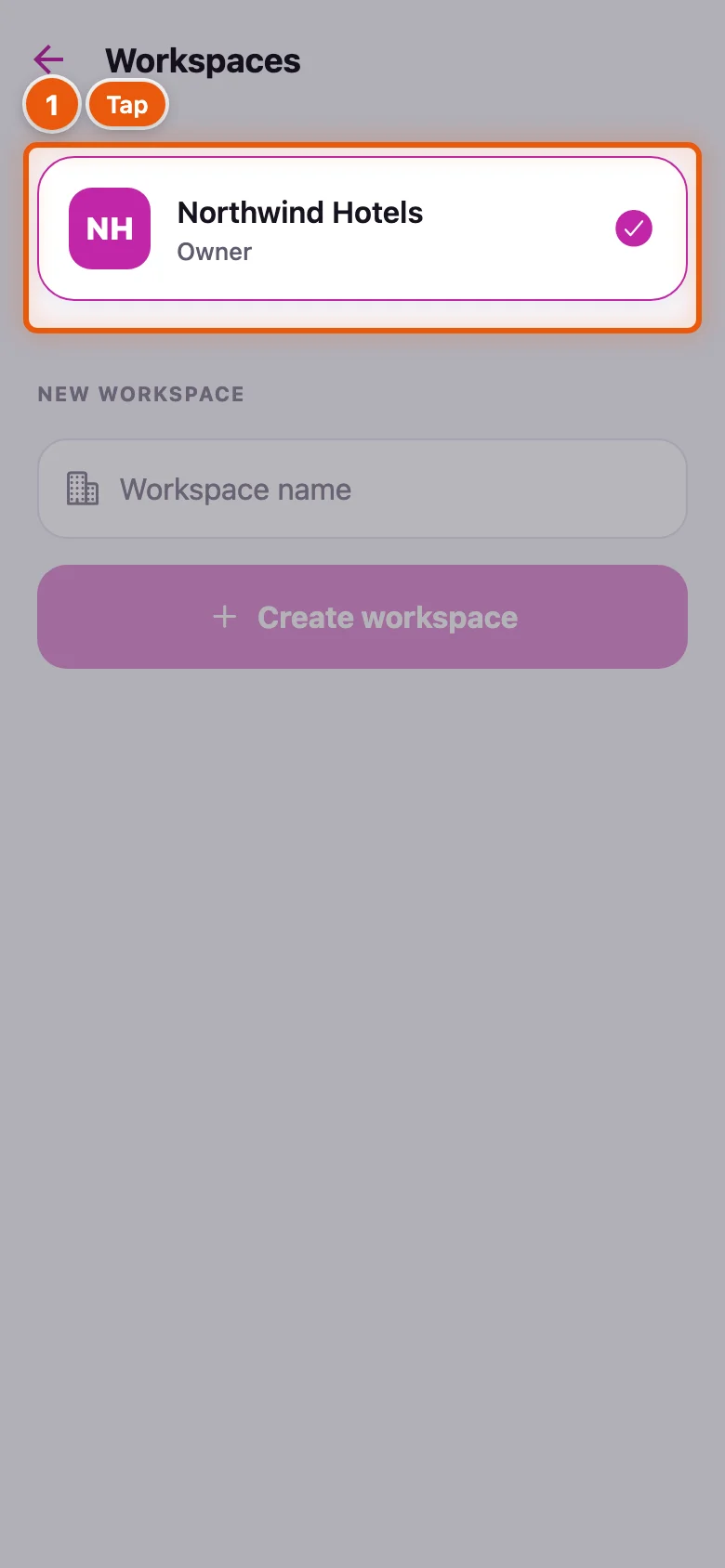
The Workspaces screen lists every workspace you belong to, with your role in each. The current one has a check mark.
- Tap a workspace to switch to it. Home then shows that workspace's surveys.
You can also start a new workspace here: type a Workspace name and tap Create workspace. If your plan doesn't include another workspace, the app tells you to upgrade in the web dashboard.
Step 5Read a survey card
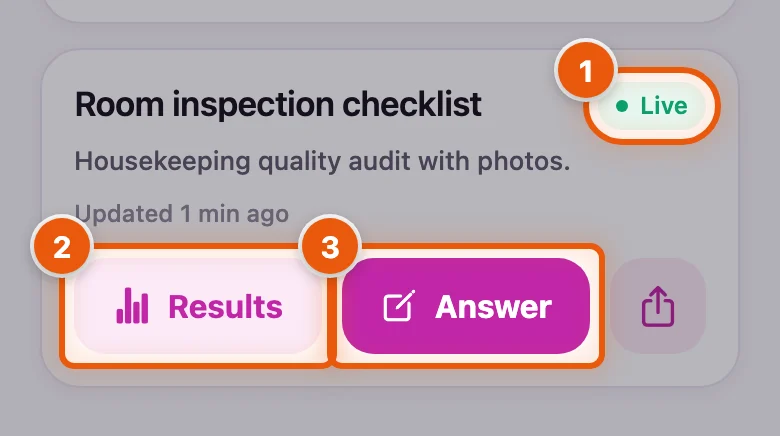
Each card shows the survey's title, description and when it was last updated.
- The status badge: Live surveys accept responses; Draft, Scheduled, Paused and Closed ones don't.
- Results opens the survey's live results (Part 4).
- Answer takes the survey yourself — handy to test it before you send it out. Only live surveys have it.
Owners, admins and editors also see a New button above the list. It creates a draft survey with just a title; you add questions and publish it from the web dashboard.
Part 3: Answer a survey in the field
Alex has asked Jonas to inspect room 418 before the next guest arrives. Jonas signs in to the app with his own account. He doesn't need to be a member of the workspace to answer — the survey code is enough.
Step 6Join with the survey code
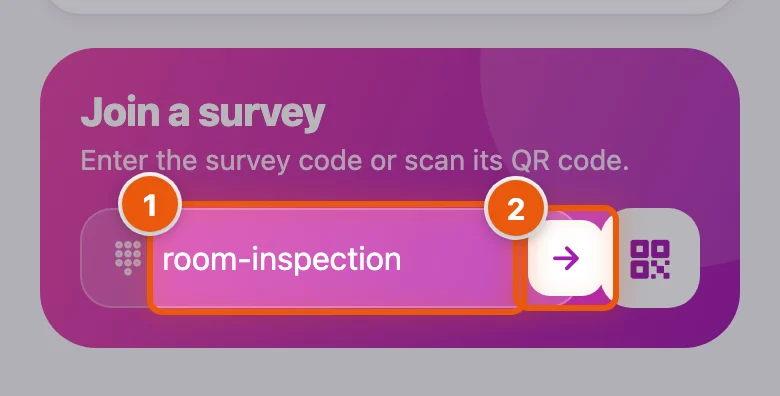
The code is the last part of the survey link, for example room-inspection. You can also paste the whole survey link.
- Type the survey code in Join a survey.
- Tap the arrow button (or the return key) to open the survey.
Step 7Or scan the survey's QR code
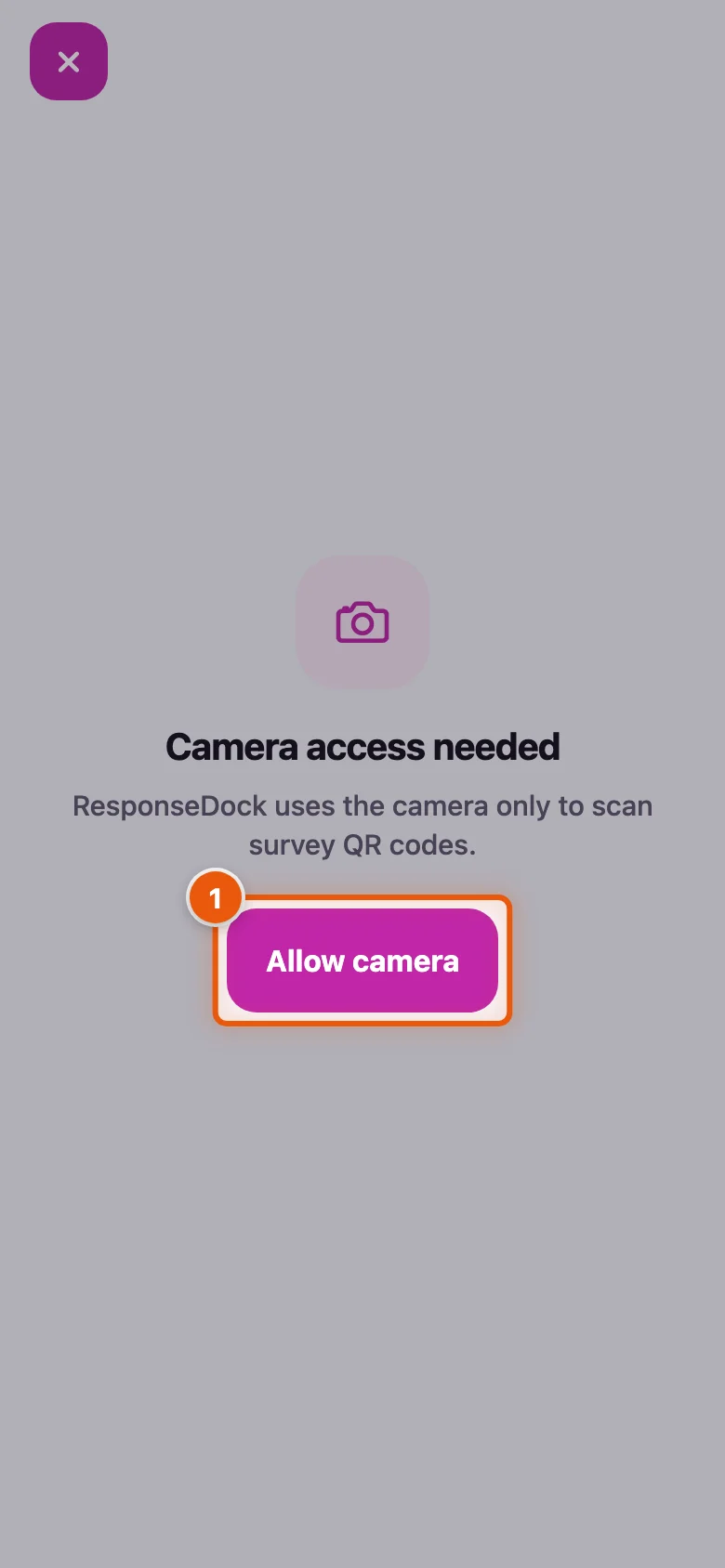
If the survey's QR code is printed on a door tag or a checklist, tap the QR button next to the code field instead. The first time, the app asks for camera access — it uses the camera only to scan survey QR codes.
- Tap Allow camera, then point the camera at the QR code. The survey opens as soon as the code is recognised.
If the camera sees a QR code that isn't a ResponseDock survey, the scanner says so and keeps looking. Close it with the × button. If you denied camera access earlier, the button reads Open Settings so you can turn it back on.
Step 8Start the survey
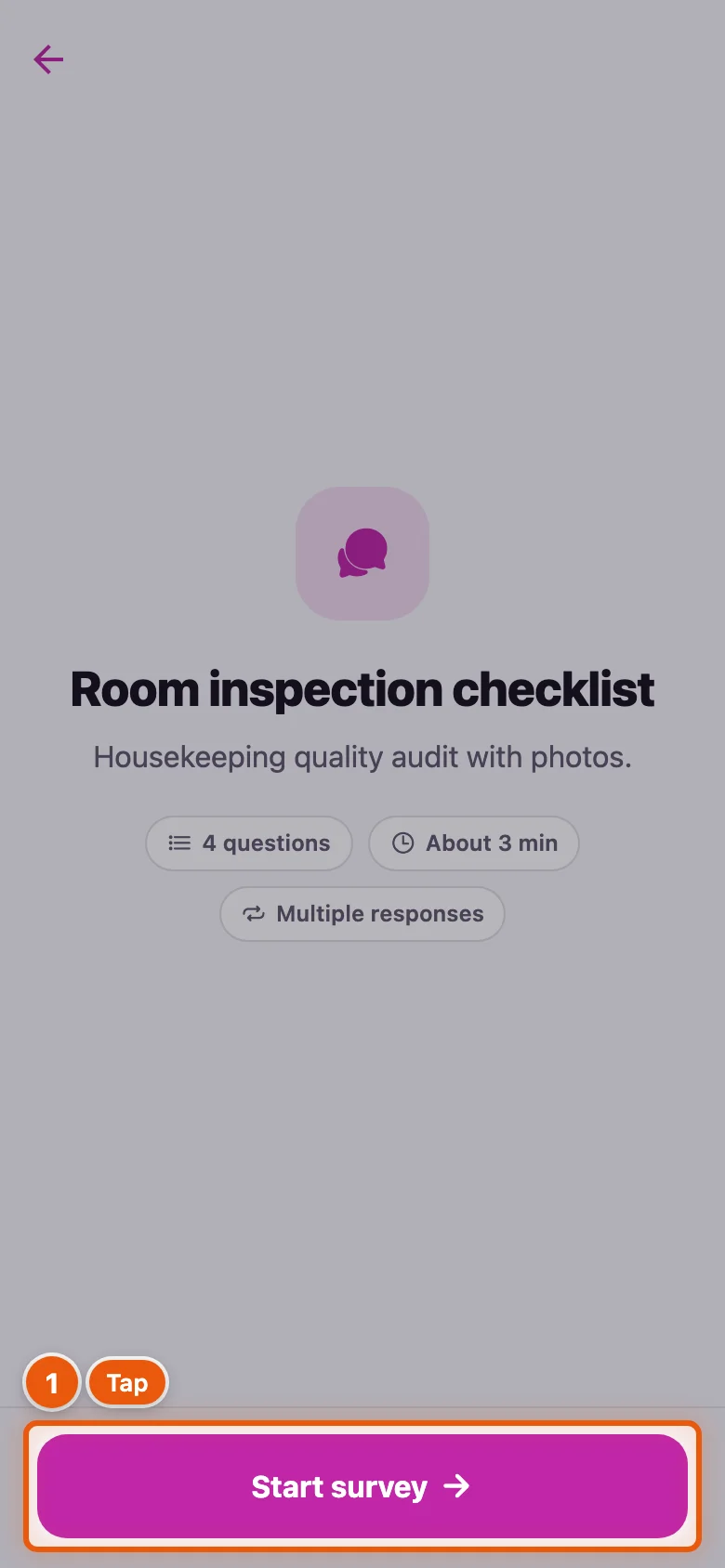
The start screen shows the title, description, number of questions, the estimated time, and whether you can respond more than once. If the survey has its own branding, the app uses its colours and images.
- Tap Start survey.
The button changes when you've been here before: Continue survey picks up an unfinished response, and Answer again appears when the survey accepts more than one response from you.
Step 9Answer the questions
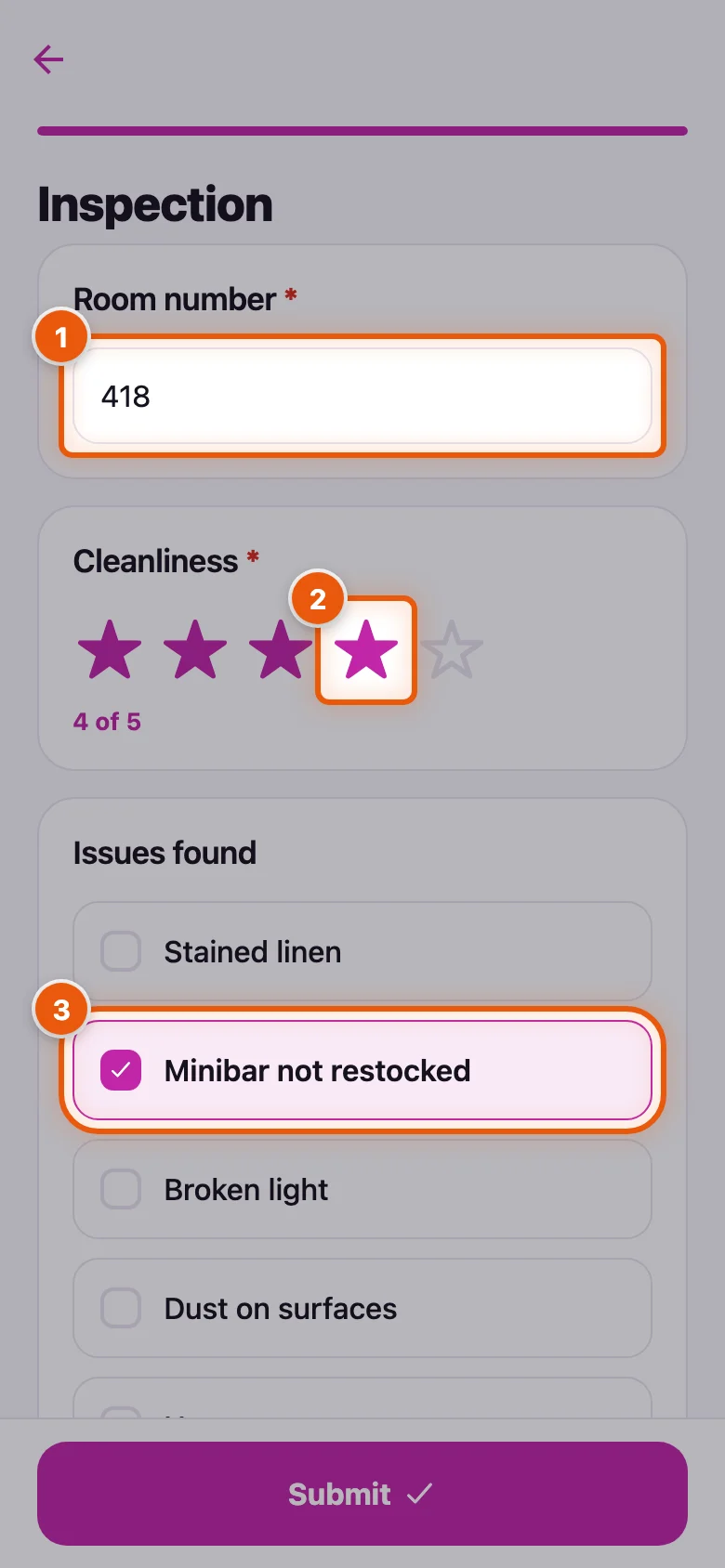
Questions marked with a red asterisk are required.
- Type the Room number.
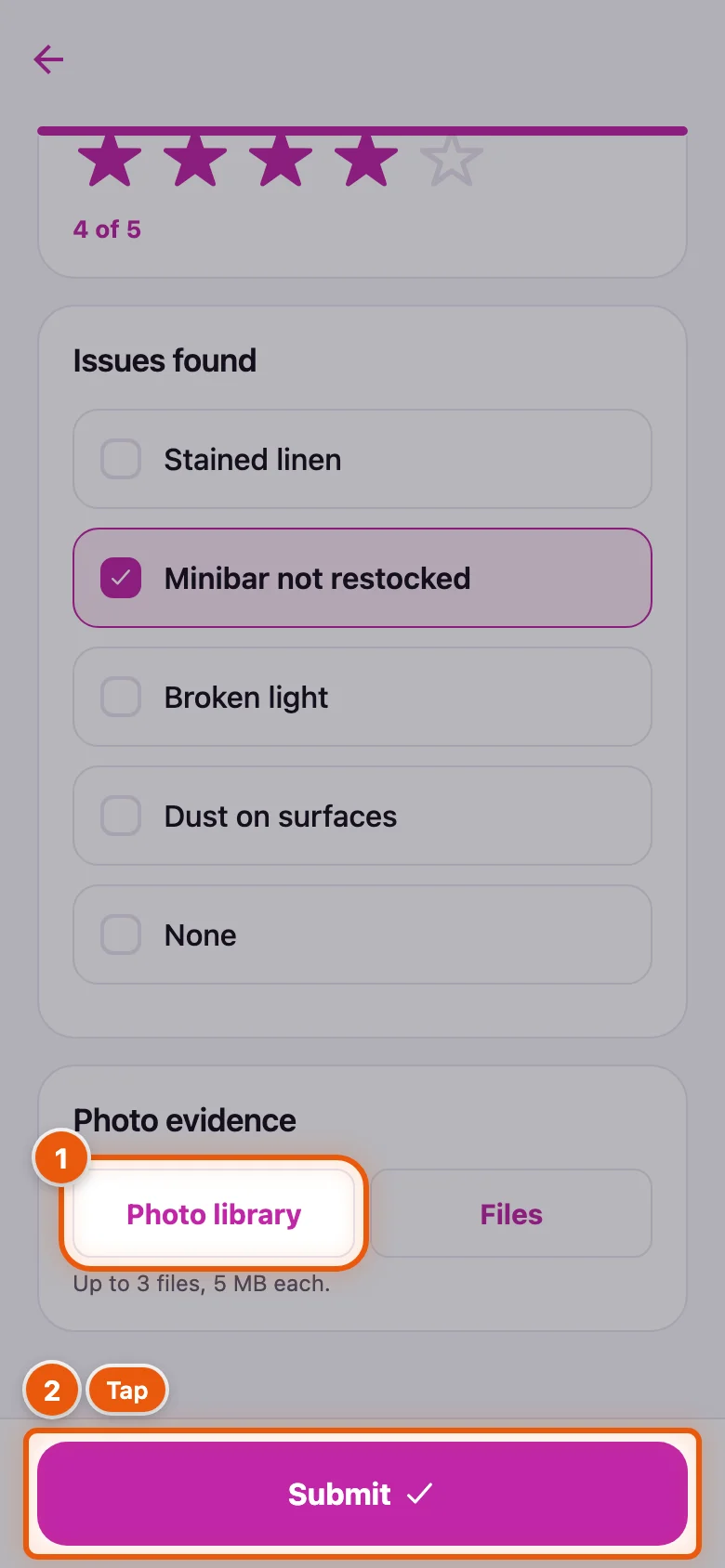
- Tap a star to rate Cleanliness — here 4 of 5.
- Tick every issue you found, such as Minibar not restocked.
Longer surveys are split into pages: a progress bar runs along the top, and you move with Next and Back. If something is missing, the app scrolls up and marks the questions that need your attention.
Step 10Add a photo and submit
Photo questions accept pictures straight from the phone. The line under the buttons shows how many files you can add and how big they may be.
- Tap Photo library and pick one or more photos. Use Files for documents. Each file uploads right away and appears below the buttons with a Remove link.
- Tap Submit.
Your answers are sent when you tap Submit. If you close the app halfway through, the survey shows up as In progress in Activity and you start again from the first page.
Step 11Finish
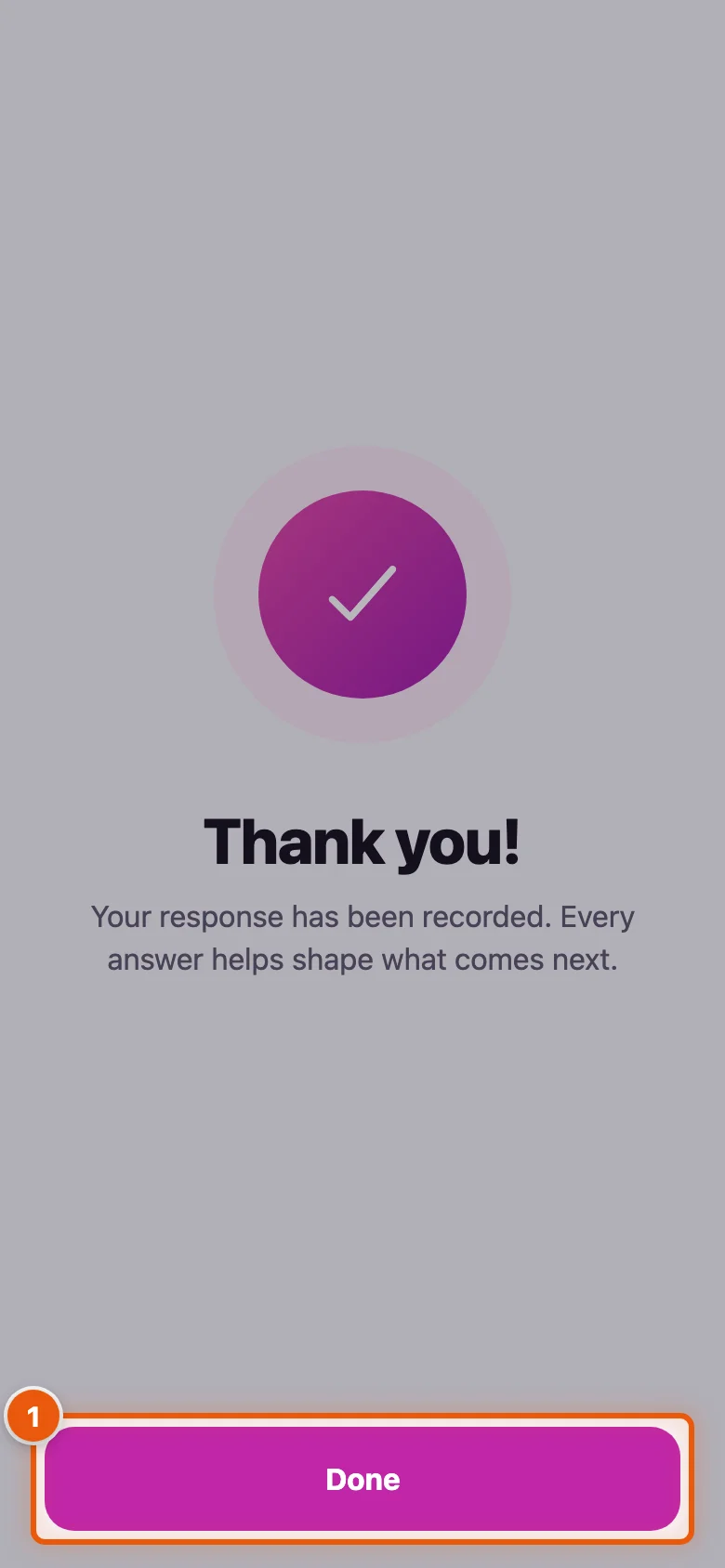
The thank-you screen confirms that the response was recorded. Quizzes show your score instead.
- Tap Done to go back to Home.
Part 4: Check results on the go
Back on his own phone, Alex wants to see how this week's inspections went.
Step 12Open the results overview
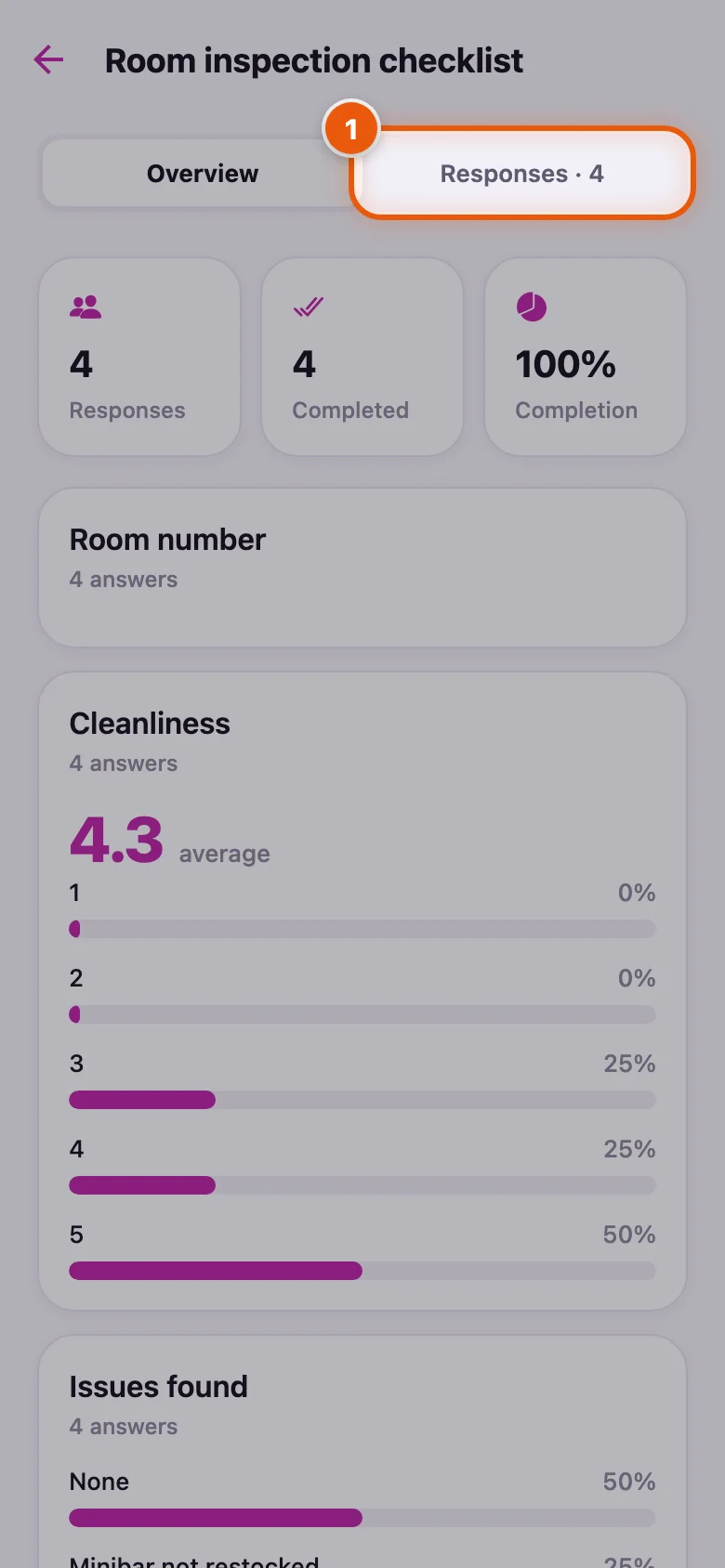
Tap Results on a survey card. Overview starts with three tiles — Responses, Completed and Completion — followed by a card per question: the average for ratings and numbers, the NPS score with detractors, passives and promoters, bars for choice questions, and recent quotes for text answers. Pull down to refresh.
- Tap Responses to see the individual responses. The number is the count of completed responses.
Step 13Browse the responses
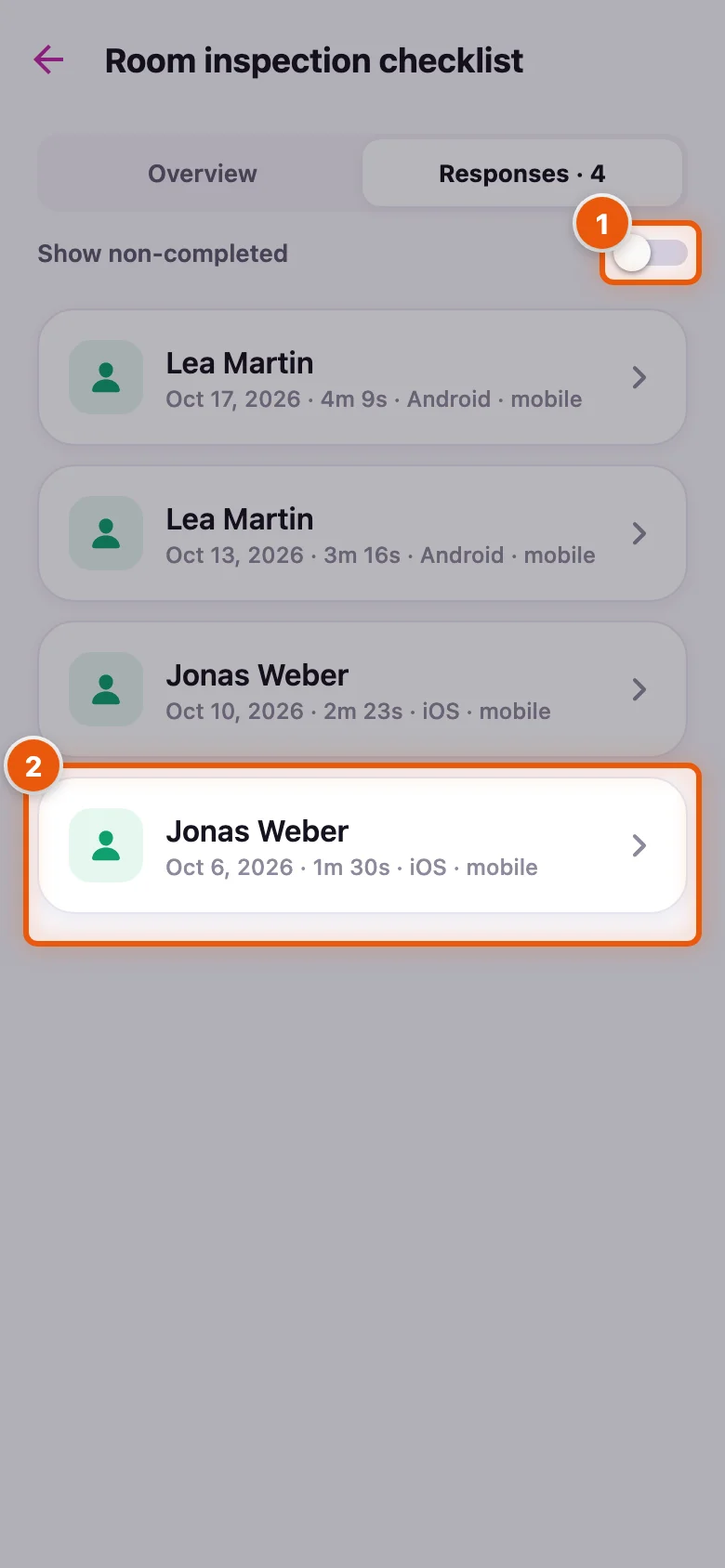
Each row shows who responded (or Anonymous), when, how long it took and on which device. By default only completed responses are listed.
- Turn on Show non-completed to include responses that are still in progress.
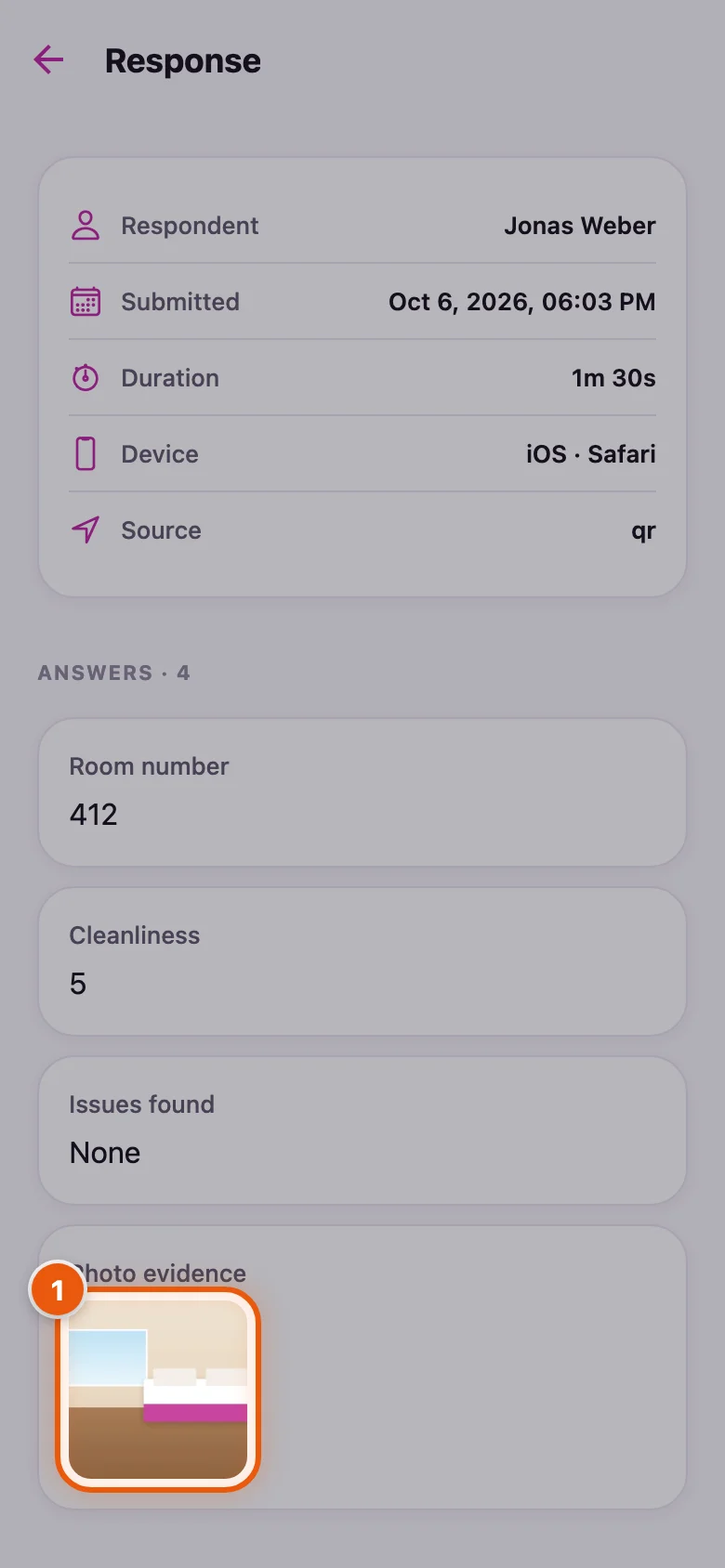
- Tap a response to open it — here Jonas's inspection of room 412.
Step 14Read a response and its photos
The top card shows the respondent, submission time, duration, device and source. Below it is every answer. Photos appear as thumbnails; other files are listed with their size and a download icon. Files that were permanently deleted stay listed, crossed out, with who deleted them and when.
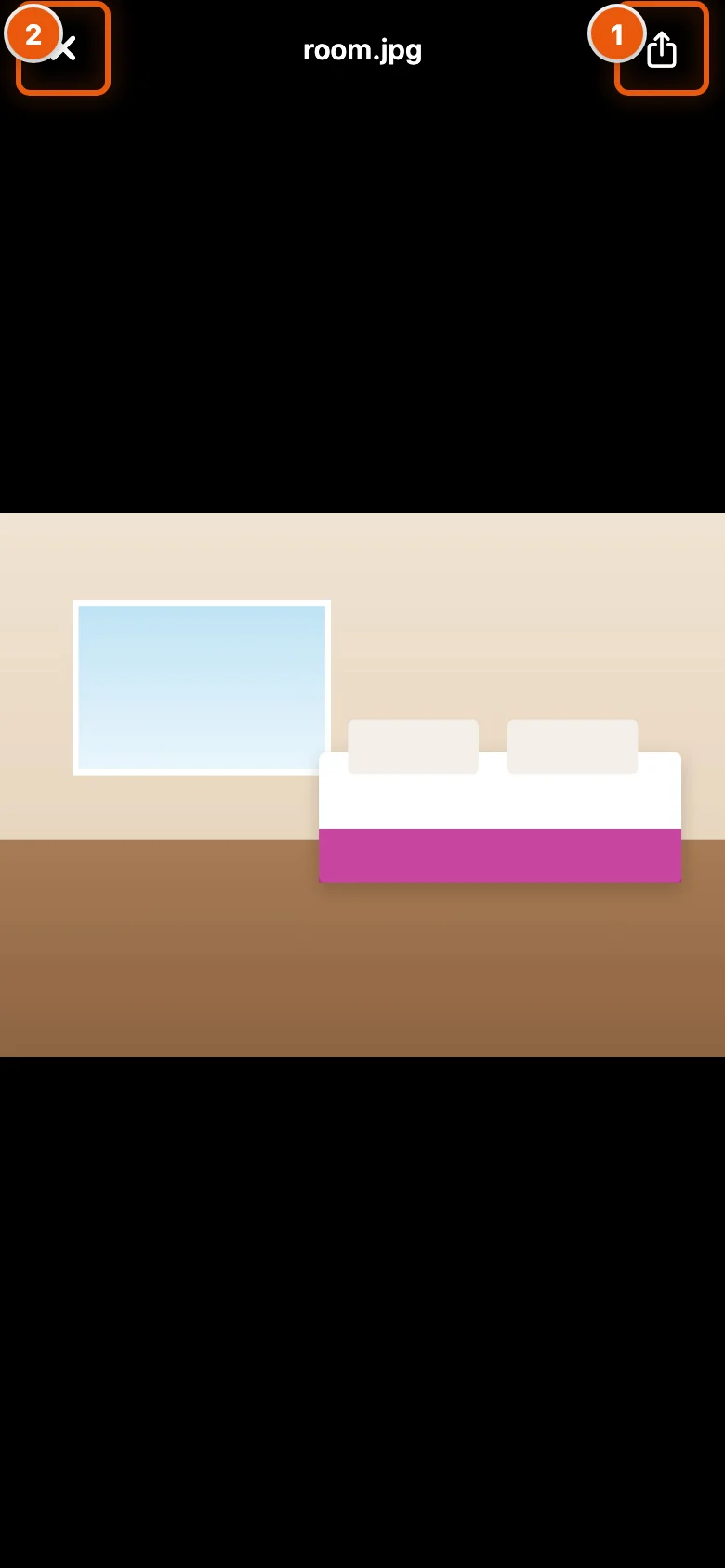
- Tap a thumbnail to see the photo full screen.
Step 15View, save or forward a photo
The photo opens on a dark background with its file name at the top.
- Tap the share icon to save the photo or send it on — for example to the maintenance team.
- Tap × to close the viewer.
Confidential files carry a lock and are visible only to the survey's author. For exports and deeper analysis, use the web dashboard.
Part 5: Share a survey link
Step 16Send the survey to your team
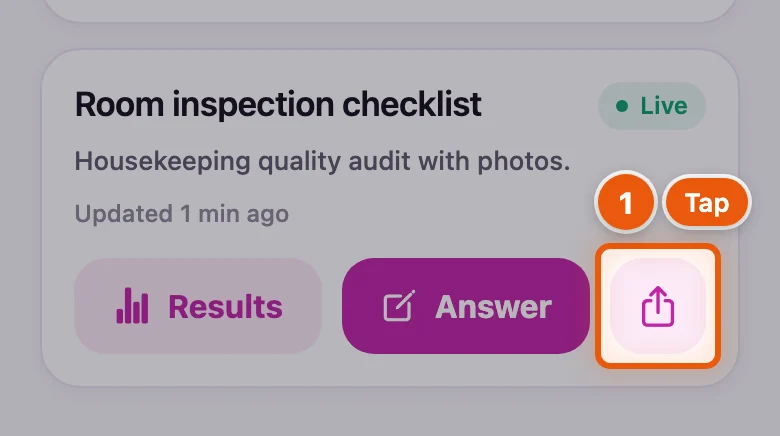
Alex wants the evening shift to use the same checklist. Every live survey card has a share button.
- Tap the share icon. Your phone's share sheet opens with the survey title and its link, ready for Messages, WhatsApp, email or any other app.
Recipients can answer in any browser, or open the survey in the app with the code from the link.
Part 6: Your activity and account
Step 17Check your activity
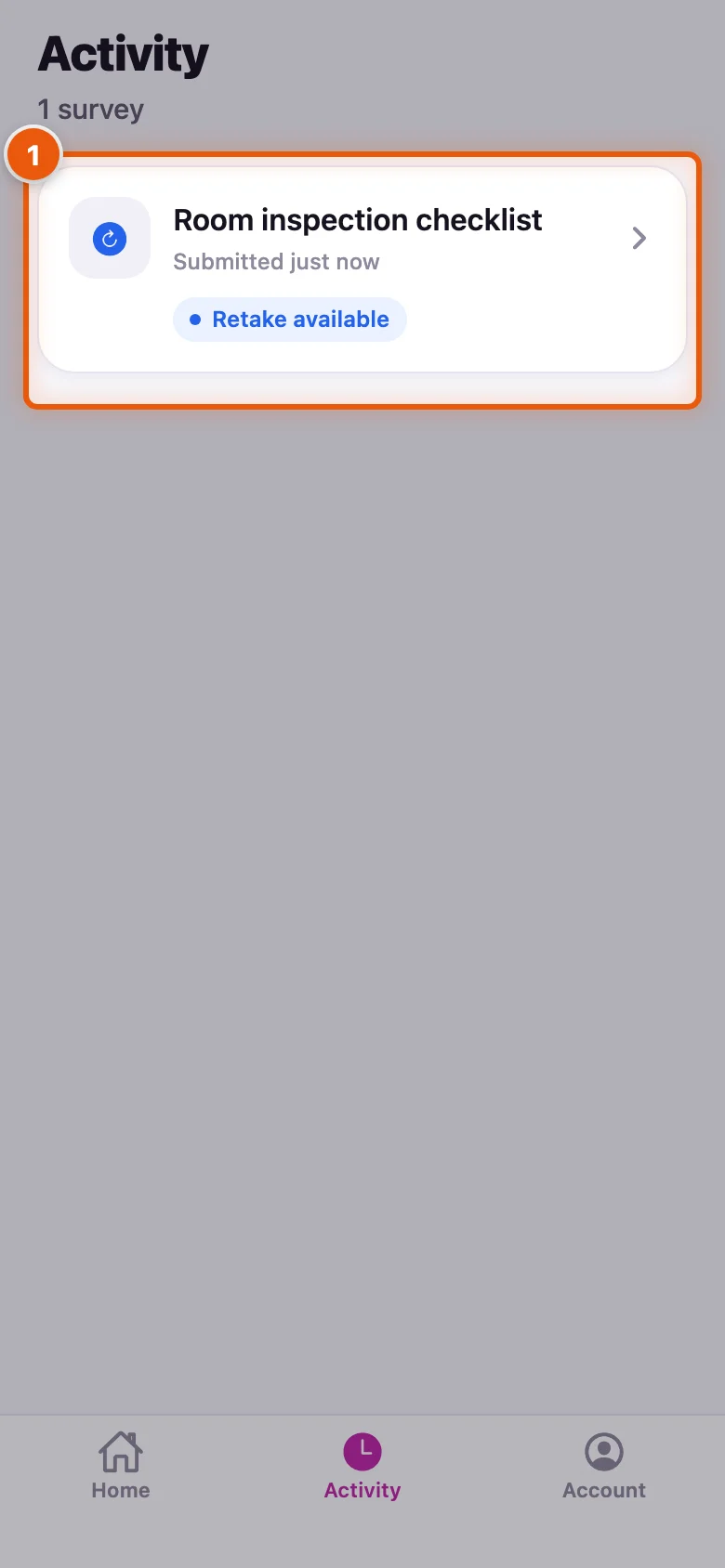
The Activity tab is your own history as a respondent. Jonas sees the inspection he just submitted. Each survey has a badge: In progress (you started but didn't submit), Retake available (you can answer again) or Completed.
- Tap an in-progress or retake survey to open it again.
Step 18Manage your account
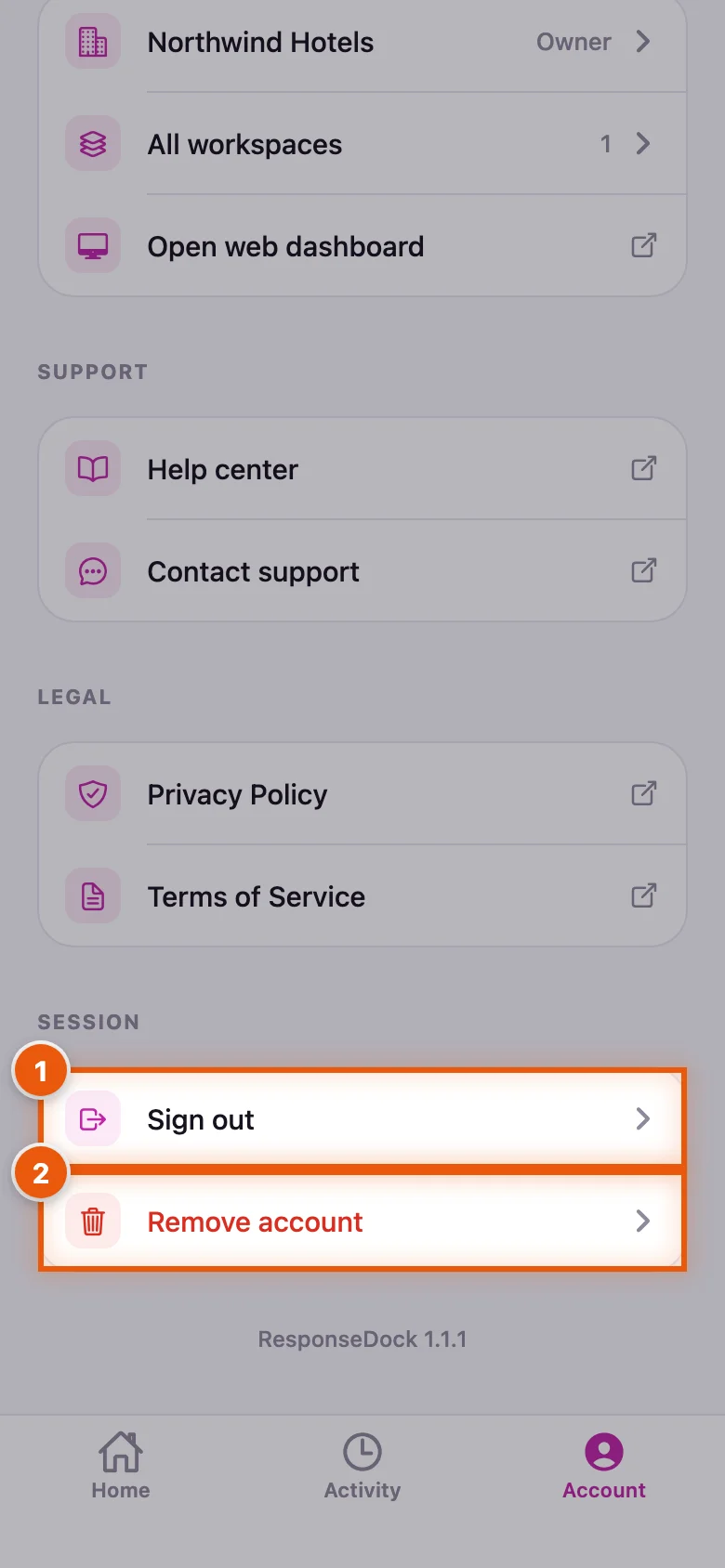
The Account tab (or your avatar on Home) shows your profile, your current workspace and role, All workspaces, Open web dashboard, help and legal links.
- Tap Sign out and confirm to sign out of the app.
- Tap Remove account to delete your account. Confirm with Email confirmation; we email you a link, and your account is deleted only after you open it within 24 hours.
Removing your account is permanent. Workspaces you own alone are deleted with their surveys and responses. In shared workspaces your membership and personal login data are removed, but the organisation keeps its records. See the Mobile App guide for details.
Next tutorial: Set up your workspace, team and integrations →